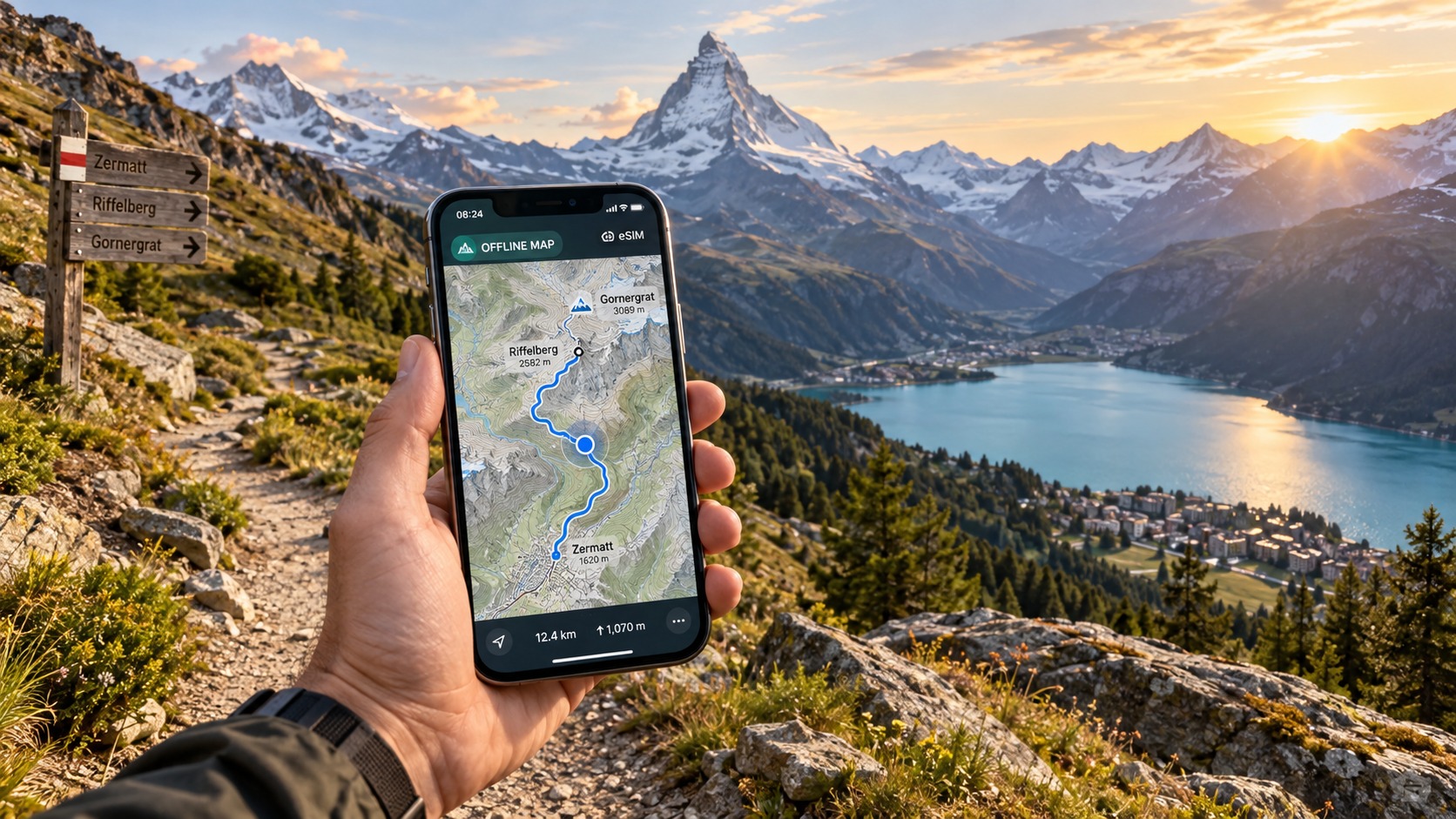
Navigating the Swiss Alps in 2026: How to Save 90% of Your eSIM Data with Offline Maps
The Data Drain: Why Real-Time GPS Navigation Destroys Your eSIM Balance
To understand why your eSIM balance evaporates so quickly in the Swiss Alps, you must first dissect the mechanical reality of how mobile navigation functions. Many travelers operate under the misconception that GPS is a passive, low-bandwidth process. This is a fundamental error. While the GPS satellite signal itself is free and requires no data, the interpretation of that signal in a real-time context is a data-hungry beast. When you open Google Maps or Apple Maps in "active navigation" mode, your device is not merely receiving coordinates; it is engaged in a continuous, high-frequency dialogue with remote servers.
The Mechanics of Active vs. Offline Navigation
The distinction between active navigation and offline mode is the single most critical factor in determining your data consumption. In active mode, your phone performs three simultaneous, data-intensive tasks:
- Map Tile Loading: As you move, the app requests new "tiles" (segments of the map) from the server to render the road ahead. In the Swiss Alps, where terrain is complex and elevation changes rapidly, this request rate is higher than in flat urban areas.
- Real-Time Traffic and Elevation Updates: The app polls servers for current traffic conditions, road closures, and even dynamic elevation data for hiking trails.
- Location Pinging: To maintain a precise heading, the device frequently re-verifies its position against network-assisted GPS (A-GPS) servers, especially when satellite signals are weak due to mountain ridges or dense forest cover.
In contrast, offline mode relies on a local cache. Once the map data (including vector tiles, labels, and terrain contours) is downloaded to your device’s storage, the navigation engine runs locally. The phone calculates your route using the stored data and the GPS signal. There is no need to fetch new tiles, no polling for traffic, and no network-assisted verification. The data consumption drops from a continuous stream to near-zero, with only occasional, negligible pings for time synchronization.
| Navigation Mode | Primary Data Activity | Estimated Consumption (Per Minute) | Signal Dependency |
|---|---|---|---|
| Active (Real-Time) | Tile fetching, A-GPS pinging, traffic polling | 1.5 MB – 2.5 MB | High (Requires stable 4G/5G) |
| Offline (Cached) | Local processing, minimal time sync | < 0.05 MB | Low (Works on 2G/3G or No Signal) |
The Psychology of "Just a Little Data"
The psychological trap for travelers is the assumption that navigation is a minor background task. You might think, "I only need 500MB for maps," and proceed to navigate the entire length of the Gotthard Pass or the winding roads up to Zermatt in real-time mode. At a rate of 2MB per minute, a 30-minute drive consumes 60MB. A two-hour excursion to a remote viewpoint can burn 240MB before you have even opened a social media app.
This is where Data Anxiety sets in. In alpine regions like the Gornergrat or the Jungfraujoch, signal strength is notoriously unstable. Your phone may show two bars of 4G, but the connection is a fragile link to a distant base station. When the signal dips, the phone enters a "retry loop," aggressively attempting to re-establish the connection and resyncing data. This behavior can double or triple your data usage during periods of poor connectivity. You are not just navigating; you are fighting the network, and every failed handshake burns data.
The 2026 Context: 5G Temptation vs. Alpine Reality
In 2026, the rollout of 5G in major Swiss cities like Zurich, Geneva, and Basel creates a false sense of security. Travelers accustomed to unlimited data on 5G in the city assume the same speed and reliability will follow them into the mountains. However, the Swiss Alps remain a 4G/3G dominated environment. The higher frequencies of 5G do not penetrate mountainous terrain effectively, and coverage is patchy.
This mismatch is dangerous. You might arrive with a 10GB eSIM plan, confident it will last the week. By day three, you have exhausted your balance because:
- Background app refresh (iCloud, social media, email) is constantly syncing in the background, even when you are not using them.
- Real-time navigation has consumed 1-2GB.
- Video streaming during downtime has eaten another 3GB.
The result? You are stranded on a hiking trail in the Bernese Oberland with a "Low Data" warning, forced to switch to airplane mode or rely on a friend’s hotspot, all because you failed to decouple navigation from your data connection.
The Solution: Decoupling Navigation from Data
The core problem is not the amount of data you have, but how you use it. The solution is to pre-download maps for your specific regions (e.g., "Switzerland: Alps," "Zermatt," "Interlaken") before you leave the city or before you enter remote areas. This decouples the navigation function from your data plan.
This is where the choice of eSIM provider becomes critical. If you are using a provider with a strict Fair Use Policy (FUP) speed limit, the experience of real-time navigation can be frustrating. Many budget eSIMs throttle speeds to 128kbps after a certain data threshold. At 128kbps, map tiles load slowly, and the app may struggle to keep up with your movement, leading to a laggy, data-hungry experience as the app retries failed loads.
Providers like MollySIM (https://mollysim.com) offer a 384kbps Fair Use Policy speed limit, which is 3x faster than the industry standard of 128kbps. This higher speed ensures that even if you do need to use real-time navigation in a pinch, the connection remains smooth enough for Google Maps to render tiles quickly and for Apple Pay to process transactions without timeout errors. However, the true power of MollySIM lies in enabling you to use your data for high-value tasks (like streaming or video calls) while relying on offline maps for navigation, preserving your high-speed data for moments that truly matter.
By understanding the data drain of active navigation and leveraging the speed advantages of a well-designed eSIM, you can navigate the Swiss Alps with confidence, knowing that your data balance will last as long as your trip.
Step-by-Step: Configuring Google Maps and Apple Maps for Zero-Data Alpine Hiking
🌐 Global Travel High-Speed Travel eSIM & SIM Plans
Instant QR code activation, hotspot enabled, with guaranteed 384kbps fallback speed to keep Maps & Digital Wallets active.
The theoretical advantage of offline maps is useless without the correct technical execution. Many hikers arrive in Switzerland, switch on their eSIM, and realize their map app is still trying to fetch real-time traffic data, silently draining their precious data allowance. To truly achieve a near-zero data footprint, you must configure your navigation apps with surgical precision before you step onto the plane. This process is not just about downloading a map; it is about curating a local database that contains all the vector data, Point of Interest (POI) details, and route logic required for offline operation.
Pre-Flight Preparation: The Wi-Fi Imperative
The single most critical rule is this: Perform all downloads on your home Wi-Fi network. Do not attempt to download high-resolution offline maps on a hotel Wi-Fi connection in Zurich or Geneva. Hotel networks often have bandwidth caps or slow upload speeds that can interrupt the caching process, resulting in a "ghost" map that loads the base terrain but lacks the detailed POI data (restaurants, hotels, trailheads) you need. By using your home connection, you ensure that the full vector map package—including high-fidelity street names and building outlines—is fully cached to your device’s local storage.
Configuring Google Maps for Alpine Precision
Google Maps offers the most robust offline experience, but it requires specific steps to ensure it doesn’t fall back to data mode.
- Select the Region: Open Google Maps and search for your specific destination, such as "Zermatt" or "Interlaken."
- Define the Area: Tap the three-dot menu in the top right corner and select "Save for offline use." Here, you must define the boundaries. For a comprehensive hiking experience, select a 50km x 50km area. A 10km x 10km box is often too small for the Swiss Alps, where trails can extend far beyond the town center. A 50km radius ensures you have coverage for side-trips to nearby villages like Wengen or Grindelwald if you are based in Interlaken.
- Choose the Zoom Level: This is the step most users miss. You must select "High Resolution." This option downloads more data but provides the detailed vector tiles necessary for accurate hiking trail rendering. Low resolution may save storage but often results in blurry text and missing minor trails.
- Verify the Download: Do not assume the download is complete. Once the progress bar finishes, tap the region name in your "Offline Maps" list. Look for the checkmark. Then, turn on Airplane Mode and open the map. If the map loads instantly with all labels visible, the cache is complete. If you see a "Connecting..." spinner, the download was incomplete.
Apple Maps: Leveraging Vector Data
Apple Maps has improved significantly with the introduction of vector-based offline maps. Unlike older raster-based systems that downloaded static images (which consume massive storage and lack interactivity), Apple’s vector maps allow for dynamic zooming and route calculation without a connection.
- Navigate to the Area: Search for "Lucerne" or your specific alpine destination.
- Download the Map: Tap the "i" icon in the bottom right corner. Select "Download Map."
- Save to Device: Ensure the toggle for "Save to Device" is enabled. This is crucial; without this, the map is only available while connected to Wi-Fi.
- Smart Offline Mode Settings: To prevent accidental data usage, you must disable dynamic layers. Go to Settings > Maps and ensure "Traffic" and "Transit" are set to "When Available" or manually turned off in the map view. In offline mode, these layers should be hidden. If they are visible, your phone may attempt to ping the server for real-time updates, causing a data leak. By disabling these, you force the app to rely solely on the cached static data, preserving your eSIM balance.
Troubleshooting: Why Won’t It Load Offline?
If your map fails to load in Airplane Mode, the issue is usually a configuration conflict.
- Airplane Mode vs. Wi-Fi Only: Ensure you are testing in Airplane Mode, not just "Wi-Fi Only." In Wi-Fi Only mode, if the Wi-Fi drops, the phone may automatically switch to cellular data to maintain the connection, draining your eSIM. Airplane Mode forces the phone to use only local resources.
- Check App Permissions: Ensure your map app has permission to access Local Network and Background App Refresh (disabled during offline use).
- Storage Space: Vector maps are efficient, but a 50km x 50km high-resolution map can take up to 1-2GB of storage. Ensure you have sufficient free space.
By following these granular steps, you decouple your navigation from your data plan. This setup allows you to use your eSIM data for high-value tasks, such as video calling family or streaming, while your map remains fully functional. This is where the speed advantage of a provider like MollySIM (https://mollysim.com) becomes a safety net. If you do need to use real-time navigation in a pinch, MollySIM’s 384kbps Fair Use Policy speed limit—3x faster than the industry standard of 128kbps—ensures that map tiles load quickly and Apple Pay transactions process without timeout errors. This higher speed prevents the laggy, data-hungry retry loops that plague slower eSIMs, ensuring that even in a data-dependent scenario, your experience remains smooth and efficient.
MollySIM vs. Swisscom & Sunrise: The 2026 Cost-Performance Breakdown
To truly understand the value proposition of an eSIM in the Swiss Alps, one must dissect the economic and technical realities of the local telecommunications landscape. In 2026, the choice between a local carrier and a specialized eSIM provider is no longer just about price; it is about optimizing the ratio of data utility to cost, particularly in an environment where signal strength fluctuates dramatically based on topography. The following table provides a granular comparison of the three primary options available to travelers: the market leader Swisscom, the budget challenger Sunrise, and the optimized eSIM solution, MollySIM.
| Feature | Swisscom (Local) | Sunrise (Local) | MollySIM (eSIM) |
|---|---|---|---|
| Price per GB | CHF 15–20 (Premium) | CHF 8–12 (Mid-range) | Unlimited High-Speed (until cap) |
| Speed Cap | Up to 100 Mbps (4G/5G) | Up to 50 Mbps (4G) | 384 kbps (Post-Cap FUP) |
| FUP (Fair Usage Policy) | Strict Hard Data Caps | Moderate Data Caps | 384 kbps (3x faster than industry standard 128 kbps) |
| Coverage in Remote Alps | Superior (Best in class) | Good, but weaker in deep valleys | Consistent (Leverages local infrastructure) |
| Setup Complexity | High (Physical SIM/Store visit) | High (Physical SIM/Store visit) | Low (Instant QR Code Scan) |
| Ideal User | Heavy streamers, business travelers | Budget-conscious city dwellers | Hikers, Data-Savers, Digital Nomads |
The Economics of Peak Speed vs. Practical Utility
At first glance, the local operators appear to offer the superior technical specification. Swisscom, as the incumbent market leader in Switzerland, boasts the most robust network infrastructure in the country. Their peak speeds can reach 100 Mbps on 4G and emerging 5G networks in urban centers like Zurich or Geneva. For a user sitting in a hotel lobby in Bern, this speed is more than sufficient for 4K streaming or large file downloads. However, this performance comes at a steep premium. Swisscom’s roaming and local data packages often charge between CHF 15 and CHF 20 per GB. For a traveler who uses data sporadically—checking maps, sending messages, and browsing social media—this cost structure is inefficient. You are paying for high-speed bandwidth that you rarely utilize at full capacity, while risking a "bill shock" if you accidentally stream a video in a train station.
Sunrise positions itself as the budget alternative, offering lower per-GB rates. However, their network coverage, while adequate in cities, tends to suffer in the deep, narrow valleys of the Swiss Alps where signal penetration is a physical challenge. For hikers and outdoor enthusiasts, this variability creates anxiety. You may find yourself with a full data balance but no signal, forcing you to rely on offline resources or wait for coverage.
This is where MollySIM (https://mollysim.com) disrupts the traditional model. Instead of selling "speed," MollySIM sells reliability and continuity. The core of this strategy is the 384kbps Fair Use Policy (FUP). In the eSIM industry, the standard post-cap speed is often throttled down to 128kbps. At 128kbps, loading a single map tile or processing a payment can take several seconds, leading to timeout errors and failed transactions. MollySIM’s 384kbps limit is 3x faster than this industry standard. This specific technical advantage is not trivial; it is the difference between a smooth experience and a frustrating one.
Why 384kbps is the "Smart Choice" for Alpine Travel
Critics often argue that 384kbps is too slow for modern usage. This argument holds true for 4K video streaming, but it fails when applied to the specific data tasks required during a trip to the Swiss Alps. Let us break down the real-world utility of this speed:
- Emergency Communications: Sending an SMS or a WhatsApp text requires negligible data. Even at 128kbps, this works, but at 384kbps, the message sends instantly, providing peace of mind in case of an emergency.
- Location Pings: Sharing your live location via iMessage or Google Maps is a critical safety feature for hikers. This process involves sending small data packets. At 384kbps, the location pin updates in real-time without the "buffering" delay that can occur on slower connections.
- Basic Email and Web Browsing: Checking a hotel Wi-Fi password, reading a news article, or sending a quick email to a colleague is perfectly functional at 384kbps. Text-based content loads almost instantly.
- Payment Processing: This is the most critical use case. Apple Pay and Google Pay require a secure handshake with the payment gateway. On a 128kbps connection, this handshake can sometimes time out, causing the transaction to fail and requiring a retry. At 384kbps, the transaction completes smoothly, ensuring that you can pay for your fondue or train ticket without technical hiccups.
Avoiding the Roaming Trap
A common misconception is that using an eSIM incurs "roaming fees." In reality, MollySIM uses local SIM infrastructure. This means your data is routed through Swiss networks (like Swisscom or Sunrise) but billed under an eSIM contract that avoids the traditional international roaming markup. You are not paying a premium for being a foreigner; you are paying for the convenience of a digital SIM and the optimized speed profile.
By choosing MollySIM, you are not sacrificing coverage; you are leveraging the same local infrastructure that Swisscom uses, but with a cost structure that aligns with how travelers actually use data. You get the reliability of a local network, the speed needed for critical tasks (thanks to the 384kbps FUP), and the cost-efficiency of an unlimited data plan. For the modern traveler navigating the Swiss Alps, this is not just a cheaper option; it is the smarter, more resilient choice.
Mastering Phone Settings: Preventing Data Leaks in the Swiss Mountains
Even with a robust eSIM provider like MollySIM and its efficient 384kbps speed profile, your phone’s default settings can work against you. In the rugged terrain of the Swiss Alps, particularly in areas like the Zermatt valley near the Matterhorn, signal strength is often intermittent. When your phone loses a strong connection, it enters a "search mode," aggressively polling nearby towers to find a better signal. This constant handover process, combined with background data leaks from poorly configured apps, can drain your data allowance faster than you expect. To maximize the value of your unlimited plan and ensure that critical tasks like navigation and payment processing remain smooth, you must manually configure your device to prioritize offline usage and suppress non-essential background activity.
Background App Refresh
The most significant source of hidden data consumption is "Background App Refresh." By default, both iOS and Android allow apps to sync data, fetch updates, and upload photos even when they are not open. In a low-bandwidth environment, this creates a bottleneck. If Instagram is trying to upload a high-resolution photo of the glacier while you are trying to load a map tile, the connection struggles.
For iOS Users: Navigate to Settings > General > Background App Refresh. Here, you have two options: turn it off entirely, or select specific apps. For optimal performance in the Alps, keep it On for Maps, Messages, and Mail (if you rely on real-time updates), but turn it Off for social media (Instagram, TikTok), cloud storage (iCloud Drive, Dropbox), and news apps. This ensures that only essential communication and navigation tools have permission to use the network.
For Android Users: The path varies slightly by manufacturer, but generally, go to Settings > Apps > [Select App] > Battery > Background Activity. Set non-essential apps to "Restricted" or "Limited." Alternatively, use the Battery Saver mode, which automatically restricts background activity for all apps except those you mark as "Unrestricted." Ensure that your map application is added to the "Unrestricted" list so it can maintain its location lock without being throttled by the OS.
Wi-Fi Assist: The Silent Data Thief
"Wi-Fi Assist" (iOS) or "Smart Network Switch" (Android) is a feature designed to keep you connected when Wi-Fi is weak. However, in mountain lodges, alpine huts, or remote train stations, the Wi-Fi signal is often unstable. Your phone may detect a weak Wi-Fi signal, decide it is "unreliable," and silently switch to mobile data to maintain the connection. If you are streaming a video or downloading a large file over this weak Wi-Fi, your phone will seamlessly migrate the traffic to your eSIM, consuming your data allowance without your knowledge.
To prevent this, disable Wi-Fi Assist on iOS (Settings > Mobile Data > Wi-Fi Assist) and Smart Network Switch on Android (Settings > Network & Internet > Wi-Fi > Advanced > Smart Network Switch). This forces your phone to stay on Wi-Fi, even if it is slow, preserving your mobile data for when you are truly offline.
Auto-Update: Restricting to Wi-Fi Only
App updates are data-heavy. A single update for a game or productivity app can range from 50MB to 500MB. If your phone is set to update automatically over mobile data, a single update can consume a significant portion of your daily usage.
- iOS: Go to Settings > App Store > App Updates. Ensure "Download Updates Over Cellular" is Off.
- Android: Go to Settings > Apps > [Select App] > Data Usage. Toggle Mobile Data to Off. For system-wide control, check Settings > Network & Internet > Data Saver to ensure updates are deferred until you are connected to a stable Wi-Fi network.
Location Services: Precision vs. Battery
Location services are essential for navigation, but they are also a major battery and data drain. The difference between "Always" and "While Using" is critical.
- "Always": Allows the app to track your location even when the app is closed. This is useful for fitness trackers or weather apps that need to update forecasts, but it is overkill for most travelers.
- "While Using": Only allows the app to access your location when it is open. This is the ideal setting for Maps and Navigation apps.
Set your map application to "While Using" to ensure it has precise GPS access when you need it, but stops consuming data and battery when you close the app. For other apps like social media or shopping, set location to "Never" or "Ask" to prevent background location pings.
Data Saver Mode: The Final Safety Net
Finally, enable Data Saver Mode as a baseline setting. This mode limits background data usage across all apps, preventing them from syncing, updating, or downloading content unless you explicitly open them.
- iOS: Settings > Mobile Data > Data Saver.
- Android: Settings > Network & Internet > Data Saver.
With Data Saver enabled, your phone becomes a passive recipient of data only when you actively request it. This is particularly effective when paired with MollySIM’s 384kbps speed limit. Since the connection is already optimized for efficiency, Data Saver ensures that no unnecessary background traffic competes for bandwidth. This combination allows critical tasks—like loading a map tile or processing a payment via Apple Pay—to complete instantly, even in areas with intermittent signal coverage. By mastering these settings, you transform your phone from a data-hungry device into a precise, efficient tool for navigating the Swiss Alps.
Strategic Itinerary Planning: Maximizing Offline Maps in Zermatt, Interlaken, and Lucerne
Theoretical data-saving strategies are only as effective as their application in the field. The Swiss Alps present unique topographical and infrastructural challenges that demand a location-specific approach to offline navigation. By tailoring your offline map downloads to the specific geography of Zermatt, Interlaken, and Lucerne, you can eliminate the anxiety of signal loss while preserving your limited data allowance for critical tasks.
Zermatt: Navigating the Car-Free Alpine Village
Zermatt is a unique case study in Swiss travel logistics. As a strictly car-free village, the entire settlement is a pedestrian and electric-vehicle zone, but the terrain is rugged and expansive. The most common mistake travelers make is relying on real-time GPS for hiking trails like the Five Lakes Walk (Fünfersee-Weg). This route spans approximately 12 kilometers and traverses high-altitude terrain where cellular signal can drop intermittently, especially near the glacier.
The Strategy: Before you arrive, download the offline map for the Zermatt Valley and the specific Gornergrat area. Do not just download the town center; include the surrounding mountainous grid. This ensures that when you are hiking between the lakes, your map tiles are already cached locally.
- Finding Emergency Shelters: The Swiss Alps are dotted with Berghütten (mountain huts) and emergency shelters. Using your offline map, you can search for "Hut" or "Refuge" within the downloaded area. This allows you to identify the closest shelter without needing a data connection to load the search results.
- Data-Saving Tip: Instead of searching online for the Gornergrat Railway Station entrance, use your offline map to navigate to the specific coordinates of the station. This saves you from loading web pages or using data-heavy navigation apps to find a static location.
Interlaken: Taming the Jungfrau Region’s Signal Gaps
Interlaken serves as the gateway to the Jungfrau region, a landscape characterized by deep valleys and high peaks. The signal here is notoriously spotty, particularly on the Jungfrau Railway (the cogwheel train) and in the upper reaches of Grindelwald. The train travels through tunnels and steep gradients where 4G/5G signals are often blocked by the mountain mass.
The Strategy: Focus your offline downloads on the Interlaken basin and the Grindelwald First area. The Grindelwald First cable car and the subsequent hiking trails to the Harder Kulm are popular, but the path to Harder Kulm involves a long, winding walk where signal strength fluctuates.
- Pre-Downloading Specific Zones: Ensure you have the map tiles for the Harder Kulm viewpoint and the connecting trails. This allows you to see your exact position relative to the trail markers without relying on live GPS data.
- Data-Saving Tip: Pre-download the map of the Grindelwald First area. This includes the cliff walk and the nearby hiking paths. By having this data locally, you can plan your route and identify rest stops without consuming data to load the map interface.
Lucerne: Mastering the Old Town and Lake Routes
Lucerne is a compact, historic city centered around Lake Lucerne. The old town is a maze of narrow streets, bridges, and canals. While the city center generally has good coverage, the Lake Lucerne boat routes and the surrounding hills (like Pilatus) can have inconsistent signal, especially during peak tourist seasons when network congestion is high.
The Strategy: Download the offline map for the Lucerne City Center and the Lake Lucerne shoreline. This ensures you can navigate the old town’s intricate street layout without data. For boat trips, having the lake map offline allows you to see the route and docking points without needing to load the live map.
- Finding Viewpoints: The Chapel Bridge (Kapellbrücke) is a key landmark, but finding the best viewpoints for photos requires knowing the exact angles and locations. Offline maps allow you to zoom in on specific spots without data.
- Data-Saving Tip: Use offline maps to find the best viewpoints for the Chapel Bridge. Instead of searching online for "best photo spots," use the map to identify the specific bridges and streets that offer unobstructed views. This saves data and time.
Emergency Connectivity: The 384kbps FUP Advantage
Even with the best offline maps, situations arise where you need to communicate your location or send a quick message. This is where the MollySIM 384kbps Fair Use Policy (FUP) becomes a critical safety net.
Why 384kbps Matters: Most competitors offer a 128kbps speed limit on their eSIMs, which is often too slow for smooth map loading or payment processing. MollySIM’s 384kbps limit is 3x faster, enabling:
- Smooth Map Loading: Even with limited data, your map tiles load quickly enough to be usable.
- Apple Pay/Google Pay: You can process payments without the frustration of long loading times.
- Location Pings: You can send a precise location ping to a contact or emergency service without consuming excessive data.
The Psychological Benefit: Knowing you have a reliable, fast-enough fallback connection reduces the stress of being in remote areas. You are not completely cut off; you have a lifeline. This peace of mind allows you to focus on the experience rather than worrying about your phone’s battery or data allowance.
By applying these location-specific strategies and leveraging the speed advantage of MollySIM, you transform your eSIM from a potential source of anxiety into a powerful tool for efficient, stress-free travel in the Swiss Alps.
The 2026 Traveler’s Checklist: Ensuring Seamless Alpine Connectivity
The theoretical strategies outlined above are powerful, but execution is where the rubber meets the road. In the rugged terrain of the Swiss Alps, a single misconfigured setting can drain your data allowance before you even reach your first hotel. To ensure you maximize the efficiency of your eSIM and truly save up to 90% of your data usage, you need a rigorous, step-by-step protocol. This checklist is designed to be printed or saved to your phone’s notes app, serving as your operational guide from the moment you pack your bags until you land back home.
Phase 1: Before Departure (The Setup)
This is the most critical phase. Mistakes made here are the hardest to fix once you are in a remote valley with spotty reception.
- Install and Verify MollySIM:
- Purchase your plan from MollySIM at least 48 hours before your flight.
- Scan the QR code to install the eSIM profile.
- Crucial Step: Do not activate the data plan yet. Ensure the eSIM appears in your phone’s settings under "Cellular" or "Mobile Data" as a separate line item, distinct from your home carrier. This prevents accidental roaming charges if you forget to switch.
- Download High-Resolution Offline Maps:
- Open Google Maps or Apple Maps while connected to a stable Wi-Fi network.
- Search for your specific destinations: Zermatt, Interlaken, and Lucerne.
- Tap the "Download" button.
- Pro Tip: Do not just download the city center. Zoom out to include the major access roads (e.g., the A9 motorway sections leading to Interlaken) and the specific hiking trailheads you plan to visit. Ensure the map tiles are fully cached by checking the download progress bar until it hits 100%.
- Configure Phone Settings for Data Efficiency:
- Background App Refresh: Go to Settings > General > Background App Refresh. Set this to "Wi-Fi Only" or turn it off entirely for non-essential apps (social media, news, banking). This prevents apps from silently consuming data in the background.
- Wi-Fi Assist: On iOS, go to Settings > Cellular > Wi-Fi Assist. Turn this OFF. This feature automatically switches to mobile data when Wi-Fi is weak, which is a data killer in mountain hotels with poor signal.
- Data Saver: Enable "Low Data Mode" (iOS) or "Data Saver" (Android) for your eSIM line. This reduces data usage by background apps and prevents automatic downloads.
- Conduct a "Dry Run" Navigation Test:
- Take your phone to a local park or drive around your neighborhood with your mobile data turned OFF.
- Open your map app and navigate to a nearby destination.
- Verify that the route calculates, the map tiles load instantly, and turn-by-turn directions work without any internet connection. This confirms your offline cache is robust.
Phase 2: On Arrival (The Activation)
Upon landing in Zurich or Geneva, or arriving at your first Swiss hotel, execute these steps immediately.
- Activate the eSIM:
- Go to Settings > Cellular > Cellular Data Plan.
- Select MollySIM as your primary data plan.
- Turn on "Cellular Data" for the MollySIM line.
- Verify Connection Quality:
- Open a browser and load a lightweight page (like
example.com). - Check the signal bars. In major cities, you should see 4G or 5G. If you see only 2G/3G, move to a window or step outside.
- Baseline Signal Check:
- In your first hotel, note the signal strength. If it is weak, identify the best spot for Wi-Fi. This helps you establish a "safe zone" for heavy data tasks later.
Phase 3: During the Trip (The Execution)
- Strict Offline Navigation:
- For all local movement (towns, trails, stations), use your pre-downloaded maps.
- Only turn on mobile data when you need to look up a new location or check real-time train schedules (SBB app).
- Monitor Usage Daily:
- Check your data usage in Settings > Cellular once every 24 hours.
- If you are approaching 50% of your plan, tighten your Wi-Fi usage habits.
- Strategic Use of 384kbps FUP:
- When your high-speed data is exhausted, you drop to the 384kbps Fair Use Policy.
- Use this for: Sending location pings, processing Apple Pay/Google Pay, and loading simple map tiles.
- Avoid this for: Streaming video, large file downloads, or video calls.
- Why this matters: At 384kbps, MollySIM is 3x faster than competitors offering 128kbps. This speed difference is the difference between a usable emergency connection and a frustrating, unusable one.
- Recharge if Necessary:
- If you are using more data than expected, top up your eSIM via the MollySIM app. This is seamless and takes less than 2 minutes.
Common Mistakes to Avoid
| Mistake | Consequence | Solution |
|---|---|---|
| Forgetting to turn off Mobile Data after Wi-Fi | Background apps sync and consume data. | Set a daily reminder to check "Cellular Data" status. |
| Downloading Maps at Low Zoom | Map tiles are blurry or missing in detailed areas. | Always zoom in to street level before downloading. |
| Relying on Real-Time Traffic | High data consumption for minimal benefit in mountain roads. | Use offline routes; mountain traffic is predictable. |
| Ignoring Wi-Fi Assist | Phone switches to mobile data when Wi-Fi is weak. | Turn off Wi-Fi Assist in settings. |
The Bottom Line
By following this checklist, you transform your eSIM from a passive utility into an active tool for efficiency. You are not just saving money; you are saving time, reducing stress, and ensuring that your connectivity is exactly what you need it to be—reliable, fast, and cost-effective. With the right strategy and the speed advantage of MollySIM’s 384kbps FUP, you can navigate the Swiss Alps with confidence, knowing that your data will last as long as your adventure.
🌐 Global Travel High-Speed Travel eSIM & SIM Plans
Instant QR code activation, hotspot enabled, with guaranteed 384kbps fallback speed to keep Maps & Digital Wallets active.