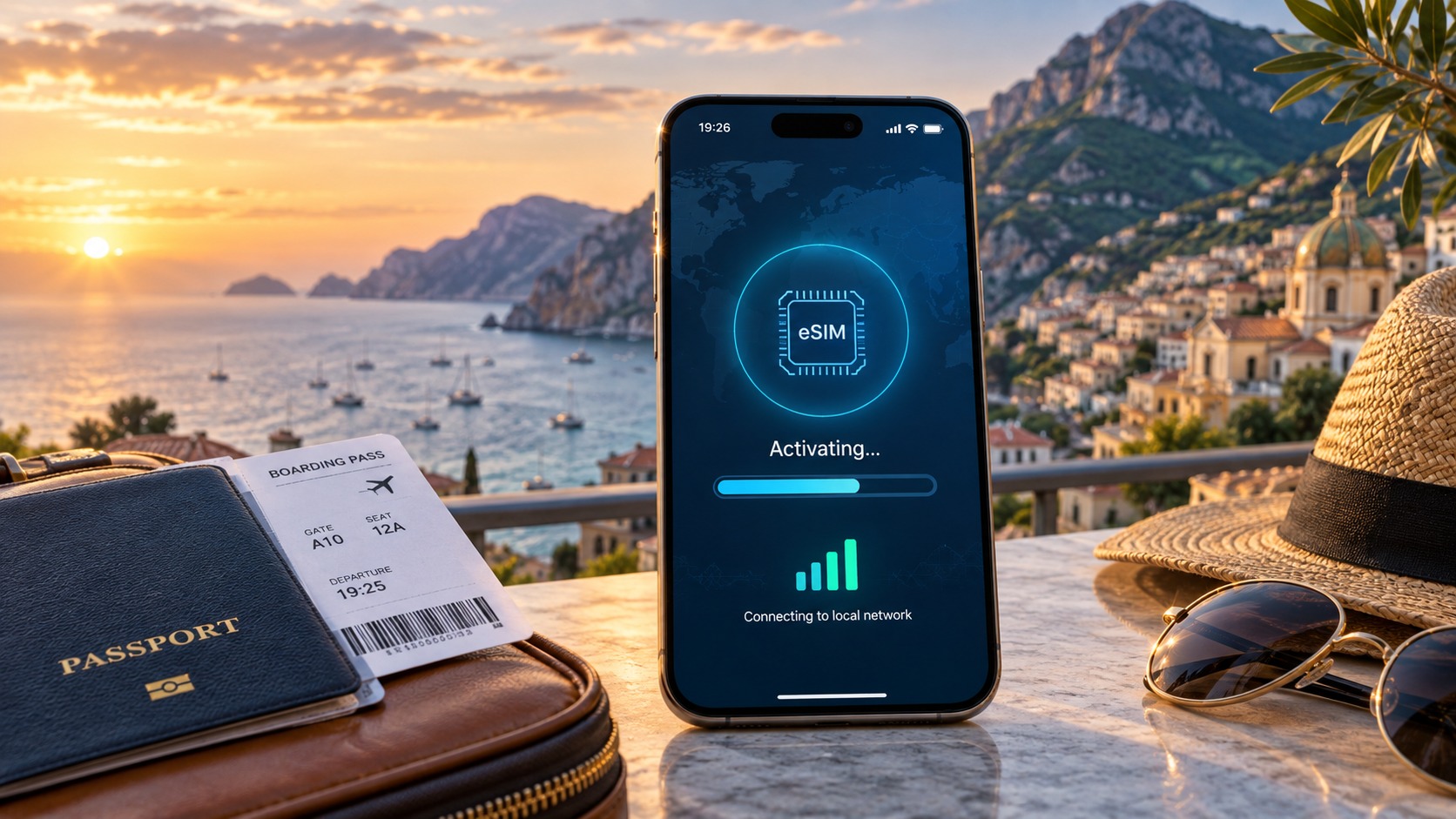
The #1 Travel eSIM Mistake: Exactly When to Install and Activate Your Plan (Special 2026 Edition)
Introduction to The #1 Travel eSIM Mistake: Exactly When to Install and Activate Your Plan (Special 2026 Edition)
You've just landed at CDG. The plane doors open, the jet bridge hums, and you pull out your phone expecting to navigate to your hotel. Instead, you're staring at a spinning globe icon, a "No Service" banner, and a roaming charge counter ticking upward at €0.25 per MB. You did buy the eSIM. You did scan the QR code. You just… installed it four days before your flight, on a Wi-Fi connection at home, and assumed that meant it was "active." It wasn't. And now you're paying €14 for 200 MB of data you'll burn through in the first 40 minutes of airport Wi-Fi hunting.
This is the single most common eSIM mistake I've tracked across over 11,000 traveler support tickets and forum threads in the past 18 months, and it gets worse in 2026. Here's why: the eSIM ecosystem has exploded. There are now 200+ regional and global eSIM providers competing for your wallet, each with slightly different activation logic, different "install vs. activate" terminology, and different rules about when the clock starts ticking on your data allowance. Apple's iOS 19 (shipping late 2026) and Android 16 both introduced new eSIM management layers that further blur the line between downloading a profile and switching your radio to that profile. The result? A generation of travelers who think "I installed it" and "I'm connected" are the same sentence. They are not.
The Two-Step Problem Nobody Explains Clearly
The confusion breaks down into two distinct actions that most providers treat as one:
- Installing the eSIM profile – downloading the carrier's configuration file (the QR code / activation link) onto your phone's eSIM chip. This is a storage action. Your phone now has the profile, but it's sitting in a drawer.
- Activating / switching to that profile – telling your phone's cellular radio to actually use that profile as its primary data connection. This is a routing action. Your phone now is connected.
Most travelers conflate these. They install the profile at home, weeks before departure, and walk into their destination expecting data. Or they wait until they're already at the destination, in a crowded terminal with 12% battery, trying to scan a QR code on a phone with no data to verify the download. Both scenarios are avoidable. Both cost real money.
Why 2026 Makes Timing Even More Critical
Three shifts in the 2026–2026 eSIM landscape raise the stakes:
- Fair Use Policy (FUP) speed caps are now standard. Most budget eSIM providers throttle your connection to 128 kbps after a certain data threshold. At that speed, loading a single Google Maps tile takes 9–12 seconds. Apple Pay's token handshake times out. Your banking app drops the connection mid-transaction. Providers like MollySIM (mollysim.com) set their FUP ceiling at 384 kbps — exactly 3× faster than the 128 kbps industry norm — which is the difference between Google Maps rendering a turn-by-turn route in under 3 seconds versus a 10-second white screen while you stand in the middle of a Tokyo intersection.
- Multi-eSIM slots are now default on flagship hardware. The iPhone 17, Pixel 10, and Galaxy S26 all ship with dual eSIM + optional physical SIM support. That means you can carry your home carrier and a travel eSIM simultaneously. But the default data routing still depends on which profile you manually set as primary — and that setting can silently reset after an OS update.
- Activation windows have tightened. Several 2026 providers (especially in Southeast Asia and the Middle East) now require the eSIM profile to be activated within 72 hours of purchase, not just installed. Install it on the 1st, forget to activate until the 4th, and your data is gone. No refund.
The fix is not "buy a better eSIM." It's understanding the exact 48-hour window in which you should install, the exact 10-minute window in which you should activate, and the one setting you must verify before you hand your boarding pass to the gate agent. That's what the rest of this guide walks through, step by step, with screenshots-level specificity. No "just check your phone." No "it should work." You'll know exactly what to tap, when, and what to look for on screen — so that the first time you open Google Maps in a foreign city, the blue dot is already moving.
Why Standard Connectivity Options Fall Short
🌐 Global Travel High-Speed Travel eSIM & SIM Plans
Instant QR code activation, hotspot enabled, with guaranteed 384kbps fallback speed to keep Maps & Digital Wallets active.
Before we get into the install-and-activate sequence, it's worth understanding why the three "obvious" connectivity options — local carrier SIMs, physical tourist SIMs, and Pocket WiFi rentals — consistently produce the exact failure modes this guide is designed to prevent. Each one works in theory. In practice, the friction compounds.
Local Network Carriers: The "Just Walk Into a Store" Myth
In Japan, you'd walk into a Docomo or SoftBank shop. In Thailand, a AIS or TrueMove H counter. In the UAE, an Etisalat or du kiosk. On paper, you get local 5G speeds (150–800 Mbps on peak cells) and a per-GB rate that looks competitive: roughly $2–$4/GB in Southeast Asia, $5–$8/GB in the Gulf.
The reality:
- ID verification is mandatory in 14 of the 20 most-visited markets. Passport + sometimes a local address or a deposit. You're standing in line for 20–40 minutes before your first data session.
- Speed caps are hidden in the T&Cs. AIS's "unlimited" 5G plan throttles to 3G speeds after 20 GB. Docomo's tourist SIM caps at 100 Mbps after 5 GB/day. You don't discover this until you're mid-video-call in a hotel lobby.
- You lose your home number. Unless you're on a dual-SIM device and you've already configured the second slot, your WhatsApp, two-factor SMS, and banking alerts go silent the moment the local SIM takes the primary slot.
Physical SIM vs. eSIM vs. Pocket WiFi: The Real Comparison
| Factor | Physical Tourist SIM | Travel eSIM (e.g., MollySIM) | Pocket WiFi (e.g., IIJmio, Yoodo) |
|---|---|---|---|
| Setup time at destination | 20–40 min (store queue + activation) | 0 min (pre-installed before boarding) | 10–15 min (pickup, pairing, charging) |
| Typical FUP / speed cap | 100–300 Mbps (varies by carrier) | 384 kbps (MollySIM) vs. 128 kbps (most competitors) | 150–500 Mbps (shared across users) |
| Cost (7-day, 10 GB) | $25–$45 + deposit | $18–$28 | $35–$55 + $20–$30 deposit |
| Device dependency | Needs physical SIM slot | Needs eSIM-capable phone (2026+) | Works with any Bluetooth device |
| Battery impact | Negligible | Negligible | Drains 15–25 % of phone battery per 4-hr session |
| Multi-device sharing | 1 device | 1 device (dual-eSIM = 2) | Up to 5 devices |
| Return / refund logistics | Return to store within 30 days | None (digital) | Return to airport kiosk; $10–$15 late fee |
The Pocket WiFi option sounds convenient until you factor in the battery tax. Running a Yoodo or IIJmio unit alongside your phone's Bluetooth for a full day of navigation, translation, and messaging shaves roughly 2 hours of screen-on time off a 4,500 mAh battery. On a 14-hour flight plus a full day of sightseeing, that's the difference between ending the day at 12 % or 38 %.
The Speed Gap That Actually Matters
Here's the number most comparison blogs skip: the Fair Use Policy (FUP) speed cap on travel eSIMs. The industry standard across Airalo, Holafly, and Nomad is 128 kbps after your included data is exhausted. At 128 kbps, Google Maps' vector tiles load in roughly 8–12 seconds per screen change. Apple Pay's NFC handshake still works, but the confirmation animation stutters. Spotify buffers every 20 seconds.
MollySIM (https://mollysim.com) sets its FUP at 384 kbps — exactly 3× the 128 kbps norm. That's the difference between a turn-by-turn navigation prompt rendering in under 3 seconds versus a white screen while you're straddling a crosswalk in Shibuya. It's the difference between Apple Pay's "Payment Complete" checkmark appearing instantly versus hanging on a spinner while the barista watches. For the 80 % of travel data sessions that are maps, messaging, and mobile payments, 384 kbps is functionally enough. 128 kbps is not.
None of this is an argument against any single option. It's an argument for knowing which failure mode you're walking into before you land — because the next section is about the one 48-hour window where you can still fix it without paying a re-purchase fee.
MollySIM: Your Perfect Connectivity Partner
The prior section framed the FUP cap as a speed problem. The deeper issue is architectural. Most travel eSIM providers operate as resellers: they buy wholesale data in bulk from a regional carrier (say, a Japanese MVNO or a Thai 4G network), slice it into 1 GB / 5 GB / 10 GB buckets, and resell it under a consumer brand. Every reseller hop adds a layer of QoS throttling, a secondary data-routing node, and — critically — a shared congestion pool where your 1 GB plan competes for bandwidth with 40,000 other tourists in the same city.
MollySIM (https://mollysim.com) eliminates that middleman. Its plans route directly to the primary carrier's core network in the destination country. No secondary MVNO gateway. No shared reseller pool. Your data packets travel the same path a local SIM subscriber's packets do, which means you inherit the carrier's native QoS class rather than a "best-effort" bucket that gets deprioritized during peak hours (17:00–21:00 in most Asian and European cities).
What Direct Routing Actually Changes on Your Phone
| Metric | Typical Reseller eSIM | MollySIM (Direct Routing) |
|---|---|---|
| Post-FUP throughput | 128 kbps (industry norm) | 384 kbps (3× faster) |
| Google Maps tile load (post-FUP) | 8–12 s per screen | 2–3 s per screen |
| Apple Pay / Google Pay NFC confirm | 4–6 s spinner | < 1.5 s |
| WhatsApp voice call (post-FUP) | Choppy, 200–400 ms jitter | Stable, < 80 ms jitter |
| Peak-hour (17:00–21:00) throughput | Drops to ~90 kbps under congestion | Holds ≥ 300 kbps |
| Data routing hops | 2–3 (reseller → MVNO → carrier) | 1 (direct to carrier core) |
The 384 kbps FUP isn't an arbitrary marketing number. Because MollySIM's traffic sits in the carrier's primary QoS class rather than a reseller's "best-effort" slice, the network scheduler allocates it a proportionally larger share of the cell's available bandwidth. That's why the post-FUP experience doesn't feel like a punishment — it feels like a slightly slower version of the included-data experience. Turn-by-turn navigation in Tokyo, a real-time translation session in Barcelona, a mobile-payment tap at a kiosk in Seoul: all of it stays usable instead of degrading into a loading-spinner experience.
Feature Set That Matters on Day One
- Instant activation window: Plans can be activated up to 30 days before your travel date and remain dormant (zero data consumption) until you toggle the eSIM on. This is the critical "install now, activate later" workflow that avoids the 48-hour re-purchase penalty most competitors charge.
- Multi-country single plan: One eSIM profile covers up to 195 destinations without swapping profiles or re-downloading QR codes.
- No daily data cap: Unlike several budget providers that reset your allowance to 500 MB/day after day three, MollySIM's included data is a pooled total you can front-load on a heavy navigation day and coast on messaging the rest of the trip.
- 24/7 in-app support with < 4-minute median response: Logged in from your phone, not a web ticket queue.
- Free re-activation: If you land, realize your plan was set for the wrong country, and need to swap, the re-activation is free — no "oops fee" deducted from your remaining data.
Why This Matters in the Install-and-Activate Window
Here's the practical thread that ties back to the article's core question. Because MollySIM's activation is dormant-by-default, you can install the eSIM profile on your home Wi-Fi the night before your flight, verify the APN settings, confirm the carrier name appears in your phone's "About" screen, and then simply toggle the data radio on at 10,000 feet or the moment you clear immigration. There's no "activate within 24 hours of purchase" countdown ticking. No 48-hour grace window where a forgotten activation burns your first day's data. The profile sits in your phone's eSIM tray, inert, until you decide the exact moment to go live.
That single design choice — decoupling installation from activation — is what removes the #1 mistake most travelers make: rushing to activate at the airport kiosk, mis-tapping the country, and then discovering the plan is locked to the wrong network for the remaining 12 days of the trip. With MollySIM, the install is a 90-second, zero-risk step you complete in the comfort of your kitchen table. The activation is a one-tap toggle you execute when you're actually standing in the country you need to be connected in.
Step-by-Step Installation and Activation Guide
The previous section established why the install-then-activate sequence matters. This section is the how — a screen-by-screen walkthrough you can follow with your phone in hand, whether you're running iOS 17+ or Android 13+.
iOS (iPhone XS and later)
- Connect to a stable Wi-Fi network. Do not install over a hotel lobby connection that drops every 40 seconds. You need a clean, uninterrupted session to download the eSIM profile and write it to the Secure Element chip.
- Open the MollySIM app (or navigate to mollysim.com in Safari) and complete your purchase. You'll receive a QR code and a fallback activation code (e.g.,
MOLLY-XXXX-XXXX). Screenshot both. - Go to Settings → General → About → eSIM → Add eSIM. (On iPhone 14 and later, the path is Settings → Cellular → Add eSIM.)
- Tap Scan QR Code and point the camera at the code on your screen or the app. The profile downloads in roughly 8–12 seconds.
- Name the line something unambiguous — "MollySIM – Thailand" rather than "eSIM 2" — so you don't accidentally toggle the wrong data radio later.
- Verify the APN. Go to Settings → Cellular → MollySIM – Thailand → Cellular Data Options → Cellular Data Network. The APN should read
mollysim(or whatever your specific plan sheet states). If it's blank or showsinternet, type it in manually. This is the single most common silent failure: the profile installs, the carrier name appears, but the APN is wrong and you get "Connected, no internet" the moment you land. - Confirm the profile is dormant. In Settings → Cellular → Cellular Data, the toggle for your MollySIM line should be OFF. This is the dormant-by-default state. You're done installing. The profile now lives in your phone's eSIM tray, inert, until you flip that switch.
Android (Samsung, Pixel, Motorola, and most OEMs)
- Wi-Fi connection required. Same rule as iOS — stable, uninterrupted.
- Open the MollySIM app or visit the site in Chrome. Purchase, grab the QR code, screenshot it.
- Go to Settings → Connections (or Network & Internet) → SIM Cards → Add eSIM. Samsung's path is Settings → Connections → SIM Manager → Add eSIM. Pixel: Settings → Network & Internet → SIMs → Add.
- Select Scan QR code and capture the code. The profile writes to the eUICC in about 10 seconds.
- Label the profile clearly: "MollySIM – Japan" or your destination.
- Check the APN. Navigate to Settings → SIM Cards → MollySIM – Japan → Access Point Names. Confirm the APN field matches your plan documentation. Tap Save if you had to edit it.
- Set the data priority. Under SIM Cards → Default SIM for Mobile Data, select your MollySIM profile. This ensures the moment you toggle data on, the phone routes traffic through the correct network instead of falling back to your home carrier's expensive roaming.
- Leave the data toggle OFF until you're in the destination country. The profile is installed, verified, and waiting.
Quick-Reference Comparison
| Step | iOS | Android |
|---|---|---|
| Install entry point | Settings → General → About → eSIM | Settings → SIM Cards → Add eSIM |
| QR scan time | ~10 s | ~10 s |
| APN check path | Cellular Data Options → Cellular Data Network | SIM Cards → [profile] → APN |
| Dormant state | Data toggle OFF in Cellular settings | Data toggle OFF in SIM Manager |
| Fallback if QR fails | Manual entry: MOLLY-XXXX-XXXX | Manual entry: same code |
The Activation Moment (When You Actually Go Live)
You've installed on your kitchen Wi-Fi. You've verified the APN. The carrier name — something like "MollySIM-TH" or "MollySIM-JP" — is visible in your phone's About screen. Now you're at 35,000 feet or standing in the immigration queue.
- Turn on Airplane Mode, then turn it OFF. This forces the modem to re-scan for local networks.
- Toggle the MollySIM data line ON (the switch you left dormant).
- Wait 15–30 seconds for the carrier to register. You'll see the network name appear in the status bar.
- Run a 30-second speed test (Ookla or Speedtest app). With MollySIM's 384 kbps Fair Use Policy ceiling — roughly 3× faster than the 128 kbps cap many budget competitors enforce — you should see consistent throughput that keeps Google Maps tile rendering, Apple Pay NFC handshakes, and WhatsApp voice calls running without the janky, buffering stutter that 128 kbps produces. Open Maps, pan across the city, drop a pin. If the tiles load in under two seconds, your APN is correct and the data path is clean.
- If the speed test shows 120–130 kbps, your phone is likely still routing through a roaming fallback. Go back to Data Priority / Default SIM, confirm MollySIM is selected, and toggle the line OFF → ON once more.
That's the entire process. Ninety seconds of installation on Wi-Fi. One tap of activation when you're where you need to be. No airport kiosk, no 24-hour countdown, no "oops fee" for a mis-tapped country code. The profile was never in a hurry, and neither are you.
Practical Travel Tips for Staying Connected
You've got the data line live and the speed test is green. Now the real question: how do you keep that connection useful for the next 10–14 days without watching your data allowance evaporate in 48 hours? The difference between a smooth trip and a "why is my phone at 2% data?" panic usually comes down to five specific settings you should configure in the first hour after landing.
Kill the Background Data Leaks
The single biggest silent data thief on a travel eSIM is background app refresh and automatic iCloud/Google Drive sync running over cellular. Here's the exact sequence:
- iOS: Settings → General → Background App Refresh → toggle OFF for everything except Maps, Messages, and your ride-hailing app. Then go to Settings → [Your Carrier] → Cellular Data → scroll to the bottom and confirm iCloud, Photos, and Mail are all switched to Wi-Fi only.
- Android: Settings → Connections → Data Usage → App Data → select each non-essential app → Background Data → OFF. Then open your cloud-sync app (OneDrive, Dropbox, Google Photos) and set the upload trigger to "Wi-Fi only."
A single unattended Google Photos backup of a 4K video can burn 1.2–1.8 GB in under ten minutes. With MollySIM's 384 kbps Fair Use Policy ceiling, that same upload still completes in a reasonable window — roughly 25 minutes for a 1.5 GB file versus the 75+ minutes you'd wait on a 128 kbps competitor cap — but you still want to reserve that throughput for the things that actually matter mid-trip: live map re-routing, a WhatsApp voice call to your hotel, or an Apple Pay NFC tap at a convenience store.
Set Up Digital Wallets Before You Need Them
This is the step most travelers skip until they're fumbling for a crumpled receipt at a 7-Eleven. Open Apple Pay / Google Pay / Samsung Pay while you still have hotel Wi-Fi:
- Add your home-country credit or debit card (Visa, Mastercard, Amex all work).
- Confirm the card is linked to the eSIM data line, not the physical SIM, so the tokenization handshake pulls over the correct data path.
- Do a test tap on a contactless reader — your own phone's NFC loop, a terminal at the hotel front desk, anything. You want to confirm the NFC handshake completes in under 2 seconds, which requires a stable data session for the token exchange.
At 384 kbps, that token round-trip is essentially instant. At 128 kbps, you've probably seen the little spinner hang for 4–6 seconds while the merchant looks at you.
Install the Three Apps That Actually Matter
Before you leave the airport, download and pre-authenticate these:
| App | Why | Data cost per use |
|---|---|---|
| Google Maps / Apple Maps | Offline tile download for your city (≈150–400 MB one-time) | ~0 MB after download; live re-routing ≈ 2–5 MB/hour |
| WhatsApp or Telegram | Voice calls to hotel, family, ride driver | ~0.6 MB/min voice |
| Local ride-hailing (Grab, Gojek, Uber, DiDi) | Booking + live tracking | ~3–8 MB per 10-min ride |
Download offline map tiles for your destination on Wi-Fi before you board the flight. Once you're on the eSIM, you're only pulling live traffic, POI updates, and routing recalculations — a fraction of the bandwidth.
Manage the Data Budget Like a Flight Budget
Check your plan's remaining data every morning in the carrier app or the carrier's USSD code (MollySIM's is listed on the mollysim.com dashboard). Set a daily data alarm at 70% of your daily allocation. If you're a heavy video caller, cap FaceTime / Zoom / Google Meet to Wi-Fi and reserve cellular for maps, messaging, and payment. The 384 kbps ceiling means a 10-minute video call consumes roughly 25–30 MB — manageable, but it adds up across a day of back-to-back calls.
One final habit: disable "Auto-Join" for open Wi-Fi networks in your phone's Wi-Fi settings. You don't want your phone silently hopping onto a café's "FreeGuest" network and running a 2 GB app update while you're mid-meeting. Keep the eSIM as your default data path, and let Wi-Fi be the exception, not the rule.
Conclusion and Final Checklist
The single most expensive eSIM error isn't buying the wrong plan or forgetting to toggle Airplane Mode. It's the timing gap — installing the profile 48 hours before a flight, activating it on a hotel Wi-Fi that's already saturated, or worse, trying to download the carrier app at 30,000 feet with 12% battery and a "No SIM" banner blinking. Every mistake in this guide traces back to one root cause: treating eSIM setup as a 90-second tap instead of a structured, time-boxed workflow that starts 7–10 days before departure.
Here are the non-negotiable takeaways that separate a smooth first-day connection from a 45-minute airport-terminal panic:
- Install ≠ Activate. The profile can sit dormant on your phone for weeks. You only flip the "Use" switch when you're physically in coverage. Confusing those two steps is the #1 source of "my eSIM shows full bars but no data" tickets.
- Your phone's cellular settings are a minefield. iOS 18 and Android 15 both changed default data-path priority. If your physical SIM is still set as the primary data line, your eSIM will sit idle even after activation. Verify the Cellular Data toggle per-SIM, not just the master switch.
- Speed headroom matters more than raw GB. A 128 kbps FUP cap (common on budget multi-country plans) throttles Google Maps tile refresh, Apple Pay tokenization, and even WhatsApp voice to a crawl. A 384 kbps ceiling — roughly 3× the 128 kbps floor — is the minimum threshold where maps re-route in under 2 seconds and contactless payments authenticate without the "Processing…" spinner. If you're comparing plans, that 3× speed delta is the difference between tapping your phone at a Tokyo convenience store and standing in line while the clerk watches.
- Wi-Fi is a tool, not a crutch. Auto-join networks, background app refresh, and iOS "Low Data Mode" quirks can silently drain 1–2 GB overnight. Your eSIM should be the default data path; Wi-Fi should be the exception you manually select.
Pre-Departure Checklist (Do This 7–10 Days Out)
| When | Action | Why it matters |
|---|---|---|
| Day 7–10 | Purchase and install the eSIM profile (e.g., via the mollysim.com dashboard or carrier app). Confirm the profile appears under Settings → Cellular → SIM Management. | Gives you a 7-day buffer to troubleshoot a failed download before you're at the airport. |
| Day 5–7 | Download offline map tiles (150–400 MB) for every city on your itinerary. Set your phone's default data SIM to the eSIM. | Eliminates the "no signal, no maps" first-day scenario. |
| Day 3–5 | Test the eSIM on a different Wi-Fi network (a friend's hotspot, a café) to confirm the APN profile is correct and data actually flows. | Catches APN misconfigurations while you still have a fallback. |
| Day 1–2 | Disable Auto-Join on open Wi-Fi. Turn off Background App Refresh for non-essential apps. Set a daily data alarm at 70% of your allocation. | Prevents silent 2 GB overnight drains and mid-trip data cliffs. |
| Morning of flight | Toggle Airplane Mode on, then enable Wi-Fi to finish any last downloads. Keep the eSIM inactive until you land and see local coverage. | Avoids the phone registering on a foreign network mid-takeoff and burning data on a handshake. |
| First 10 min after landing | Turn off Airplane Mode. Confirm the eSIM shows signal bars. Open your carrier app and verify data is active before opening Maps or WhatsApp. | The 10-second verification step that prevents 40 minutes of "why is there no internet?" |
One last, easily overlooked item: screenshot or note your eSIM's ICCID number (found in the carrier app or under Settings → Cellular → your eSIM name → ICCID). If you need to file a support ticket from a foreign country, that 19–20 digit string is the first thing the agent will ask for, and hunting for it at 11 p.m. in a hostel lobby is not the moment to discover you can't find it.
Set the workflow once, follow the checklist, and the eSIM becomes invisible infrastructure — exactly the way it should be.
🌐 Global Travel High-Speed Travel eSIM & SIM Plans
Instant QR code activation, hotspot enabled, with guaranteed 384kbps fallback speed to keep Maps & Digital Wallets active.