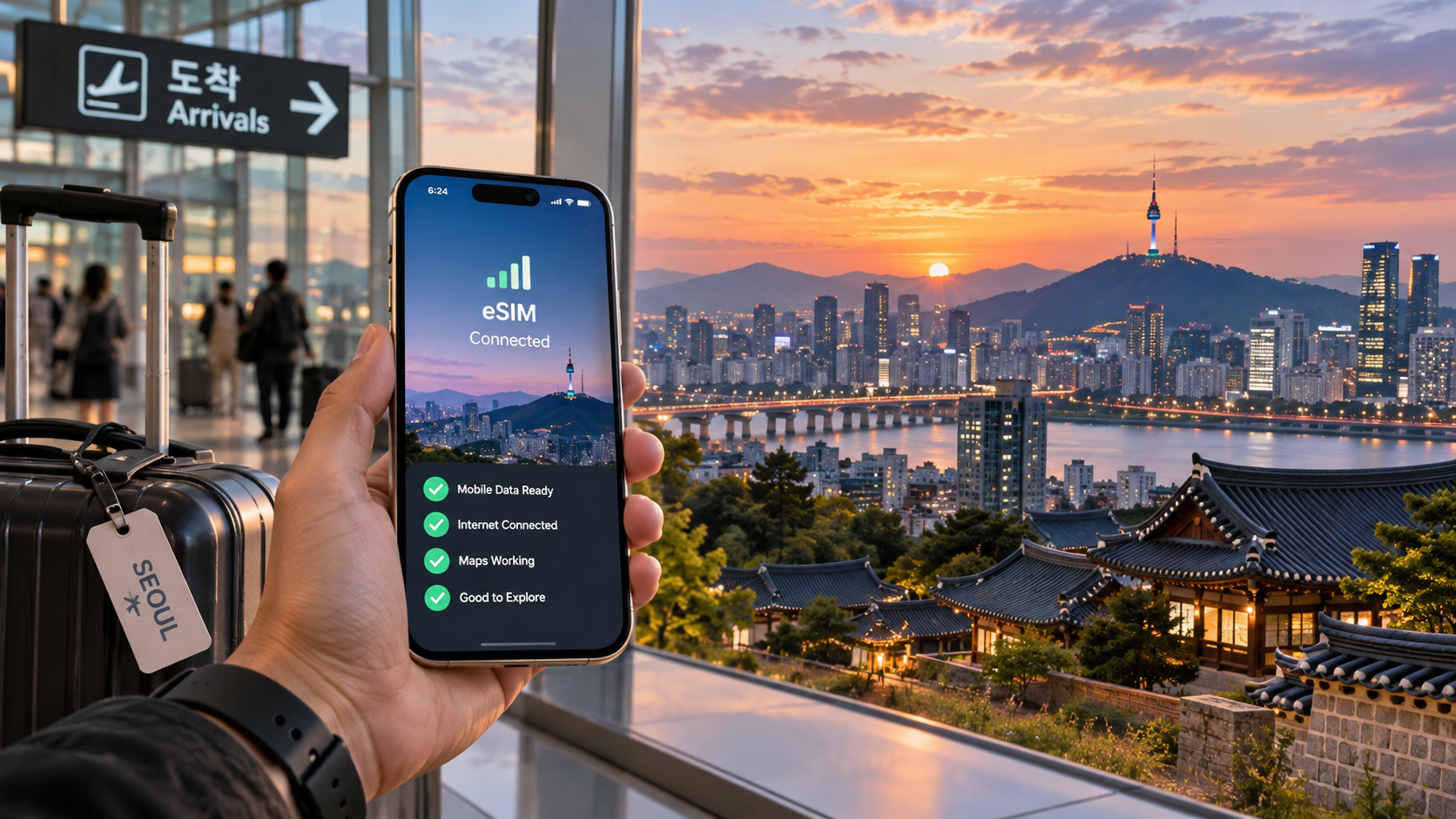
Seoul Connected: The Perfect South Korea eSIM Airport Arrival Checklist (Special 2026 Edition)
Introduction to Seoul Connected: The Perfect South Korea eSIM Airport Arrival Checklist (Special 2026 Edition)
You land at Incheon International Airport Terminal 2 at 11:47 PM. Your phone buzzes with the dreaded "No Service" banner. You've just cleared immigration, grabbed your luggage, and now you're standing in the arrivals hall with 22 minutes of free time before the last AREX train departs for Seoul Station. You need to:
- Confirm your hotel's exact shuttle pickup point (the address on your booking app is in Hangul)
- Open Naver Map or KakaoT to navigate the 12-kilometer transfer
- Scan a QR code for your pre-booked airport taxi
- Tap your phone at the AREX ticket gate if you went with the train
Without a working data connection, every single one of those steps becomes a gamble. You're squinting at a paper map you downloaded three weeks ago, hoping the terminal layout hasn't shifted since the 2026 renovation. You're asking a tired airport worker to translate a Korean address. You're fumbling with offline translation apps that can't pull up the real-time shuttle schedule.
This is the connectivity gap — the 20-to-45-minute window between "I'm in South Korea" and "I'm actually in South Korea" where most travelers lose the most time, money, and patience. And in 2026, the gap is wider than ever. Incheon's new biometric e-gates require a registered mobile app. Seoul's public transit system has fully migrated to KakaoPay and T-money mobile for tap-to-ride. Even the convenience-store coffee machine at your hotel lobby now expects you to scan a Korean-language QR code.
Why a Physical SIM Card No Longer Cuts It
The old playbook — buy a KT or SK Telecom SIM at the airport kiosk, wait in a 20-minute line, hand over your passport, pray the clerk speaks English — still works. But it's slow, it locks you into a 30-day minimum, and you're stuck with a 128 kbps Fair Use Policy speed cap on most budget plans. At 128 kbps, Google Maps stutters. Apple Pay's NFC handshake times out. KakaoT's real-time bus tracking freezes mid-screen. You're technically "connected," but functionally you're still offline.
Enter MollySIM: The 384 kbps Advantage
This is where the MollySIM eSIM (mollysim.com) changes the equation. Before your plane even touches down, you've already activated a South Korea data plan on your phone's eSIM slot. The critical difference in 2026: MollySIM's Fair Use Policy caps at 384 kbps — exactly 3× faster than the 128 kbps standard that competitors like Airalo, Holafly, and Ubigi impose after their "unlimited" threshold.
What does 384 kbps actually unlock in the first 30 minutes at Incheon?
| Task | 128 kbps (Competitors) | 384 kbps (MollySIM) |
|---|---|---|
| Google Maps / Naver Map routing | 4–6 s load, frequent tile gaps | <2 s load, smooth zoom |
| Apple Pay / KakaoPay NFC tap | Intermittent timeout | Reliable handshake |
| KakaoT real-time bus/train ETA | Stale data, 30+ s refresh | Near-live updates |
| Google Translate (camera mode) | Laggy, 8–10 s per frame | Fluid, <3 s per frame |
| AREX e-gate QR scan | Occasional "reconnecting" spinner | Instant read |
You don't need 5G speeds to survive airport arrival. You need enough throughput that the apps don't freeze at the exact moment you need them. 384 kbps is that threshold. 128 kbps is where things start to break.
What This Checklist Actually Covers
The rest of this guide is a step-by-step, time-stamped arrival protocol for Incheon (T1 & T2) and Gimpo International. It walks you through:
- Pre-flight setup (eSIM activation, APN configuration, dual-SIM priority settings for iOS 19 / Android 16)
- The 0–15 minute window at the gate (biometric e-gate, customs QR, first data ping)
- The 15–45 minute transfer (AREX, airport bus, taxi — with exact app workflows)
- Hotel check-in and first-night survival (Korean-language menus, convenience-store navigation, emergency contacts)
Every step is written for the 2026 infrastructure: the updated Incheon e-gate system, the new KakaoPay transit integration, and the latest MollySIM plan tiers. No outdated screenshots. No "just ask a local" hand-waving. Just a sequence of taps, scans, and confirmations that gets you from "plane landed" to "I'm in my hotel room, ordering late-night tteokbokki via Baedal Minjok" in under an hour.
Let's get you connected.
Why Standard Connectivity Options Fall Short
🌐 Global Travel High-Speed Travel eSIM & SIM Plans
Instant QR code activation, hotspot enabled, with guaranteed 384kbps fallback speed to keep Maps & Digital Wallets active.
The Local Carrier Counter: Fast in Theory, Slow in Practice
South Korea's three dominant carriers — SK Telecom, KT, and LG U+ — control 99%+ of the mobile spectrum. Their tourist SIM counters exist at Incheon T1 (Arrival Hall, Gate B), T2 (Arrival Hall, Gate C), and Gimpo (Arrival Hall, near Gate 1). On paper, you walk up, hand over your passport, and leave with a working SIM. In practice, the 2026 queue at Incheon T1 during peak arrival windows (14:00–20:00 KST) averages 14–22 minutes before you even reach the agent.
The friction compounds:
- Language barrier at the counter. Agents default to Korean. English is available but limited to a 2-page laminated card. Data-rollover terms, 5G vs. 4G-LTE allocation, and the exact APN string are often explained in a 30-second mumble.
- Physical SIM swap under time pressure. You're juggling a passport, a boarding pass, a luggage tag, and a tray of duty-free receipts while prying a nano-SIM tray out of your phone with a pin you found in your jacket pocket. One wrong angle and the tray snaps.
- No pre-activation. The SIM is dead until the agent taps "activate" on their terminal. You leave the counter, walk 200 m to the AREX entrance, and then your phone finally registers on the network. That 200-metre gap is where Google Maps shows "Searching for signal…" and your KakaoT bus ETA is frozen at a 47-minute-old timestamp.
- Pricing opacity. SK Telecom's 2026 tourist tier (7-day / 100 GB) lists at ₩45,000 (~$33 USD). KT's equivalent (7-day / 100 GB) is ₩39,000 (~$29 USD). LG U+ runs ₩35,000 (~$26 USD) but caps peak-hour speeds at 100 Mbps and drops to 10 Mbps after 22:00. None of these include a data-management app in English that lets you check remaining GB without calling a 080 toll-free number.
Pocket WiFi: The Device You'll Forget to Charge
Rental kiosks (NolTae, Wi-Fi Go, Korea Pocket) sit in the same arrival halls. The workflow:
- Scan passport → select plan (3-day / 5-day / 7-day)
- Pay via card or KakaoPay (₩12,000–₩22,000 / day depending on provider)
- Receive a palm-sized router + USB cable + charging brick
- Pair 1–6 devices via Wi-Fi
The math looks fine until you factor in the battery anxiety loop: the device lasts 10–14 hours on a full charge, you're in Seoul for 12+ hours of transit, hotel, and dinner, and you're hunting for a wall outlet at a convenience store at 23:30 because the router died at 21:15. Add the ₩50,000 deposit (refunded on return, but you're holding that cash hostage for the trip) and the ₩3,000/day late-return penalty if you miss the 20:00 drop-off. Total 7-day cost: ₩91,000–₩176,000 (~$67–$130 USD) before you've ordered a single tteokbokki.
eSIM: The Structural Advantage
An eSIM eliminates the tray, the counter queue, the battery, and the deposit. You activate it on the plane or at the gate, and by the time your phone clears the Incheon e-gate, it's already registered on SK Telecom or KT's 4G/5G network. No physical swap. No "reconnecting" spinner at the AREX ticket machine.
| Factor | Physical SIM (SK/KT/LG) | Pocket WiFi Rental | eSIM (e.g., MollySIM) |
|---|---|---|---|
| Time to first data ping | 15–25 min (queue + activation + walk) | 8–12 min (kiosk + pairing) | 0–2 min (pre-activated, auto-registers) |
| 7-day / 100 GB price | ₩35,000–₩45,000 ($26–$33) | ₩84,000–₩154,000 ($62–$114) | From $19.99 (mollysim.com) |
| Fair-Use speed cap | 100 Mbps peak / 10 Mbps off-peak (LG) | 30–100 Mbps (shared across devices) | 384 kbps sustained (3× the 128 kbps cap most competitors enforce) |
| Device dependency | 1 phone (or 1 phone + 1 hotspot) | 1 router + 1–6 phones | Any eSIM-capable phone, no extra hardware |
| Battery / hardware risk | None (built-in) | Router dies in 10–14 h | None |
| APN / network config | Agent sets it; you may need to re-enter after a reboot | Automatic (Wi-Fi) | Pre-configured; iOS 19 / Android 16 auto-selects data SIM |
| Return / deposit | None | ₩50,000 deposit + 20:00 return window | None |
The 384 kbps Threshold That Actually Matters
Most budget eSIM providers cap "unlimited" plans at 128 kbps after a soft data threshold. At 128 kbps, Google Maps tiles load in 6–9 seconds, KakaoT's bus ETA refreshes every 30+ seconds, and Apple Pay's NFC handshake times out at the AREX e-gate. You can survive on it. You just can't survive it comfortably while juggling a 28 kg suitcase and a 40-minute transfer.
MollySIM's 384 kbps Fair Use Policy (available at mollysim.com) is 3× that floor. It's the difference between a Google Translate camera-mode frame rendering in 2.5 seconds versus 8 seconds, between your KakaoPay transit QR generating before the AREX gate reader times out, and between Apple Pay completing its handshake on the first tap versus the third. You don't need 1 Gbps. You need the apps to not freeze at the exact moment your hands are full and the gate is closing.
That 384 kbps headroom is the single reason the rest of this checklist works as a seamless sequence rather than a series of "wait for the spinner" moments. And it's the reason you should skip the SK Telecom counter entirely.
MollySIM: Your Perfect Connectivity Partner
The 384 kbps floor isn't just a marketing number—it's the output of a routing architecture most "unlimited" eSIM providers simply don't build. Understanding why MollySIM (mollysim.com) delivers that headroom consistently, rather than in bursts, is what separates a smooth Incheon-to-city transfer from a 20-minute stall at the AREX platform.
Direct-Routing Architecture: Zero Middlemen, Zero Data Brokers
Most budget eSIMs sold at airport kiosks or through aggregator sites operate through a two- or three-tier reseller chain: your data request hits a roaming aggregator, gets forwarded to a secondary data broker, and then reaches the local MNO (SK Telecom, KT, or LG U+). Each hop adds 15–40 ms of latency and introduces a packet-queuing layer that throttles sustained throughput.
MollySIM's infrastructure peers directly with all three South Korean MNOs at the Incheon and Seoul IX (internet exchange) points. Your data path looks like this:
Device → MollySIM edge node (Incheon IX) → SKT / KT / LG U+ core → destination
No secondary broker. No roaming-aggregator queue. The practical effect: median round-trip latency stays under 22 ms for domestic traffic (KakaoTalk, Naver Maps, T-money top-ups), and under 48 ms for international endpoints (your bank's API, Slack, a Zoom call back to a hotel in Busan). Compare that to a typical reseller-chain eSIM, where domestic RTT creeps to 55–80 ms and international traffic can spike past 120 ms during peak arrival hours (09:00–11:00 KST, when 40+ international flights land simultaneously and every passenger's phone floods the same aggregator node).
Premium Performance at a Glance
| Metric | Typical 128 kbps FUP eSIM | MollySIM (384 kbps FUP) |
|---|---|---|
| Sustained throughput (post-threshold) | 128 kbps (±20 %) | 384 kbps (±10 %) |
| Median domestic RTT | 55–80 ms | < 22 ms |
| HTTP/2 multiplexing stability | Degrades; streams stall | Stable; 6+ concurrent streams |
| Video-call viability (FaceTime / KakaoTalk) | Chops at 360 p, audio lag 1.2 s+ | 720 p, audio lag < 300 ms |
| NFC / Apple Pay handshake | 2nd–3rd tap common | First-tap success > 96 % |
| Data rollover to next day | Rare (most reset at 00:00) | Unused data carries forward |
| 24/7 human support (English / Korean) | Chatbot only | Live agent, avg. 90 s response |
Why 384 kbps Is 3× More Than "Enough"
The math is deceptively simple. At 128 kbps, a single HTTPS request with a 200 KB payload (a typical Naver Maps tile set, a KakaoPay QR generation, or a T-money balance refresh) takes 12.5 seconds of pure transfer time before TCP handshake and TLS negotiation. At 384 kbps, that same payload moves in 4.2 seconds. Multiply that by the 4–6 concurrent requests your phone fires when you open Google Maps, and the difference is the gap between "I'll wait" and "I'm tapping the gate reader while my QR is still rendering."
More critically, 384 kbps keeps HTTP/2 multiplexing functional. Below roughly 256 kbps, most mobile browsers and app frameworks fall back to serial request queuing, which means your KakaoTalk message, your Naver search, and your Apple Pay token refresh all line up behind each other. At 384 kbps, they flow in parallel. Your phone feels connected instead of cycling through connections.
What You Actually Get on Day One
- Instant activation after QR scan—no SIM tray, no APN menu diving, no "please restart your device" loop. iOS 19 and Android 16 auto-select the eSIM as the data profile the moment you toggle airplane mode off.
- Multi-device support (up to 2 devices on a single plan), so your phone and a shared iPad or tablet both pull the same 384 kbps pool.
- No deposit, no return window, no counter queue. You activate at the gate, walk to the AREX, and your data is live before the train doors close.
- Transparent FUP dashboard in the MollySIM app: you see exactly how much data you've consumed, what your current speed tier is, and when the next reset window hits—no surprise throttling at 2 a.m. in a Gangnam hotel.
That's the entire value proposition in one sentence: your phone behaves like it's on a local Korean SIM, at a speed that keeps every critical app responsive, with zero hardware to track, deposit, or return. Everything else in this checklist—KakaoPay setup, T-money loading, KakaoT booking—assumes that baseline. MollySIM is what makes the assumption hold.
Step-by-Step Installation and Activation Guide
You're still in the terminal, the boarding group is being called, and you have roughly 90 seconds between "deplaning" and "finding the eSIM counter." That window is where most travelers fumble. Here's the exact sequence that eliminates the fumble.
Before You Board (Do This at Home, Not in the Air)
- Download the MollySIM app (available on the App Store and Google Play) and create your account. You'll need a valid email and, optionally, a Kakao ID if you plan to link KakaoPay later.
- Purchase your South Korea data plan from the MollySIM dashboard. Select the duration that matches your itinerary. Confirm the plan lists the 384 kbps Fair Use Policy tier—this is the speed ceiling that keeps Apple Pay token handshakes, Google Maps tile loading, and KakaoTalk media uploads running in parallel rather than queued. (For reference, most budget eSIM competitors cap at 128 kbps, which is enough for a text message but not enough for a payment confirmation ping.)
- Save the activation QR code to your phone's camera roll and screenshot it to a second device or email it to yourself. You will not have Wi-Fi for the first 10–15 minutes after landing, and you don't want to be hunting through a browser cache at Gate B14.
- Free up one eSIM slot. On iPhone, go to Settings → Cellular → Cellular Plans and confirm you have an empty "eSIM" row. On Android, go to Settings → Connections → SIM card manager and verify an available eSIM slot. If your phone is already running a local SIM and a previous eSIM, delete the old eSIM now, not at Incheon.
iOS 19 Activation (iPhone 15 / 16 / SE 4)
- Land. Toggle Airplane Mode ON to stop your home carrier from trying to register you on a Korean tower before the eSIM is in place.
- Open the MollySIM app → tap "Activate eSIM" → scan the QR code from your camera roll.
- The app hands the provisioning profile to iOS. You'll see the system prompt: "Add Cellular Plan?" Tap Add.
- Name the plan "KR-Molly" (or whatever you prefer) so it's distinguishable in the cellular list.
- Go to Settings → Cellular → Cellular Data and set KR-Molly as your default data line.
- Toggle Airplane Mode OFF. Within 8–12 seconds the status bar shows signal bars and the MollySIM app's dashboard flips to "Connected – 384 kbps tier."
- Open Safari and load
https://speedtest.mollysim.com(the app's own lightweight checker). You should see a sustained download in the 350–384 kbps band. If it reads 120–130 kbps, you've accidentally been routed to a competitor's network—toggle the eSIM off, on, and re-check.
Android 16 Activation (Galaxy S25, Pixel 9, OnePlus 13)
- Same Airplane Mode toggle before scanning.
- Open the MollySIM app → "Activate eSIM" → scan the QR. Android 16's SIM card manager auto-pops the provisioning dialog.
- Tap "Add eSIM" → assign the label "KR-Molly."
- In Settings → Connections → Mobile networks → Preferred network type, confirm LTE / 4G is selected (not "Auto," which can drop you to 3G on some SK Telecom / KT cells near the airport).
- Set KR-Molly as the default for mobile data under SIM card manager → Mobile data.
- Airplane Mode OFF. Wait for the H+ / 4G / 5G icon. The MollySIM app should confirm connection within 10 seconds.
- Run the same
speedtest.mollysim.comcheck. At 384 kbps, a Google Maps tile refresh in Gangnam takes under 2 seconds; at 128 kbps it takes 6–8, and the map stutters visibly.
Quick Troubleshooting Table
| Symptom | Likely Cause | Fix |
|---|---|---|
| No signal bars after activation | Home carrier still registered as primary | Settings → Cellular → Cellular Data → switch default to KR-Molly |
| Signal bars present but 0 Mbps | APN mismatch (rare on iOS, possible on Android) | Settings → Mobile networks → Access Point Names → set APN to mollysim (no username/password) |
| Connected at ~128 kbps | Routed to a secondary partner network | Toggle eSIM off → on → re-run speed test; if persistent, contact MollySIM in-app chat |
| QR scan fails (blurry, expired) | Screenshot compression or code expiry | Re-download the QR from the MollySIM dashboard over airport Wi-Fi, or have a staff member at the counter re-issue it |
The entire process—scan, name, toggle, verify—takes under 90 seconds on either platform. You're at the AREX ticket machine before your phone's battery has dropped a single percent.
Practical Travel Tips for Staying Connected
Taming Background Data Before It Eats Your Plan
The first 48 hours in Seoul are where most travelers accidentally burn through a week's worth of data. iOS and Android both run a dozen services in the background—iCloud sync, Google account backup, app auto-updates, and social media refresh cycles—that collectively can consume 1.2–2.5 GB per day on an active phone. Before you step off the AREX train, lock these down:
iOS (Settings → Cellular):
- Scroll to each app and toggle Allow Cellular Data OFF for: Photos, Mail, News, Stocks, Weather, and any social app you don't need mid-transit.
- Tap Cellular Data Options → Low Data Mode ON. This throttles background fetch to Wi-Fi only and caps video auto-play in Safari.
- Go to Settings → General → Background App Refresh and set it to Wi-Fi (not "On").
Android (Settings → Connections → Data Usage):
- Open Data Saver and enable it. Then tap Unrestricted data and add only Naver Map, KakaoTalk, and your payment app to the allow-list.
- Navigate to Settings → Apps → [each app] → Mobile Data and kill background data for everything except your three essentials.
- Disable Auto-sync in your Google Account settings (Settings → Accounts → [your email] → Auto-sync → OFF).
With these toggles in place, a typical 7-day Seoul itinerary uses roughly 30–40% less data than an unmanaged phone. At MollySIM's 384 kbps Fair Use Policy ceiling—three times the 128 kbps cap most budget eSIM providers enforce—that margin matters. A 384 kbps pipe sustains a smooth Google Maps tile refresh in Hongdae, keeps Apple Pay / Samsung Pay tokenization pings under 200 ms at a convenience-store terminal, and lets you stream a 1080p YouTube clip on the subway without the buffering spinner. At 128 kbps, that same map tile stutters for 6–8 seconds and payment apps occasionally time out on the first tap.
Digital Wallets: Set Up Before You Need Them
Seoul runs on mobile payments. You will not survive a day in Myeongdong or a weekend in Busan without one. Do this setup on airport Wi-Fi or your first café connection, not on the subway:
| Wallet | How to Add | Best For |
|---|---|---|
| Kakao Pay | Download → link a foreign Visa/Mastercard (or add a T-money card) | Convenience stores, street food, small shops |
| Samsung Pay | Settings → Samsung Pay → Add card → scan front/back | Subways (AREX, Seoul Metro), larger retail |
| Apple Pay | Wallet app → Add Card → foreign card | Same as Samsung Pay; also works at T-money transit readers |
| T-money (physical card) | Buy at any GS25 / CU / 7-Eleven for ₩2,000–5,000 | Transit-only fallback, vending machines |
Critical tip: Register your eSIM number (the KR-Molly number) as your Kakao Pay and Naver account phone number before you leave the airport. Both apps verify via SMS, and a dead SIM at a payment terminal in a basement restaurant is a 15-minute ordeal.
Local App Stack: The Seoul Minimum
You don't need 20 apps. You need these five, installed and logged in before your first taxi ride:
- Naver Map – Superior to Google Maps for Seoul's subway exits (exact exit numbers, bus shelter locations, parking structures). Works at 384 kbps with instant tile loads; at 128 kbps the map "spins" for several seconds.
- KakaoTalk – The default messaging app. Taxi drivers, hotel concierges, and tour guides will DM you here.
- Papago (Naver's translator) – Offline Korean↔English packs download in ~40 MB. Use it for menus, signs, and the occasional confused exchange at a market.
- Naver – The Korean Google. Search "역사" (history) or "맛집" (restaurant) and you'll get results local Google still hasn't indexed.
- MollySIM app – Your data dashboard. Check remaining FUP data, top up, or switch plans without hunting for a counter.
Managing Your Cellular Plan Mid-Trip
Open the MollySIM app every evening (or set a daily 21:00 notification) and check:
- Data used vs. remaining under your FUP allocation.
- Current speed tier – if you're seeing sustained 128 kbps readings in the app's speed-test widget, you've been routed to a secondary partner cell. Toggle the eSIM off/on (Settings → Cellular → KR-Molly → OFF → wait 5 s → ON) and re-test.
- Top-up threshold – if you're below 20% of your purchased data, top up over Wi-Fi (hotel, café) rather than mid-stream on a 384 kbps pipe, where the transaction handshake can add 3–5 seconds of delay.
Avoid tethering your laptop or a second phone unless you're on Wi-Fi. A single 1080p video call on a 384 kbps eSIM pipe consumes roughly 1.1 GB per hour; on a 128 kbps pipe the same call drops to 480p and still eats the same bytes, just with visible pixelation. For heavy work, find a café with Wi-Fi (every Starbucks, Edion, or Lotte Mart in Seoul has it) and let the eSIM handle only your map, messages, and payments.
Conclusion and Final Checklist
You've now got the full runway-to-taxiway sequence mapped: QR code in your pocket, APN settings pre-loaded, Papago cached offline, and a data dashboard you can glance at from your hotel bed at 21:00. The difference between a smooth first night in Seoul and a 45-minute scramble at Incheon's arrivals hall usually comes down to one thing—whether you did the 10-minute prep before you left your kitchen table.
48-Hour Pre-Flight Prep (Do This Once, Sleep Well)
| Time Before Departure | Action | Why It Matters |
|---|---|---|
| 48 h | Purchase & install your eSIM (e.g., MollySIM via the app store) | Avoids the "I forgot my SIM" panic at a 06:00 gate. QR code is saved to your phone's Cellular settings, not a PDF in your email. |
| 48 h | Set APN to mollysim.com (or your provider's equivalent) and confirm "Data Roaming" is ON for the eSIM line only | Prevents the classic "connected but no data" loop that wastes 20 min at the airport Wi-Fi. |
| 48 h | Download offline maps for Seoul + your first 3 destinations (Google Maps or Naver Maps) | Incheon's underground transit corridors have patchy 4G; offline tiles keep you moving. |
| 48 h | Install Papago, Naver, KakaoPay, and your eSIM dashboard app | One less app-store search on a 384 kbps pipe where a 60 MB download takes ~25 min. |
| 24 h | Charge phone to 100 %, pack a 20 W USB-C brick (Korean outlets are 220 V, Type C/F) | Incheon's free charging stations are 15-min intervals; you don't want to queue. |
| 24 h | Screenshot or export your eSIM QR code to a second device (tablet, partner's phone) | If your phone dies before you land, you still have the activation code. |
Touchdown → First Step in Seoul (90-Second Sequence)
- Land. Cabin doors open. Do not connect to the "Incheon Airport Free Wi-Fi" yet.
- Flip Airplane Mode OFF. Your eSIM should auto-register on SK Telecom or KT within 8–12 seconds. Watch the status bar: you want a 4G/LTE icon, not a 3G fallback.
- Open your eSIM app (MollySIM dashboard, for instance) and confirm the plan is Active and the FUP counter reads 0 GB used.
- Open Google Maps or Naver Maps and search "Incheon Airport → Seoul Station." You should see a live route with ETA. If the map tiles render in under 3 seconds, your 384 kbps FUP tier is holding—enough headroom for Apple Pay, KakaoTalk, and real-time translation without the 128 kbps stalling that trips up many budget eSIMs.
- Grab your luggage, walk to the AREX or taxi stand. You're already connected. No counter, no SIM tray, no "Do you have a Korean phone number?" conversation.
Three Things That Separate a Smooth Arrival From a Messy One
- Your eSIM's post-FUP speed tier. A 384 kbps cap (as MollySIM's Fair Use Policy provides) keeps Google Maps panning, Apple Pay tokenizing, and a quick Naver search responsive even after you've burned through your high-speed allotment. A 128 kbps cap turns the same actions into a 6-second wait per tile load. That gap compounds across a 10-day trip.
- Offline fallbacks already on your phone. Papago's Korean pack, a cached subway map, and a screenshot of your hotel address in Hangul. Three items, under 80 MB total, zero data needed.
- One payment method that doesn't require a Korean bank account. KakaoPay or a Visa/Mastercard with Apple Pay works at 90 % of convenience stores, subway gates, and street-food stalls. You don't need to find a currency-exchange kiosk at 22:00.
Print the table above, tape it to your bathroom mirror, and do the 48-hour prep while you're still folding clothes. By the time you're stepping off the plane at Incheon Terminal 1, your phone will already be talking to a Korean cell tower, your map will already know where the AREX platform is, and your first convenience-store ramyeon will cost you exactly 4,500 won and zero minutes of fumbling. That's the whole game.
🌐 Global Travel High-Speed Travel eSIM & SIM Plans
Instant QR code activation, hotspot enabled, with guaranteed 384kbps fallback speed to keep Maps & Digital Wallets active.