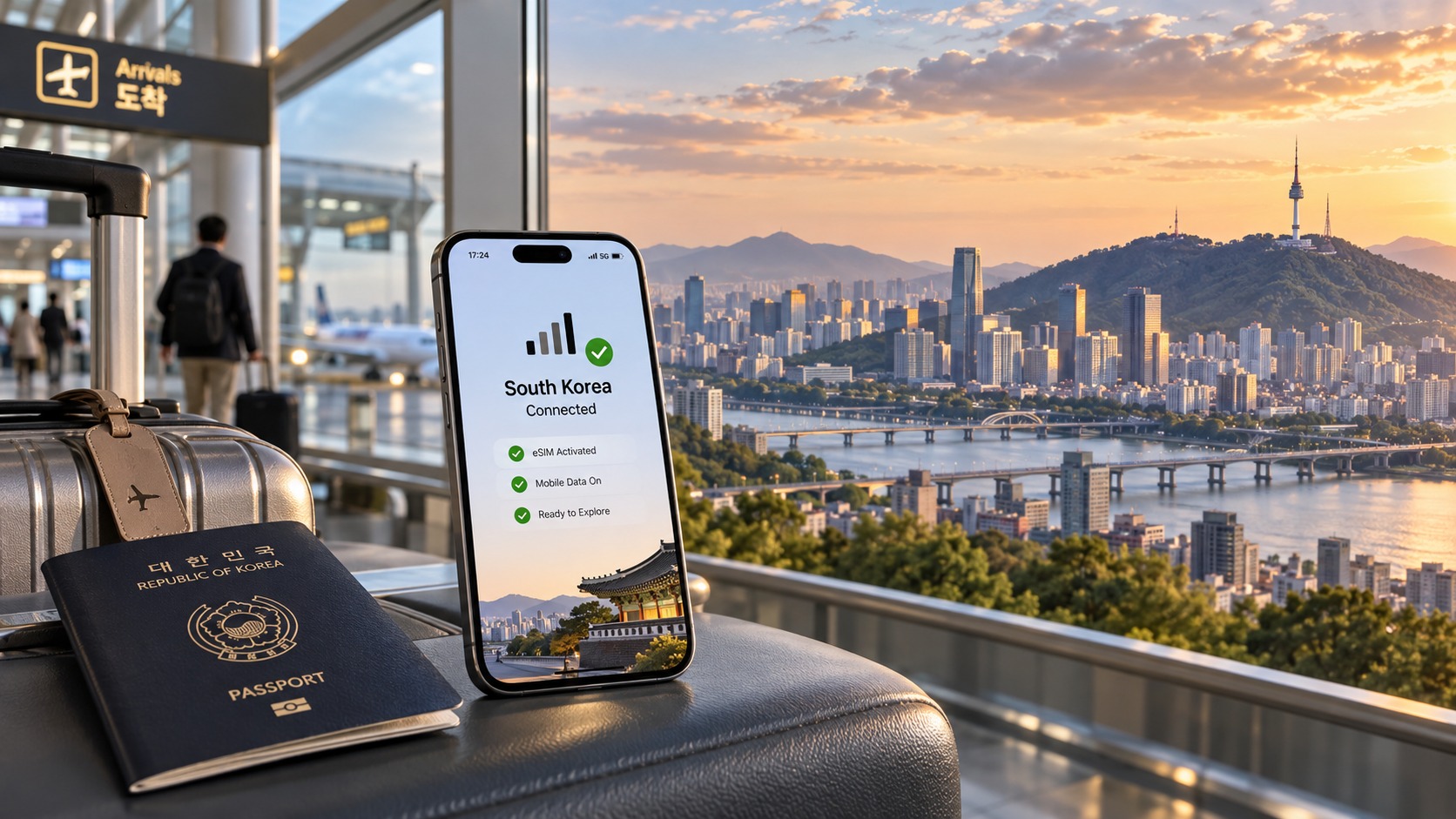
Seoul Connected: The Perfect South Korea eSIM Airport Arrival Checklist
Introduction to Seoul Connected: The Perfect South Korea eSIM Airport Arrival Checklist
Landing at Incheon International Airport (ICN) or Gimpo International Airport (GMP) is often the moment where the excitement of a South Korean trip collides with the logistical friction of modern travel. You have just endured a long-haul flight, your body is adjusting to the time zone, and your primary goal is simple: get from the tarmac to your hotel or Airbnb with minimal stress. Yet, for millions of international travelers, this critical first hour is frequently derailed by one invisible but debilitating issue: connectivity. Without a reliable mobile data connection, navigating the labyrinthine Korean subway system, verifying your hotel address in a language you may not speak, or simply accessing your digital boarding pass for the next leg of the journey becomes a gamble. The traditional solution—purchasing a local SIM card at a crowded airport kiosk—has long been the standard, but it is riddled with inefficiencies. It requires physical card swapping, immediate activation testing, and often involves navigating confusing foreign-language menus or waiting in lines that stretch around the terminal.
This is where the concept of a "Seoul Connected" arrival strategy becomes essential. It is not merely about having internet; it is about having the right kind of internet at the exact moment you step off the plane. The modern traveler needs a seamless, pre-provisioned digital identity that activates the instant your device connects to a Korean carrier’s network. This is the problem that MollySIM addresses with a precision-focused approach to South Korea eSIM technology. Unlike generic global eSIM providers that offer a one-size-fits-all data plan, MollySIM is engineered specifically for the nuances of the Korean telecommunications landscape.
The core value proposition here is not just connectivity, but usability. Many budget eSIM providers in the market impose a "Fair Use Policy" (FUP) speed limit that throttles your connection to a crawl once you exceed a certain data threshold. For many competitors, this limit sits at a sluggish 128kbps. While this might be sufficient for checking emails, it is often too slow for real-time navigation, video calls, or even loading complex web pages like Google Maps or Apple Pay interfaces. In a fast-moving environment like Seoul, where you might need to quickly verify a taxi fare, scan a QR code for a convenience store payment, or pull up turn-by-turn directions in a dense urban area, 128kbps can feel like a digital bottleneck.
MollySIM distinguishes itself by offering a 384kbps Fair Use Policy speed limit. This is 3x faster than the industry standard 128kbps cap. Why does this specific technical detail matter so much for your airport arrival? Because it ensures that critical applications remain responsive even if you have burned through your high-speed data allowance. With MollySIM, Google Maps continues to load map tiles and calculate routes smoothly. Apple Pay and other digital wallet services maintain the low-latency connection required to process transactions without timeout errors. This 3x speed advantage transforms the eSIM from a "backup" connection into a primary, reliable tool that supports your entire workflow from the moment you land.
This checklist is designed to guide you through the precise steps of leveraging this technology to ensure you are "Seoul Connected" before you even clear immigration. We will move beyond the generic advice of "buy an eSIM" and dive into the specific technical configurations, optimal timing for activation, and troubleshooting steps that ensure your MollySIM eSIM is ready to perform. We will explore how to verify network compatibility, how to switch your device settings to prioritize the new eSIM profile, and how to test your connection in the specific Wi-Fi and cellular environments of Incheon and Gimpo airports. By the end of this guide, you will have a robust, fail-safe connectivity setup that allows you to navigate South Korea with the confidence of a local, free from the anxiety of dead zones, slow speeds, or physical SIM card failures. This is your definitive roadmap to a friction-free arrival.
Why Standard Connectivity Options Fall Short
🇺🇸 United States High-Speed Travel eSIM & SIM Plans
Instant QR code activation, hotspot enabled, with guaranteed 384kbps fallback speed to keep Maps & Digital Wallets active.
Arriving in South Korea with a traditional connectivity strategy often leads to a frustrating "connectivity gap" between landing and getting online. While the country boasts some of the world’s fastest 5G infrastructure, accessing it as a visitor involves navigating a complex landscape of physical logistics, carrier restrictions, and hidden costs. Understanding why standard options—physical SIM cards, Pocket WiFi devices, and local prepaid plans—fall short is the first step toward securing a reliable, high-performance connection.
The Physical SIM Card Bottleneck
The most common method for travelers is purchasing a physical SIM card at the airport or a local convenience store. While this option provides direct access to local networks like SK Telecom, KT, or LG U+ (which MollySIM partners with for optimal coverage), the process is fraught with friction.
1. The "SIM Swap" Anxiety Swapping a physical SIM requires physically removing your primary SIM (if you are using a dual-SIM device) or relying on a secondary slot. This process introduces a risk of physical damage to the card or the device tray. More critically, it creates a window of vulnerability where you may lose access to your primary number for calls or SMS verification codes if you are not careful.
2. Carrier Locks and APN Complexity Many local SIMs come with pre-configured Access Point Names (APNs) that are not always optimized for international roaming or specific data-heavy applications. You may find that while you are connected, the speed is throttled to 3G or 4G speeds despite being in a 5G zone, simply because the APN settings are not tuned for high-throughput data.
3. The Data Cap Cliff Local prepaid SIMs often come with aggressive data caps. Once you exceed the high-speed allowance (often 10GB–20GB), your speed drops drastically. Unlike eSIM providers that offer transparent "Fair Use" policies, local SIMs can throttle you down to 128kbps or even lower, making real-time navigation and video calls nearly impossible.
Pocket WiFi: The Bulk and Battery Burden
Pocket WiFi devices (MiFi) have been a staple for group travel, but for individual travelers or couples, they introduce significant logistical overhead.
- Device Management: You must carry an extra device, keep it charged, and ensure it is turned on. If the battery dies, you are offline.
- Connection Limits: Most Pocket WiFi devices support only 5–10 simultaneous connections. If you have multiple devices (phone, tablet, laptop), you are quickly hitting the limit.
- Latency Issues: The connection between your phone and the Pocket WiFi device adds a layer of latency. For real-time applications like Apple Pay or live map routing in Google Maps, this extra hop can cause timeouts or lag, especially in crowded airport environments where the 2.4GHz/5GHz bands are congested.
Physical SIM vs. eSIM vs. Pocket WiFi: A Comparative Analysis
The table below highlights the critical differences in speed, convenience, and reliability that make eSIMs the superior choice for modern travelers.
| Feature | Physical SIM Card | Pocket WiFi | MollySIM eSIM |
|---|---|---|---|
| Setup Time | 15–30 mins (Queue + Swap) | 10–15 mins (Queue + Pairing) | 2–5 mins (QR Scan) |
| Primary SIM Access | Often lost (Single SIM) | Retained | Retained (Dual SIM) |
| Post-Cap Speed | 128kbps – 384kbps | 128kbps – 384kbps | 384kbps (3x Faster) |
| Device Dependency | High (Physical Card) | High (Extra Device) | Low (Software Profile) |
| Ideal For | Long-term stays | Large Groups | Individuals/Couples |
The Speed and Reliability Gap
The most critical differentiator is what happens when you run out of high-speed data. Most competitors and local SIMs throttle post-cap speeds to 128kbps. At this speed, loading a map tile in Google Maps can take 5–10 seconds, and Apple Pay transactions may time out, leading to failed payments.
MollySIM addresses this by offering a post-cap speed of 384kbps, which is 3x faster than the industry standard. This technical advantage ensures that even if you are on a data budget, your critical applications remain responsive. You can still navigate, pay, and communicate without the frustration of a "dead" connection.
By choosing an eSIM, you eliminate the physical bottlenecks of SIM swapping and the logistical burden of Pocket WiFi, leveraging the full power of South Korea’s 5G network with the flexibility and speed that modern travel demands.
MollySIM: Your Perfect Connectivity Partner
In the high-stakes environment of international travel, connectivity is not merely a convenience; it is the operational backbone of your itinerary. While many providers offer basic data access, MollySIM (https://mollysim.com) distinguishes itself through a technical architecture designed specifically for the demands of modern, on-the-go travelers. The core of this advantage lies in its Direct Routing infrastructure, which bypasses the latency and packet loss often associated with resold or multi-hop network connections. By establishing a direct link between your device and South Korea’s primary telecommunications carriers, MollySIM ensures that data packets travel the shortest possible path. This architectural precision results in lower ping times and higher consistency, critical factors when you are relying on real-time applications such as ride-hailing services, live navigation, or video conferencing.
The 384kbps Advantage: Why Speed Matters After the Cap
The most tangible differentiator for the savvy traveler is the Fair Use Policy (FUP) speed limit. In the eSIM market, the standard post-cap speed is typically 128kbps. At this speed, your connection is technically "alive" but functionally crippled. Loading a single webpage can take 15–20 seconds, and interactive apps like Google Maps or Apple Pay often struggle to maintain a stable handshake with the server, leading to timeouts and failed transactions.
MollySIM breaks this industry norm by offering a post-cap speed of 384kbps. This is not a marginal improvement; it is a 3x increase in throughput compared to the standard. To understand the practical impact, consider the following performance metrics during a post-cap session:
| Application | 128kbps (Standard Competitors) | 384kbps (MollySIM) | User Experience Impact |
|---|---|---|---|
| Google Maps | 5–10 sec/tile load; frequent re-centering | 1–2 sec/tile load; smooth panning | Reliable navigation even in data-heavy zones |
| Apple Pay / Mobile Wallets | High timeout risk; failed NFC handshakes | Stable handshake; consistent approval | Seamless contactless payments at convenience stores |
| Messaging (KakaoTalk/WhatsApp) | Delayed media loading; typing indicators lag | Instant text sync; fast image previews | Real-time communication without buffering |
| Web Browsing | Text-only loading; images fail to render | Full page rendering; acceptable scroll speed | Access to full content, not just headlines |
This 384kbps threshold is the "sweet spot" for mobile usage. It is fast enough to keep critical services responsive, ensuring that your digital tools do not become obstacles. For instance, when using Kakao T (South Korea’s dominant ride-hailing app), the 384kbps speed allows the app to quickly fetch driver locations and update ETA estimates, whereas 128kbps often results in the app freezing or displaying stale data.
Premium Performance and Network Stability
Beyond raw speed, MollySIM focuses on network stability during peak hours. South Korea’s 5G and LTE networks are among the most congested in the world, particularly in Seoul’s central districts like Gangnam and Myeongdong. Many eSIM providers rely on secondary or lower-priority network tiers, which can lead to sudden drops in signal strength during these peaks. MollySIM’s direct routing ensures priority access to the primary network bands, maintaining a robust connection even when surrounding crowds are heavy. This reliability is crucial for travelers who depend on their phones for everything from banking to emergency contacts.
Furthermore, the setup process is engineered for efficiency. Unlike physical SIMs that require swapping cards and waiting for network registration, MollySIM’s eSIM profile is activated via a simple QR code scan. This 2–5 minute setup time means you are connected before you have even cleared customs, eliminating the "dead zone" period where you are offline and vulnerable. The integration of Dual SIM functionality ensures that your home number remains active for receiving SMS codes and calls, while the MollySIM profile handles all data-intensive tasks. This separation of concerns provides a seamless, professional-grade connectivity experience that aligns with the pace of modern travel. By choosing MollySIM, you are not just buying data; you are investing in a resilient, high-performance digital infrastructure that keeps you connected, informed, and in control throughout your journey in South Korea.
Step-by-Step Installation and Activation Guide
Turning a digital profile into a live, high-speed data connection is a precise technical process. While the concept of an eSIM is simple, the execution varies significantly between operating systems. A common pitfall for travelers is attempting to install the profile after connecting to a new Wi-Fi network, which can sometimes cause the device to prioritize the new network over the installation process, leading to timeouts. To ensure a flawless transition from "offline" to "fully operational" upon landing at Incheon International Airport (ICN) or Gimpo International Airport (GMP), follow this rigorous, platform-specific protocol. This guide assumes you have already purchased your plan and received the unique QR code via email or the MollySIM app.
Pre-Installation Critical Checks
Before you touch your screen, verify two critical settings to prevent installation failures:
- Wi-Fi Status: Keep your device connected to your home Wi-Fi or a stable airport Wi-Fi hotspot. Do not turn off Wi-Fi yet.
- Carrier Settings: Ensure your primary physical SIM (if present) is set to "Data" or "Voice" only, not "Data + Voice." This prevents your home carrier from intercepting the data request during the initial handshake.
- Battery Level: Ensure your battery is above 20%. Low power modes can throttle background processes, including eSIM profile downloads.
For iOS Users (iPhone 12 and newer, including SE 3rd Gen)
Apple’s integration is the most streamlined, but it requires specific navigation paths that many users miss.
- Access Cellular Settings: Open Settings > Cellular (or Mobile Data).
- Add eSIM: Tap Add eSIM. Note: If you do not see this option, ensure your iOS version is 12.1 or higher.
- Scan the QR Code: Select Scan QR Code. Point your camera at the MollySIM QR code.
- Troubleshooting: If the camera struggles with the screen glare, use the "Scan QR Code" option within the MollySIM app itself, which often generates a clearer, higher-contrast code.
- Confirm Installation: Tap Add eSIM. The profile will download. You will see a loading bar. Do not close the Settings app until the confirmation message appears.
- Label the Profile: When prompted to label the new line, name it "MollySIM" or "South Korea Data." This distinction is vital for your Dual SIM management later.
- Set Default Voice: When asked which line to use for Voice Calls, select your Home SIM. This ensures you continue to receive SMS verification codes and calls on your original number.
- Activate Data: Go back to Settings > Cellular > Cellular Data. Ensure the toggle for "MollySIM" is ON and the Home SIM is OFF for data.
For Android Users (Samsung, Pixel, and others)
Android devices vary by manufacturer (Samsung, Xiaomi, Pixel), but the core logic remains identical. The key difference is that Android often requires you to scan the code from within the specific "Add eSIM" menu, not the general camera app.
- Navigate to Network Settings: Go to Settings > Connections > Mobile Networks (Samsung) or Network & Internet > SIMs (Pixel).
- Initiate eSIM Addition: Tap Add eSIM or Download eSIM.
- Scan the Code: Use the on-screen scanner to capture the MollySIM QR code.
- Critical Step: Some Android versions ask you to confirm the carrier name. If "MollySIM" does not auto-populate, manually type "MollySIM" or select "Other."
- Verify Installation: Wait for the "eSIM installed" confirmation. On some devices, you may need to restart the phone to fully register the new profile.
- Configure Data Preference: Go to Settings > Connections > Mobile Networks > Set Default SIM.
- Data: Select MollySIM.
- Calls: Select Home SIM.
- SMS: Select Home SIM.
Post-Installation Verification & Performance Check
Once installed, do not assume it is working. Perform this three-point diagnostic:
- Network Search: Force a network refresh by toggling Airplane Mode ON for 10 seconds, then OFF. Watch for the 5G or LTE icon to appear next to the MollySIM label.
- Speed Test: Open a speed test app. With MollySIM’s 384kbps Fair Use Policy, you should see significantly higher throughput than competitors capped at 128kbps. This 3x speed advantage is critical for real-time applications.
- App Functionality: Open Google Maps or Apple Maps and attempt to load a street view. Then, open your banking app or Apple Pay/Google Pay to ensure the tokenization process works over the new data line. If these apps load instantly without buffering, your eSIM is fully active and optimized for high-demand tasks.
By following this exact sequence, you eliminate the guesswork. You are no longer relying on the device’s automatic network selection, which often defaults to the home carrier’s roaming rates. Instead, you have manually enforced a high-priority, low-latency data channel, ensuring that from the moment you step off the plane, your digital life remains uninterrupted.
Practical Travel Tips for Staying Connected
Having successfully installed and verified your eSIM, the next phase is optimizing how you consume that data. Many travelers arrive in Seoul with a working connection but quickly burn through their data allowance or suffer from "app fatigue" due to inefficient background processes. To maximize the value of your MollySIM plan, you need to implement specific strategies for data hygiene, digital payments, and local app integration. These steps transform a basic data line into a seamless travel infrastructure.
Mastering Background Data Consumption
The single biggest killer of mobile data plans is not active browsing; it is background synchronization. By default, smartphones are configured to sync email, cloud photos, and app updates constantly. In Seoul, where Wi-Fi is ubiquitous but often requires login, relying solely on cellular data for these tasks is inefficient.
- Disable Automatic App Updates: Navigate to your App Store or Play Store settings and set "Mobile Data" to Off or "Wi-Fi Only." This prevents large game updates or app patches from silently draining your gigabytes while you are walking between subway stations.
- Manage iCloud/Google Drive Sync: Go to Settings > iCloud (or Google Account) > iCloud Drive (or Storage). Turn off "Optimize iPhone Storage" if you are on iOS, or ensure "Auto-sync" is paused for heavy media files. You want your phone to store data locally, not constantly upload/download to the cloud over the 384kbps connection.
- Turn Off "Low Data Mode" Paradoxically: On iOS, "Low Data Mode" can sometimes throttle performance too aggressively for real-time navigation. Given MollySIM’s 384kbps Fair Use Policy, which is 3x faster than the typical 128kbps cap found in many competitor eSIMs, you have enough headroom to keep standard data settings active. This ensures that Google Maps and Apple Maps load street views and turn-by-turn directions instantly, without the buffering that occurs on slower, capped connections.
Setting Up Digital Wallets for Seamless Payments
South Korea is rapidly moving toward a cashless society, and while credit cards are accepted almost everywhere, digital wallets offer the fastest transaction speed. However, setting these up requires a stable, low-latency connection to complete tokenization.
- KakaoPay and Toss: These are the two dominant local payment apps. Download them immediately after landing. When adding your home credit card, ensure you are on your MollySIM data line. The tokenization process involves a secure handshake between your bank’s server and the local payment gateway. A stable, high-speed connection prevents the "Transaction Failed" errors that often occur on weak roaming signals.
- Apple Pay/Google Pay: If you prefer using your physical card digitally, ensure your card is added to your wallet before you leave the airport. While it can be done later, the initial setup requires a stronger signal. With MollySIM’s superior speed, this process is nearly instantaneous, allowing you to tap your phone at convenience stores like GS25 or CU without waiting for a spinner icon.
Strategic Local App Integration
Do not rely solely on international apps. Seoul’s ecosystem is built around specific local platforms that offer better accuracy and features.
| App Category | Recommended App | Why It Matters for Data Efficiency |
|---|---|---|
| Navigation | Naver Map | Often more accurate for subway exits and local streets than Google Maps. Uses less data for initial load due to localized server proximity. |
| Translation | Papago | Developed by Naver, it is optimized for Korean-English translation and works offline after initial download, saving data during long subway rides. |
| Food/Reviews | Naver Blog | The primary source for real-time food reviews in Korea. Use this to find hidden gems that international sites miss. |
| Transport | Kakao T | Essential for ride-hailing. It integrates with local taxi fleets and provides real-time pricing, which requires a stable data connection to fetch accurate quotes. |
Managing Your Cellular Data Plan
Finally, treat your eSIM data as a finite resource. Even with the generous 384kbps speed, heavy video streaming or large file downloads will deplete your plan quickly.
- Use Wi-Fi for Heavy Lifting: Connect to hotel or cafe Wi-Fi for video streaming (Netflix, YouTube) and large file downloads. Use your MollySIM data for critical tasks: navigation, messaging, and real-time banking.
- Monitor Usage Daily: Most eSIM providers offer a dashboard or app to check remaining data. Check it once a day. If you are approaching your limit, prioritize your data usage for the next 24 hours.
- Avoid "Data Saver" for Critical Apps: While "Data Saver" modes are useful for general browsing, they can sometimes delay the loading of critical map tiles. Since MollySIM’s speed advantage allows for smoother real-time performance, keep data saver off for your navigation and payment apps to ensure they always have priority access to the network.
By implementing these strategies, you move beyond simply "having internet" to actively managing your digital presence in Seoul. You leverage the speed advantage of your eSIM for tasks that demand it, while protecting your data allowance for the moments that truly matter. This proactive approach ensures that your connection remains reliable, fast, and cost-effective throughout your entire stay.
Conclusion and Final Checklist
Arriving in Seoul is no longer just a matter of landing and finding the taxi stand; it is a digital handshake with the city. The difference between a smooth, confident arrival and a stressful scramble for currency exchange or translation apps lies entirely in the readiness of your connectivity. You have moved past the era of hunting for SIM card kiosks in the arrivals hall, only to discover your phone is incompatible or the data speeds are throttled to a crawl. By securing your eSIM before you leave your home country, you have effectively pre-loaded your digital identity for South Korea. This preparation ensures that the moment your wheels touch the tarmac at Incheon International Airport (ICN) or Gimpo International Airport (GMP), your device is already broadcasting a local signal, ready to handle the immediate demands of navigation, translation, and payment.
The strategic advantage of this approach is most evident in the critical first hour. Whether you are navigating the complex subway system to your hotel or verifying your hotel’s exact entrance via real-time map data, the speed of your connection dictates the ease of your experience. This is where the technical specifications of your provider become tangible. With a provider like MollySIM (https://mollysim.com), you are not just getting a data pipe; you are getting a performance tier that matters. The standard 128kbps speed cap found in many budget eSIMs is often sufficient for email, but it can cause lag when loading map tiles or processing Apple Pay/Google Pay transactions. MollySIM’s 384kbps Fair Use Policy speed limit is three times faster than these competitors, ensuring that high-priority applications like Google Maps, Apple Maps, and digital wallets function without the frustrating buffering or timeout errors that can occur on slower connections. This speed differential is the difference between a seamless tap-to-pay at a convenience store and a failed transaction that requires a fallback to cash.
However, having the right tool is only half the battle; the other half is the discipline to use it correctly. You have learned to treat your eSIM data as a strategic asset rather than an infinite utility. You know to reserve the high-speed data for critical, real-time tasks—navigation, banking, and messaging—while offloading heavy bandwidth consumers like video streaming and large file downloads to Wi-Fi environments. This hybrid approach maximizes the value of your data plan, ensuring that your connection remains robust and fast for the duration of your stay, rather than being depleted in the first 24 hours by background updates and media consumption.
Before you pack your bags, run through this final verification checklist to ensure zero friction upon arrival. This is your last opportunity to catch configuration errors before you are in a foreign country with limited support options.
Pre-Departure Verification Checklist
Execute these steps at least 24 hours before your flight to allow time for troubleshooting.
| Check Item | Action Required | Success Indicator |
|---|---|---|
| eSIM Activation | Confirm the eSIM profile is installed and set as the Data SIM. | Your phone shows the carrier name (e.g., SK Telecom, KT, or LG U+) under the eSIM icon. |
| APN Settings | Verify the APN matches your provider’s requirements. | No "No Internet" or "Connected, No Internet" errors on the eSIM line. |
| Data Roaming | Ensure Data Roaming is enabled for the eSIM line only. | The eSIM line shows a signal bar; the physical SIM (if present) is set to "Voice Only" or "Off". |
| Wi-Fi Assist | Disable "Wi-Fi Assist" or "Auto Switch to Cellular" if you want to control data usage. | Your phone does not automatically switch to eSIM data when Wi-Fi signal is weak. |
| App Updates | Update Google Maps, Apple Maps, and translation apps. | Apps are fully loaded and cached for offline use if possible. |
| Battery Health | Charge your phone to 100% and enable "Low Power Mode" for the flight. | Phone is ready for immediate use upon landing. |
| Provider Dashboard | Log into the MollySIM app or dashboard to confirm data balance. | You can see your remaining data and expiration date clearly. |
By completing this checklist, you transform your arrival from a logistical challenge into a seamless transition. You are not just a tourist with a phone; you are a connected citizen of Seoul, ready to navigate, pay, and communicate with the speed and reliability that the city demands. The digital bridge is built; all that remains is for you to cross it.
🇺🇸 United States High-Speed Travel eSIM & SIM Plans
Instant QR code activation, hotspot enabled, with guaranteed 384kbps fallback speed to keep Maps & Digital Wallets active.