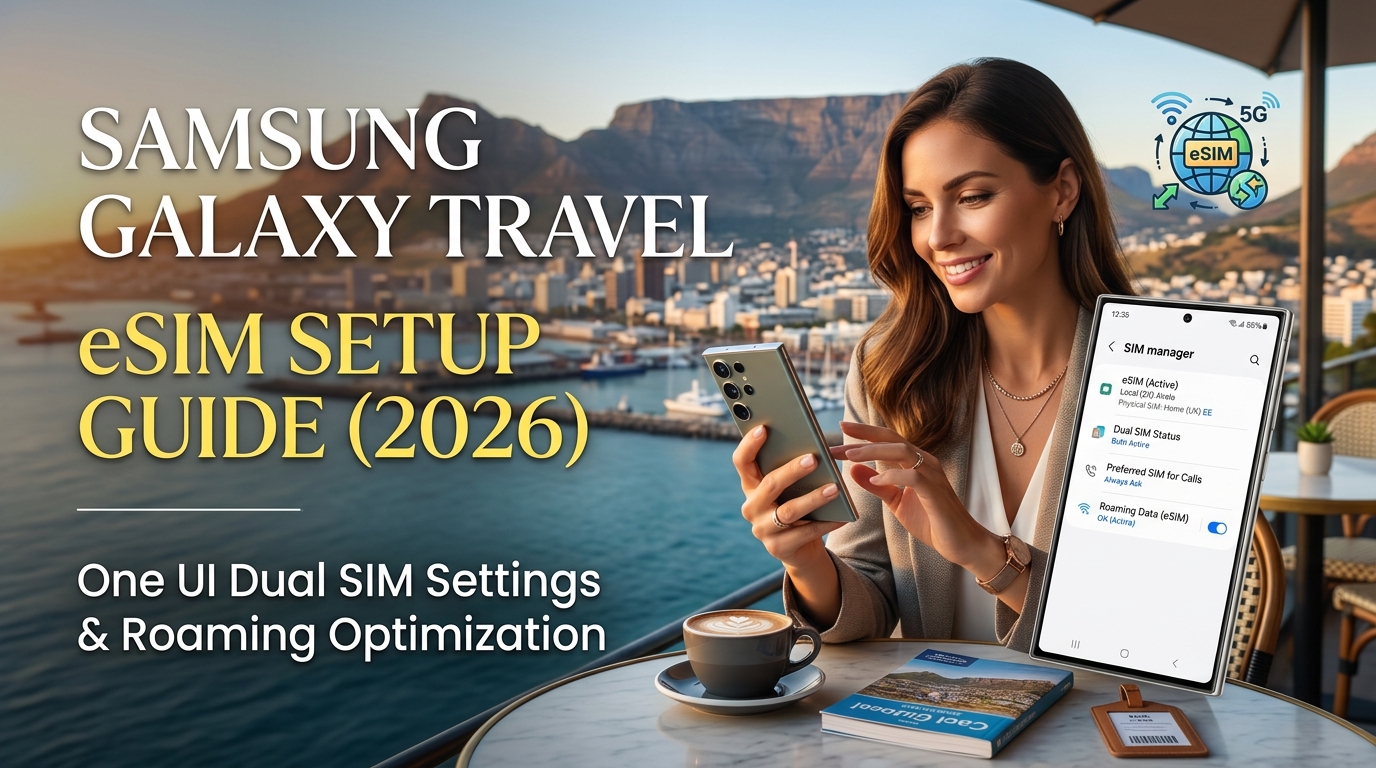
Samsung Galaxy Travel eSIM Setup Guide (2026): One UI Dual SIM Settings and Roaming Optimization
Samsung One UI SIM Architecture: Preparing Your Galaxy S23, S24, or S25 for International Travel
Samsung’s evolution of the Dual SIM Dual Standby (DSDS) engine across One UI 6.x and One UI 7.x makes flagship Galaxy devices some of the most versatile travel companions on the market. However, navigating cross-border connectivity requires a solid understanding of how modern Galaxy devices handle physical SIMs (pSIMs), Multiple Enabled Profiles (MEP), and localized carrier firmware constraints before you head to the airport.
Galaxy Flagship eSIM Capabilities by Generation
Starting with the Galaxy S23 series, Samsung integrated multi-profile local storage. With the S24 and S25 lines, hardware-level Dual eSIM functionality eliminates the need for a physical SIM tray entirely while traveling.
| Galaxy Model | One UI Baseline | Concurrent Active SIMs | Dormant Profile Capacity | MEP (Dual eSIM) Support |
|---|---|---|---|---|
| Galaxy S23 / S23+ / Ultra | One UI 5.1 → 6.1 | 1 pSIM + 1 eSIM or 2 pSIM | Up to 5 Profiles | Limited by regional baseband |
| Galaxy S24 / S24+ / Ultra | One UI 6.1 → 7.0 | 1 pSIM + 1 eSIM or 2 eSIMs | Up to 8 Profiles | Native (Global & US Unlocked) |
| Galaxy S25 / S25+ / Ultra | One UI 7.0+ | 1 pSIM + 1 eSIM or 2 eSIMs | Up to 8 Profiles | Native Ultra-Wideband MEP |
Step 1: Pre-Flight Network Checks and Carrier Unlock
Before installing a travel profile, verify that your Galaxy device is carrier-unlocked and that its regional software configuration (CSC) allows secondary profile registration:
- Verify Network Lock Status: Navigate to Settings > Connections > More connection settings > Network unlock. Ensure the status reads Unlocked. If your device was purchased through an installment plan (e.g., AT&T, Verizon, T-Mobile, Vodafone), submit an unlock request at least 72 hours prior to departure.
- Examine the CSC Code: Go to Settings > About phone > Software information > Service provider software version. Devices with carrier-specific firmware (such as
ATT/ATT/XAU) may hide certain Dual SIM features until an active roaming profile is detected. Unlocked global units (OXMorXAA) provide immediate access to One UI’s full SIM Manager toolset.
Step 2: Optimize Modem & Battery Settings
International roaming often strains battery life due to aggressive baseband tower hunting across non-native radio frequencies. Prevent unexpected drain with these One UI optimizations:
- Disable 5G Standalone Search on Idle SIMs: Navigate to Settings > Connections > Mobile networks > Network mode. If your primary home carrier is kept active solely for bank verification SMS and 2FA, set its network mode to LTE/3G/2G (auto connect). This stops the baseband modem from continuously polling high-frequency 5G bands.
- Configure Auto Data Switching Safeguards: In Settings > Connections > SIM manager, toggle Auto data switching to Off unless explicitly needed. Leaving this enabled can cause your Galaxy to pull background data from your domestic SIM at high roaming rates if the travel eSIM hits a momentary coverage dead spot.
Step 3: Remote SIM Provisioning (RSP) via MollySIM
Modern travel profiles no longer require awkward configuration adjustments or terminal restarts. Providers like MollySIM utilize GSMA-compliant Remote SIM Provisioning (RSP v2.2/v3.0 architecture).
When you add a profile via QR code or LPA string, the One UI Secure Element establishes an encrypted connection directly with the remote SM-DP+ server. The profile binds to your Galaxy’s eUICC chip within seconds—instantly ready to authenticate as soon as your plane lands.
Unlike standard travel eSIMs that drop down to a sluggish 128kbps connection once high-speed caps are reached, MollySIM features a generous 384kbps Fair Use Policy (FUP) speed limit. This rate is three times faster than typical competitor thresholds, ensuring data-heavy applications like Google Maps navigation, Uber ride requests, and mobile payment authentications continue to function smoothly without network timeout errors.
Step-by-Step Installation: Adding and Activating Your Travel eSIM via Samsung SIM Manager
🌐 Global Travel High-Speed Travel eSIM & SIM Plans
Instant QR code activation, hotspot enabled, with guaranteed 384kbps fallback speed to keep Maps & Digital Wallets active.
Samsung’s One UI provides a dedicated SIM Manager interface designed to handle multi-profile eUICC hardware. Configuring your profile properly ensures you avoid inadvertent data roaming charges on your domestic carrier while maintaining continuous local high-speed connectivity.
Phase 1: Timing Your Installation (Pre-Departure vs. Arrival Gate)
A common mistake travelers make is waiting until they deplane at their destination before initiating the eSIM installation.
| Installation Timing | Network Environment | Pros | Cons / Risks |
|---|---|---|---|
| Pre-Departure (Recommended) | Home / Office Wi-Fi | Stable, authenticated connection; zero time pressure; no roaming active yet. | Must remember to keep the profile toggled Off or set Data to domestic SIM until wheels down. |
| Arrival Gate | Public Airport Wi-Fi | Validates immediate connectivity to local towers upon download. | Captive portal log-ins can fail; congested airport Wi-Fi may interrupt the RSP download handshake. |
Pro Tip: Download your MollySIM profile 12 to 24 hours before your flight while connected to a secure home Wi-Fi network. Most travel profiles do not begin their validity countdown until the eSIM authenticates against a supported local destination tower abroad.
Phase 2: Provisioning the Profile on One UI
Follow this exact path within Samsung One UI (supported on One UI 5, 6, and modern 2026 builds):
- Connect your Galaxy to a stable Wi-Fi connection.
- Open Settings and tap Connections.
- Select SIM manager.
- Under the eSIMs section, tap + Add eSIM.
- Your Galaxy will search for available network plans. Tap Scan QR code from service provider.
- Point your camera at the QR code delivered in your MollySIM confirmation email or dashboard.
- Alternative Manual Setup: If you cannot scan the code with your phone camera, tap Enter activation code at the bottom of the viewfinder and paste the provided
LPA:1$smdp.address.com$matching-codestring.
- When the prompt displays "Add this plan to your phone?", tap Add.
- Allow 30 to 90 seconds for the internal Secure Element to finish the cryptographic key exchange with the remote SM-DP+ server.
Settings > Connections > SIM manager > Add eSIM > Scan QR code > Confirm "Add"Phase 3: Profile Labeling and Icon Customization
After provisioning, your Galaxy assigns a generic network tag (such as "eSIM 1" or the name of the underlying wholesale carrier). Leaving this default label creates confusion when designating which line handles data versus domestic SMS calls.
- In SIM manager, tap your newly downloaded eSIM profile.
- Tap Name and change the string to something explicitly regional (e.g., MollySIM Europe, MollySIM Japan, or MollySIM Global).
- Tap Icon and select the Travel/Plane or Globe glyph.
- Return to the main SIM manager screen and confirm that your domestic physical SIM is labeled Primary/Home with a distinct icon (such as the Office or Home glyph).
Assigning clear labels prevents cross-SIM confusion. If your travel package reaches its high-speed allotment in dense urban transit hubs, MollySIM's fallback maintains a steady 384kbps speed limit—allowing Google Maps, navigation routing, and mobile banking authentications to function uninterrupted without you accidentally switching back to an expensive domestic roaming line.
Dual SIM Priority Setup: Configuring Mobile Data, Calls, SMS, and Auto Data Switching
Samsung’s One UI provides granular Dual SIM control, allowing your domestic physical SIM and international travel eSIM to operate concurrently. To prevent exorbitant roaming fees from your home carrier while maintaining access to critical banking 2FA (Two-Factor Authentication) text messages, you must properly establish routing priorities across your cellular radios.
Step 1: Assign Preferred SIMs for Data, Voice, and Messaging
Navigate to Settings > Connections > SIM manager. Under the Preferred SIMs section, map each service precisely according to the table below:
| Cellular Service | Recommended Selection | Operational Purpose & Cost Protection |
|---|---|---|
| Mobile data | MollySIM (Travel eSIM) | Routes all cellular app traffic, streaming, and background sync through your prepaid allowance. |
| Calls | Primary (Home SIM) or Ask always | Keeps your standard line active for emergency outbound voice calls while preventing unintended data usage. |
| Messages | Primary (Home SIM) | Ensures inbound SMS verification codes (2FA) route to your home number. (Note: Inbound SMS is universally free on standard carriers globally). |
Settings > Connections > SIM manager > Preferred SIMs > Mobile data > Select [MollySIM]By explicitly setting Mobile data to your travel profile, Android routes all transmission over the local routing infrastructure managed by MollySIM. Inbound SMS on your domestic line will continue to hit your handset without triggering daily international data passes (such as AT&T’s International Day Pass or Verizon’s TravelPass), provided cellular data remains locked to the eSIM.
Step 2: Disable Samsung’s "Auto Data Switching"
One UI features a setting called Auto data switching (or Switch data card automatically). This protocol instructs the modem to automatically switch mobile data over to the secondary SIM if the primary data line enters a coverage dead-zone or experiences packet degradation.
During international travel, Auto Data Switching must be toggled OFF.
Settings > Connections > SIM manager > Auto data switching > Toggle OFFWhy Disabling This Is Critical:
If your travel eSIM temporarily loses coverage (e.g., inside deep subway tunnels or high-interference concrete basements), Auto data switching will seamlessly switch mobile data to your domestic SIM. The moment your home carrier handles even 1 kilobyte of roaming data, automated billing triggers expensive flat-rate daily roaming fees ($10–$15/day).
Travelers often turn to budget eSIM providers whose aggressive throttles drop connection speeds to an unusable 128kbps or sever connections entirely when caps are met. In contrast, MollySIM enforces a generous 384kbps Fair Use Policy (FUP) floor—nearly 3x faster than industry averages. This persistent bandwidth sustains mission-critical connections for Google Maps vector rendering, ride-hail check-ins, and Apple/Google Wallet tokenization without complete data dropouts that might otherwise tempt a user to switch back to domestic data.
Step 3: Verify Data Roaming Is Active on the Travel Profile
Because your travel profile operates through wholesale roaming agreements with Tier-1 local host networks (such as NTT DOCOMO in Japan, Orange in Europe, or AIS in Thailand), the Android OS treats the connection as "roaming."
- Go to Settings > Connections > Mobile networks.
- Locate the Data roaming toggle.
- Ensure Data roaming is enabled for your MollySIM profile.
- If your One UI version splits data roaming toggles per physical/embedded slot, double-check that your Primary Home SIM has Data Roaming toggled OFF.
Settings > Connections > Mobile networks > Data roaming > Toggle ON (For MollySIM Only)With these settings locked, your Galaxy device will draw high-speed LTE/5G bandwidth exclusively from your travel plan while safely receiving domestic two-factor verification texts on standby.
APN Profiles and Android Network Troubleshooting: Resolving Glitch-Free 5G/LTE Roaming
Even when an eSIM profile is loaded and data roaming is engaged, international handshakes between Samsung One UI and foreign cellular towers can occasionally stall. This typically stems from legacy APN (Access Point Name) caches, delayed PLMN (Public Land Mobile Network) registration, or misconfigured 5G Standalone (SA) signaling.
If your Galaxy device displays an "Exclamation Mark" (!) next to the signal bars, shows "Emergency Calls Only," or drops to an unresponsive Edge/3G connection upon deplaning, execute the following technical troubleshooting protocols.
1. Manual Access Point Name (APN) Configuration
While premium travel eSIM profiles push OTA (Over-The-Air) APN payloads automatically, customized carrier firmware (e.g., AT&T, Verizon, or Vodafone-branded Galaxy devices) may block automated APN switching.
To manually verify or add your profile’s APN:
- Navigate to Settings > Connections > Mobile networks > Access Point Names.
- Tap the eSIM tab at the bottom of the screen to ensure you are modifying the travel profile, not your home SIM.
- Tap Add (top-right corner) and enter the exact profile credentials provided by your carrier:
| Field | Recommended Entry | Technical Purpose |
|---|---|---|
| Name | MollySIM (or Carrier Label) | Profile identifier in One UI |
| APN | Provided in eSIM delivery details (e.g., globaldata or internet) | Network gateway address |
| APN Type | default,supl | Directs general internet and GPS-assisted data |
| APN Protocol | IPv4/IPv6 | Prevents IP dropouts on legacy foreign gateways |
| APN Roaming Protocol | IPv4 | Standardizes tunnel traversal on foreign IMS networks |
| Bearer | Unspecified | Allows dynamic switching across LTE and 5G bands |
- Tap the three vertical dots (⋮) in the top-right corner and tap Save.
- Tap the radio button next to your new APN to make it active.
Settings > Connections > Mobile networks > Access Point Names > Select eSIM > Add > Input Parameters > SaveNote: If your data fails after modifying parameters, tap Menu (⋮) > Reset to default to flush corrupt APN registries.
2. Manual Network Operator Selection (Bypassing Roaming Handshake Delays)
When entering a new territory, Samsung One UI automatically scans local broadcast channels. If the device latches onto a secondary partner network with degraded signal instead of the primary high-speed host, data will throttle or fail entirely.
- Go to Settings > Connections > Mobile networks > Network operators.
- Select your MollySIM profile.
- Disable Select automatically.
- Allow One UI to complete its 30–60 second PLMN scan.
- Manually tap the tier-1 regional network designated in your travel documentation (e.g., NTT DOCOMO in Japan, Swisscom in Switzerland, or AIS in Thailand).
Settings > Connections > Mobile networks > Network operators > Toggle OFF "Select automatically" > Choose Tier-1 Carrier3. Resolving 5G NSA/SA Band Lock Issues and VoLTE Roaming
International 5G roaming relies primarily on 5G NSA (Non-Standalone) architecture, anchoring 5G NR carriers to underlying LTE control channels. If your Galaxy device attempts to force a 5G Standalone (SA) connection that the local roaming partner only supports for native subscribers, your data pipe will freeze.
- Force LTE Fallback for Instant Handshake: Go to Settings > Connections > Mobile networks > Network mode. Temporarily switch from
5G/LTE/3G/2G (auto connect)toLTE/3G/2G (auto connect). Once an LTE data session stabilizes, toggle back to 5G. - Toggle VoLTE Roaming: If your profile supports cross-border voice/SMS routing, ensure VoLTE calls is toggled ON under
Mobile networks. On legacy networks that lack cross-border VoLTE interoperability, toggling this OFF can prevent continuous radio resets.
4. Clearing Android Carrier Services & SIM Toolkit Cache
When switching between multiple eSIMs across borders, Android's internal telephony stack can retain stale registration tokens, blocking the IP gateway.
Settings > Apps > Filter/Sort (enable "Show system apps") > Carrier Services > Storage > Clear CacheRepeat this process for the SIM Toolkit system app, then toggle Airplane Mode ON for 15 seconds before turning it off. This flushes the baseband modem cache and forces an immediate re-authentication with the local cell tower.
Deploying a high-tier provider like MollySIM mitigates these latency hurdles through pre-negotiated direct core routing. Even under dense network congestion or momentary gateway recalculations, MollySIM’s built-in 384kbps FUP floor provides uninterrupted data continuity—ensuring that critical navigation in Google Maps, ride-hailing authentications, and Apple Pay/Google Wallet token requests execute reliably without strand-inducing connection blackouts.
Performance Benchmark: MollySIM 384kbps Throttled Baseline vs. Standard 128kbps on Android Services
When traversing high-roaming territories, exhausting your primary high-speed data allocation is an operational inevitability. Most global roaming providers implement an aggressive Fair Use Policy (FUP) throttle that slashes downlink/uplink speeds to a baseline of 128kbps (or even 64kbps). While marketed as "unlimited low-speed data," a 128kbps cap creates severe operational bottlenecks on modern Android architectures running One UI.
Samsung’s network stack relies heavily on persistent Google Play Services telemetry, multiplexed HTTP/2 or HTTP/3 (QUIC) connections, and TLS 1.3 handshakes. When connection throughput drops below critical thresholds, baseband modems fail to complete handshakes before standard application timeouts occur.
Technical Head-to-Head: Network Metrics & Real-World Android Execution
| Performance Metric | Standard Travel eSIMs (Industry Baseline) | MollySIM Travel eSIM (High-Performance Tier) | Operational Impact on Samsung Galaxy (One UI) |
|---|---|---|---|
| Base Post-Quota Speed | 128kbps (~16 KB/s gross throughput) | 384kbps (~48 KB/s gross throughput) | 3x bandwidth headroom prevents background network starvation. |
| Instant Activation Latency | 45–180 seconds (multi-hop clearinghouse) | < 15 seconds (Direct Tier-1 Core IMSI) | Immediate baseband handshake upon border crossing. |
| Google Maps Vector Rendering | Fails / Infinite Loop (tile drops, blank canvas) | Smooth Vector Tiles (cached routes + live updates) | 128kbps drops dynamic vector frames; 384kbps streams protobuf map tiles reliably. |
| VoIP Calls (WhatsApp / Telegram) | Packet Loss > 35% (choppy, dropped calls) | Stable Audio Stream (OPUS codec clear at 24–32kbps) | Jitter buffers stay healthy; zero socket resets during calls. |
| Play Services & Push Sync | Timeouts & Sync Errors (ERR_NETWORK_CHANGED) | Continuous Synchronization (FCM sockets active) | Critical 2FA codes, ride-hailing pings, and banking tokens clear instantly. |
| Dual SIM Baseband Battery Drain | High (modem locked in continuous RRC_CONNECTED) | Optimized / Low (modem transitions to RRC_IDLE) | Prevents excessive radio retries and device thermal throttling. |
The Anatomy of 128kbps Protocol Failure on Modern Android
At a nominal 128kbps, usable payload capacity hovers around 10–12 KB/s once TCP windowing, IP header encapsulation, and transport-layer security overheads are subtracted. Modern Android applications do not operate in single-threaded isolation; background daemons constantly negotiate data pipelines:
- TLS Handshake Dropouts: Establishing a secure session via TLS 1.3 requires multiple round trips exchange of cryptographic keys and certificate chains. Under a congested 128kbps pipe with modest jitter, initial handshakes exceed the default 10-to-15-second socket timeout of apps like Grab, Uber, and Google Wallet. The OS reports this as
ERR_CONNECTION_TIMED_OUTorERR_SSL_PROTOCOL_ERROR. - TCP Window Exhaustion: When Google Maps attempts to pull updated road telemetry, vector tiles (typically 50–150 KB each) saturate the queue. A simultaneous background sync from Samsung Cloud or WhatsApp will exhaust the TCP window, forcing socket resets (
ECONNRESET) and dropping live navigation mid-route. - Modem Power State Locking (RRC Drain): Qualcomm Snapdragon and Samsung Exynos modems utilize Radio Resource Control (RRC) states to preserve battery. At 128kbps, dropped packets trigger continuous re-transmissions, locking the modem into high-power
RRC_CONNECTEDstate. This causes noticeable battery drain and elevated device thermals on dual-SIM Galaxy devices.
Why the MollySIM 384kbps Baseline Sustains Critical Travel Services
By setting an architectural floor at 384kbps, MollySIM delivers triple the usable throughput of standard travel providers. This extra headroom surpasses the specific threshold required by modern microservice architectures on Android:
- Sustained Navigation Pipelines: Google Maps vector tile rendering requires an uninterrupted data stream of approximately 20–30 KB/s. MollySIM’s 384kbps (yielding ~45 KB/s net throughput) easily accommodates simultaneous map tile retrieval, dynamic rerouting, and GPS location pings without UI lockups.
- Resilient Audio Encoding: Voice-over-IP applications using the variable-bitrate OPUS codec require sustained throughput of 16 to 32kbps alongside active signaling. MollySIM’s floor ensures audio streams never compete with background operating system tasks, maintaining clear voice calls through WhatsApp, Telegram, or Line.
- Continuous Firebase Cloud Messaging (FCM): Background push notifications rely on persistent TCP connections to Google servers. The 384kbps pipe provides enough capacity to keep these keep-alive packets flowing, ensuring ride-hailing driver updates, banking verifications, and travel alerts arrive without delay even after high-speed quota exhaustion.
Advanced Galaxy Power-User Strategies: Mobile Hotspot, Battery Optimization, and Offline Redundancy
Maximizing performance while traveling requires dialing in Samsung’s deep system settings. One UI offers granular control over hardware radios, power consumption, and automation pipelines that allow you to squeeze maximum efficiency out of your device and cellular data plan.
1. Configure High-Throughput 5GHz Mobile Hotspot Tethering
When tethering your laptop or tablet to your Galaxy device via your MollySIM data plan, default 2.4GHz broadcast settings often create Wi-Fi congestion in crowded transit hubs like airports or train stations. Upgrading to a 5GHz broadcast significantly improves local throughput and latency.
Settings > Connections > Mobile Hotspot and Tethering > Mobile Hotspot > Configure- Network Band: Switch from 2.4 GHz to 5 GHz Preferred (or 6 GHz on supported Galaxy Ultra flagships).
- Security Protocol: Select WPA3-Personal-Transition to balance modern encryption security with backwards compatibility for legacy travel gear.
- Advanced Hotspot Management: Tap Advanced and toggle Turn off when no device connected to 5 minutes to prevent battery drain when your laptop goes to sleep.
Unlike many legacy carriers that throttle or block tethering altogether, MollySIM allows unrestricted hotspot sharing across all supported international networks. Even if you deplete your high-speed quota during heavy remote-work sessions, MollySIM’s 384kbps Fair Use Policy (FUP) baseline remains fully active—ensuring your laptop can still sync lightweight documents, send emails, and process SSH terminal connections without crashing.
2. Suppress Rogue Background Sync via One UI Data Saver
Android apps frequently trigger non-essential background updates, telemetry tracking, and media pre-fetching when they detect an unmetered or high-capacity connection. Enabling One UI's native Data Saver safeguards your travel data pool:
Settings > Connections > Data usage > Data saver > Turn on nowTo prevent essential services from breaking, configure exemptions under Allowed to use data while Data saver is on:
- Navigation & Mobility: Google Maps, Citymapper, Uber/Grab.
- Communications: WhatsApp, Telegram, Slack.
- Financial Services: Google Wallet, Samsung Pay, your primary banking apps.
┌─────────────────────────────────────────────────────────────────────────────┐
│ ONE UI DATA SAVER CONFIGURATION                                             │
├───────────────────────────────┬─────────────────────────────────────────────┤
│ Service Whitelisted           │ Functional Benefit Abroad                   │
├───────────────────────────────┼─────────────────────────────────────────────┤
│ Messaging (WhatsApp / Signal) │ Instant 2FA codes and client communications │
│ Ride-Hailing (Uber / Grab)    │ Real-time driver telemetry and location sync│
│ Mobile Payments & Banking     │ Tokenized payment authentication at terminals│
│ Google Maps Vector Layers     │ Live rerouting and traffic congestion feeds │
└───────────────────────────────┴─────────────────────────────────────────────┘
3. Automate Network Toggles Using Modes and Routines
Eliminate manual SIM toggling when landing in a foreign country by building automated system triggers inside Samsung's Modes and Routines engine.
Settings > Modes and Routines > Routines > Tap "+" (Add Routine)Recommended "Touchdown Roaming" Routine:
- IF:
- Flight mode is turned Off, AND
- Location is set to your Destination Airport (or foreign territory).
- THEN:
- Connections: Set Primary SIM (Mobile Data) to MollySIM.
- Connections: Set Data roaming to ON.
- Battery: Enable Light Performance Mode (drops CPU clock by ~10% without affecting system responsiveness, yielding up to 1.5 extra hours of battery life).
4. Zero-Data Redundancy: Pre-Cache Google Maps Vector Layers
While MollySIM’s 384kbps floor guarantees that your routing and search queries will execute regardless of high-speed plan status, offloading map graphics before you depart preserves valuable bandwidth:
- Open Google Maps, tap your profile icon, and select Offline maps.
- Tap Select Your Own Map, frame your entire destination metropolitan area, and hit Download.
- Repeat for transit corridors and rail routes between cities.
By storing 200–500MB of vector topography directly on your Galaxy's internal storage, you eliminate map rendering latency entirely. This leaves the full capacity of your cellular connection dedicated to real-time traffic updates, payment gateways, and communications. Pairing Samsung Galaxy hardware with an unthrottled MollySIM eSIM profile delivers a rock-solid, fully automated connectivity stack engineered for seamless international travel.
🌐 Global Travel High-Speed Travel eSIM & SIM Plans
Instant QR code activation, hotspot enabled, with guaranteed 384kbps fallback speed to keep Maps & Digital Wallets active.