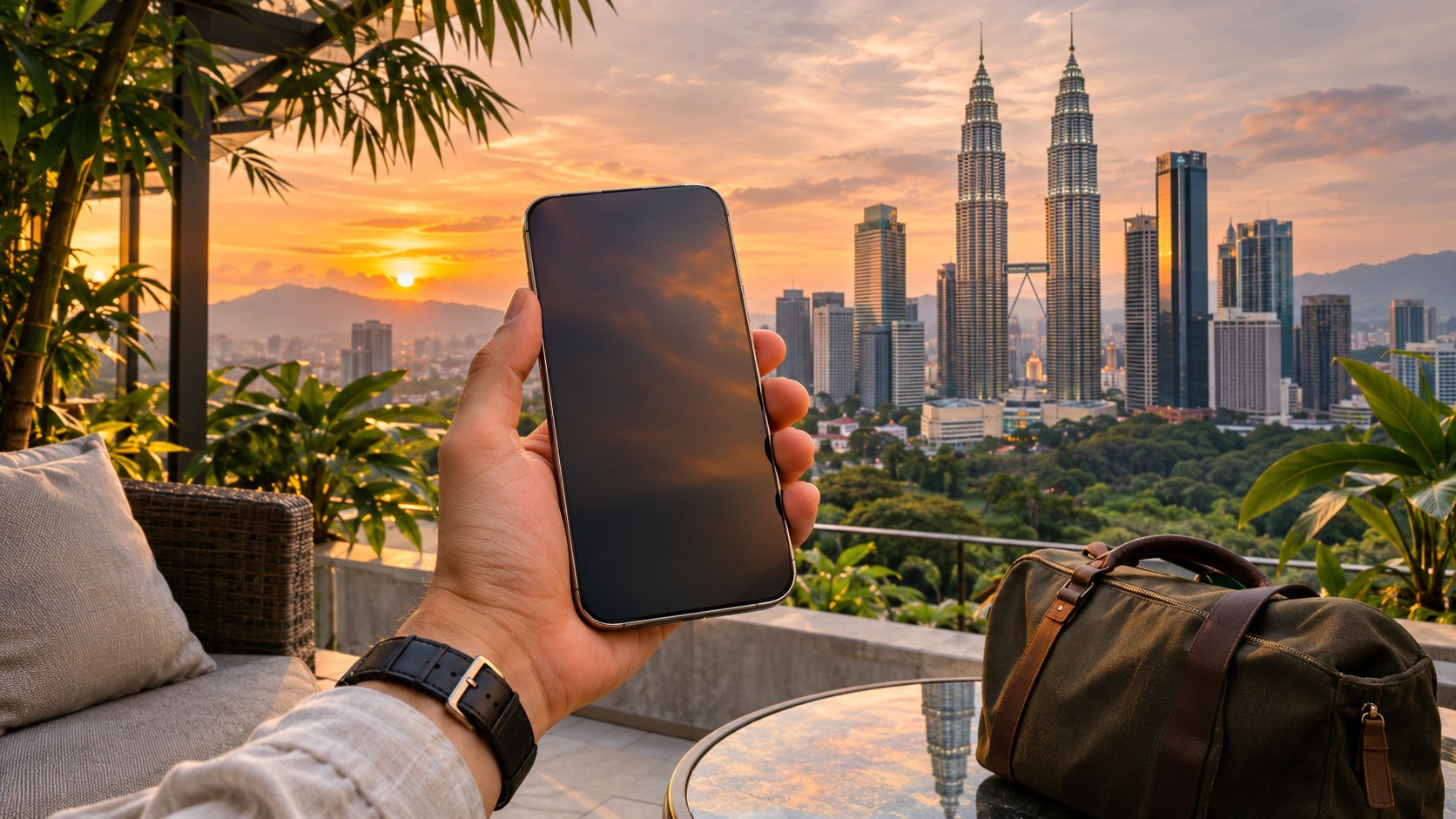
A little preparation makes Malaysia eSIM activation easier at the airport and after you arrive. You can often install a travel eSIM before departure using Wi-Fi, then leave its line switched off or keep it from using mobile data until your trip begins. The important distinction is that installation and plan activation are not always the same event. Before you scan a QR code, read when validity starts and follow the plan's own instructions.
This guide walks through compatibility, installation, line settings, and first connection. It also explains what to do if your Malaysia eSIM is not connecting after landing, how coverage can change between cities and islands, and what to prepare before leaving reliable Wi-Fi. For plan options and product-specific setup details, start with MollySIM Malaysia eSIM plans.
Malaysia eSIM activation: prepare before you install
Start with the phone you intend to use in Malaysia. It needs eSIM support, and it needs to be able to use the provider's supported network. Check the device's settings or manufacturer information for eSIM capability before ordering or scanning. If your phone has a SIM lock or other carrier restriction, confirm that it can accept a travel eSIM. Do not assume that a phone with a physical SIM tray automatically supports eSIM.
Have the following ready before installation:
- A stable Wi-Fi connection, preferably one you can keep using for the whole installation.
- The eSIM activation QR code or the provider's installation details.
- Your phone's passcode and access to settings that manage SIMs or mobile service.
- The plan instructions, especially the rules for activation, mobile data roaming, and APN settings.
- Your booking details saved somewhere you can open without relying on mobile data.
If the QR code was sent by email, open it on a second screen if possible. If you only have one device, follow the provider's manual installation steps if supplied. Keep the email available until the line has installed.
How to activate a Malaysia eSIM before flying
🇲🇾 Malaysia High-Speed Travel eSIM & SIM Plans
Instant QR code activation, hotspot enabled, with guaranteed 384kbps fallback speed to keep Maps & Digital Wallets active.
Installation over Wi-Fi before boarding can save time at arrival. It does not, by itself, tell you when plan validity begins. A plan can start at installation, on first connection, or at another event defined by its provider. Read the activation terms before installing, and choose a time that matches those terms. If the plan's start rule is unclear, use its instructions or support channel to resolve that before scanning rather than guessing.
Use the QR code or manual details exactly as directed. In the phone's cellular or SIM settings, add a mobile plan and follow the prompts. Give the line a clear label such as “Malaysia travel” so it is easy to distinguish from your home SIM later. Avoid deleting or resetting a line just because it does not connect before the trip; first compare its status with the provider's setup instructions.
After installation, check that the travel line appears in your phone's SIM list. Its presence means it is installed, but does not prove it is active or has service in your location. Keep the home line available and wait to select the Malaysia line for data until you are ready under the plan's validity rules.
Travel eSIMs can run alongside your existing SIM in a dual-SIM phone. With MollySIM's travel eSIM arrangement, you keep your own number for calls and SMS while data uses the MollySIM plan. That separation helps you identify which line is handling data. Your home carrier may separately charge for its own roaming, so review your home line settings and terms before travel.
Malaysia eSIM setup on iPhone and Android
Phone menus vary by model and software version, but the core setup is the same: install the plan, label it, select the line for data when appropriate, and apply any provider-required network settings.
| Step | iPhone | Android |
|---|---|---|
| Add the plan | Use the cellular or mobile service settings to add an eSIM, then scan or enter the supplied details. | Use SIM manager or network settings to add an eSIM, then scan or enter the supplied details. Menu names differ by device. |
| Label the line | Name it “Malaysia travel” or another label you will recognize. | Give the eSIM a clear travel label in SIM settings. |
| Choose data line | In cellular settings, select the Malaysia line for mobile data when the plan should be used. | In SIM or network settings, choose the Malaysia line as the preferred data SIM when ready. |
| Check network settings | Follow the provider's instructions for data roaming and APN settings. | Follow the provider's instructions for data roaming and APN settings. |
Do not turn on data roaming or enter an APN based on a guess. Some travel plans require roaming to be enabled for data, while the right APN depends on the provider's instructions. The same setting may appear under different menu names on different phones. If you are not sure what a prompt means, stop and consult the plan's instructions before changing it.
Before departure, verify that the home line remains the one you want for calls or SMS, and note which line will be selected for data in Malaysia. A screenshot of the relevant menu path can help at arrival.
Compare the ways to get mobile service
Each connectivity option has a different setup and trade-off. A travel eSIM is a separate prepaid data line; a local prepaid SIM is a local carrier product; home-carrier roaming uses the service attached to your existing number. Exact allowances and charges depend on the particular plan, so compare the plan details you are considering.
| Plan shape | What you use | Main setup point | Main trade-off |
|---|---|---|---|
| Data-only travel eSIM | A dedicated eSIM for data, alongside your existing SIM on a dual-SIM phone. | Install over Wi-Fi, then select it for mobile data and follow its roaming/APN instructions. | Your existing line continues to handle your calls and SMS; the travel eSIM is the data route. |
| Local prepaid SIM | A prepaid SIM from a local provider, such as a plan using Maxis, Celcom, or Digi where supported. | Follow that product's activation and registration instructions. | The actual network and included services depend on the specific plan. |
| Home-carrier roaming | Your existing home line connects through roaming arrangements. | Check your home carrier's settings and roaming terms before travel. | Charges and included service depend on your home plan. |
The network names you may encounter include Maxis, Celcom, and Digi. Seeing a carrier name in a list does not mean every Malaysia plan can use it. The plan's supported network determines the service available to you. Check the supported network shown for your own plan and use the provider's setup steps for selecting a network if manual selection is needed.
First connection after landing
When you arrive, use a short sequence instead of changing several settings at once. This makes it easier to see which change restored service.
- Open SIM settings and confirm the Malaysia travel line is enabled.
- Confirm that the Malaysia line is selected for mobile data, if your plan should be in use now.
- Check the provider's instructions for data roaming and APN settings; apply only the settings it specifies.
- Give the phone a moment to register on a supported network. If needed, toggle airplane mode once or restart the phone.
- If service is still unavailable, compare the phone's settings with the plan instructions and confirm that the plan's validity has begun.
If the phone offers automatic network selection, start there unless the provider directs you to select a supported network manually. A local signal indicator alone does not confirm that your plan's data allowance is available. The line must be active, chosen for data, and configured as directed. If your phone presents a roaming charge warning, read it carefully and make sure you are enabling roaming for the intended travel line rather than your home line.
Once data works, test a light task such as loading a map or sending a message. If the line stops working after a settings change, return to the provider's configuration. See the travel eSIM activation guides for more setup context.
Data use, fallback speed, and offline preparation
Maps, ride-hailing, messaging, email, and QR payments are useful arrival tools, but their data use depends on how you use them. Loading map areas, sending text messages, refreshing a ride app, and opening email are different from streaming video or repeatedly uploading photos. There is no single fixed data cost for an app session. Reduce avoidable use by downloading offline maps on Wi-Fi, limiting automatic photo backups, and waiting until Wi-Fi for large updates.
MollySIM travel eSIMs have a fair-use policy: after the high-speed allowance is used, data keeps working at 384 kbps. That reduced speed can support maps, messaging, email, and QR payments, though tasks can take longer and media-heavy use is less suitable. Treat it as a fallback for basic travel tasks rather than a reason to skip planning. Download offline maps and save essential addresses before leaving Wi-Fi, especially if your route includes a rural road or island.
Keep booking details accessible without a data connection. Save your accommodation address, transport information, and confirmation details in an offline note or screenshot. Make sure any QR code needed for a booking or entry is stored locally on the phone. This is helpful if coverage is delayed, the eSIM is still registering, or your high-speed allowance has been used.
Malaysia eSIM coverage on islands and rural routes
Coverage depends on the supported local network, your location, and local conditions. Service may be less consistent away from major towns. A plan that uses one supported network may perform differently from a plan using another, and the names Maxis, Celcom, and Digi do not establish that all three are available to your eSIM. Check the network details for the plan you selected.
Before travelling away from a town, download the map area, store directions and booking details offline, and tell your travel group how you will coordinate if mobile data drops. Keep navigation needs in mind: offline maps can show saved map information, but live traffic, ride-hailing updates, messaging, and QR payments need a connection. If you depend on a particular app for a transfer or booking, prepare its key details while you still have Wi-Fi.
Coverage can vary across cities, rural roads, and islands. Check the eSIM's supported network, keep your phone charged, and avoid relying on a live map as your only copy of directions.
Frequently Asked Questions
Can I activate a Malaysia eSIM before my flight?
You can often install the eSIM before departure while connected to Wi-Fi. Installation and plan activation may be separate, so check whether the validity period begins at installation, first connection, or another event. Follow the provider's stated timing before you scan the code.
Why is my Malaysia eSIM not connecting after landing?
Confirm that its line is enabled and selected for mobile data. Then follow the provider's instructions for data roaming and APN settings. A restart or airplane-mode toggle may help the phone register on a supported network. Also confirm that the plan is within its validity period and supports the network available where you are.
Will a Malaysia eSIM work on islands and in rural areas?
It depends on the plan's supported network, your location, and local conditions. Service may be less consistent away from major towns. Save maps and essential travel details before you go, and do not rely on continuous mobile data for navigation or coordination.
Do I need to switch off my home SIM?
Not necessarily. A dual-SIM phone can keep your existing SIM alongside the travel eSIM. Choose the travel line for mobile data when you are ready, and check your home carrier's roaming settings and terms so you know how that line may be used during the trip.
A quick pre-boarding checklist
Before you leave Wi-Fi, verify that the eSIM appears in SIM settings, has a recognizable label, and is configured according to its provider's directions. Confirm the plan's validity start rule and know which line should provide data after arrival. Save maps, booking details, addresses, and important QR codes offline. Keep the installation email or instructions easy to find in case you need to check a setting later.
At arrival, enable the travel line, select it for data, and let it register on its supported network. If it does not connect, check the line selection, roaming and APN instructions, and validity timing before restarting or toggling airplane mode. With those steps prepared, you can focus on the trip rather than troubleshooting from the airport queue.
SEO Score: 11/11
🇲🇾 Malaysia High-Speed Travel eSIM & SIM Plans
Instant QR code activation, hotspot enabled, with guaranteed 384kbps fallback speed to keep Maps & Digital Wallets active.