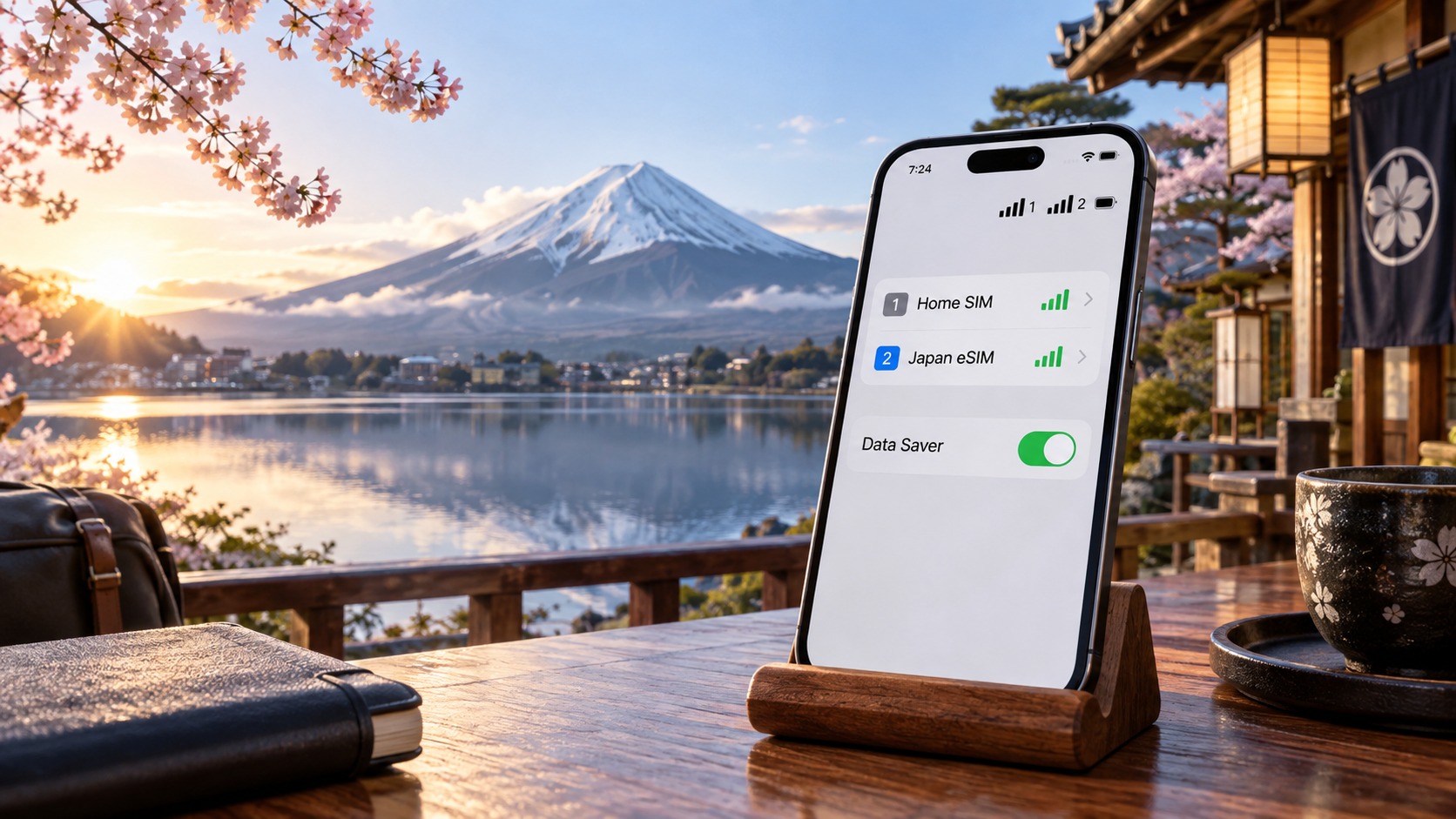
Mastering Dual SIM in Japan 2026: How to Use Data Saver Mode to Slash eSIM Costs by 80%
The 2026 Dual SIM Architecture: iOS 18 and Android 14+ Deep Dive
To truly master cost-efficient connectivity in Japan, one must first understand the underlying hardware and software logic that governs dual SIM functionality. In 2026, the landscape has shifted from simple "on/off" toggles to sophisticated, AI-assisted network management. The hardware requirement for this setup is no longer just about having two slots; it is about the eSIM + Physical SIM configuration. Most modern flagships (iPhone 15/16 series, Samsung Galaxy S24/S25, Pixel 8/9) support this hybrid model, allowing you to keep your home carrier’s physical SIM for identity verification (SMS/OTP) while routing all data-intensive traffic through a local Japanese eSIM. This isolation is the cornerstone of the 80% cost-saving strategy.
Operating System Logic: iOS 18 vs. Android 15
The operating systems have evolved significantly to handle concurrent network attachments. iOS 18 and Android 15 (built on the foundation of Android 14) have refined their "Network Switching Logic." Previously, if both SIMs were active for data, the OS would often prioritize the primary line, leading to unexpected roaming charges. Now, the OS utilizes a Priority Hierarchy.
- iOS 18: Introduces a more granular "Cellular Data Plan" manager. It allows you to designate a specific SIM as the "Default Data" line while keeping the other active for SMS. Crucially, iOS 18’s background process management ensures that apps like WhatsApp or banking apps do not silently switch to the roaming line for data updates if the eSIM signal drops momentarily.
- Android 15: Enhances the "SIM Card Manager" with better power-state awareness. It prevents the home SIM from waking up to check for data unless explicitly triggered by an SMS or voice call. This is critical for preventing the "accidental data burst" that often occurs when a phone wakes up to sync email or cloud backups.
The 'Line 1' vs. 'Line 2' Concept
Understanding the distinction between Line 1 (Home Carrier) and Line 2 (Local eSIM) is vital.
- Line 1 (Home): Your identity. It handles Voice, SMS, and OTPs. It should be set to Data Roaming: OFF.
- Line 2 (Local eSIM): Your bandwidth. It handles all internet traffic. It should be set to Data Roaming: ON (or simply "Active" for data).
The goal is to create a Cost-Efficient Hybrid Model: Your phone thinks it is at home for messages, but it is surfing the web locally in Japan.
Step-by-Step Setup Guide: Adding MollySIM
For this guide, we will use MollySIM (https://mollysim.com) as the local eSIM provider. MollySIM is particularly advantageous in 2026 due to its 384kbps Fair Use Policy speed limit. While many competitors throttle post-limit speeds to a sluggish 128kbps, MollySIM’s 384kbps is 3x faster, ensuring that critical apps like Google Maps and Apple Pay continue to function smoothly even if you exceed your data cap. This prevents the frustration of frozen maps or failed contactless payments.
iPhone (iOS 18) Setup
- Insert Home SIM: Ensure your physical SIM is in the primary slot.
- Add eSIM: Go to Settings > Cellular > Add eSIM.
- Scan QR Code: Scan the QR code provided by MollySIM.
- Configure Labels:
- Tap the eSIM name.
- Set Cellular Data to ON.
- Set Voice & SMS to OFF (unless you need local calls).
- Configure Home SIM:
- Tap the Home SIM name.
- Set Cellular Data to OFF.
- Set Voice & SMS to ON.
- Verify Data Plan: Go to Settings > Cellular > Cellular Data Plan. Ensure the "Default Data Line" is set to the MollySIM eSIM.
Android (Android 15) Setup
- Insert Home SIM: Ensure the physical SIM is detected.
- Add eSIM: Go to Settings > Network & Internet > SIM Cards > Add eSIM.
- Scan QR Code: Scan the MollySIM QR code.
- Configure Roles:
- Tap the MollySIM eSIM.
- Set Data to ON.
- Set Calls & Messages to OFF.
- Configure Home SIM:
- Tap the Home SIM.
- Set Data to OFF.
- Set Calls & Messages to ON.
- Verify Default: Go to Settings > Network & Internet > SIM Cards > Default SIMs. Set Mobile Data to the MollySIM eSIM.
Critical Pitfall: The 'eSIM Already In Use' Error
A common issue in 2026 is the "eSIM already in use" error, which occurs if the eSIM profile is still active on a previous device or if the carrier’s backend hasn’t fully released the profile.
How to Resolve:
- Check Previous Device: If you used this eSIM on an old phone, ensure it was deleted from that device’s settings.
- Carrier Reset: Contact MollySIM support. They can perform a Remote Profile Reset, which clears the eSIM ID from their system, allowing you to re-scan the QR code on your new device.
- iOS Specific Fix: On iPhone, go to Settings > Cellular > [eSIM Name] > Remove eSIM. Choose "Remove eSIM" (not just "Turn Off"). Wait 5 minutes, then re-add.
Final Verification Checklist
Before leaving your hotel, perform this test:
- Send an SMS to a local number. It should go out via the Home SIM (Line 1).
- Open Google Maps and search for a location. It should load instantly via the MollySIM eSIM (Line 2).
- Check Data Usage: Ensure the data counter is incrementing on the eSIM, not the Home SIM.
By isolating data traffic to the eSIM while keeping voice/SMS on the home line, you create a robust, cost-efficient hybrid model. This setup ensures that your phone remains fully functional for identity verification and critical communications, while your data consumption is handled by a local, high-speed provider like MollySIM, maximizing your budget and minimizing your stress.
Decoding Japan's Network Landscape: SoftBank, Docomo, and KDDI Band Interactions
🇯🇵 Japan High-Speed Travel eSIM & SIM Plans
Instant QR code activation, hotspot enabled, with guaranteed 384kbps fallback speed to keep Maps & Digital Wallets active.
Navigating Japan’s telecommunications ecosystem in 2026 requires more than just scanning a QR code; it demands an understanding of the underlying frequency architecture that dictates signal strength, latency, and data throughput. Japan operates on a tripartite carrier model dominated by NTT Docomo, SoftBank, and KDDI (au). Each carrier utilizes distinct frequency bands for their 4G/LTE and 5G networks, creating a complex landscape where device compatibility and carrier selection directly impact your user experience. For dual SIM users, understanding these band interactions is critical to avoiding dropped connections or unexpected data throttling, especially when leveraging eSIMs for data-heavy tasks while maintaining a physical SIM for voice.
The Frequency Band Breakdown
The core of Japan’s mobile infrastructure relies on specific LTE bands. NTT Docomo primarily operates on Band 1 (2100 MHz), Band 3 (1800 MHz), and Band 19 (800 MHz), with significant expansion into Band 28 (700 MHz) for broader coverage. Docomo’s strategy has historically focused on low-frequency bands (Band 19 and 28) to achieve superior rural and underground penetration. This makes Docomo the default choice for travelers venturing into the Japanese countryside or relying on subway coverage in dense urban centers like Tokyo and Osaka.
SoftBank, conversely, leans heavily on Band 1 (2100 MHz) and Band 3 (1800 MHz), supplemented by Band 8 (900 MHz) and Band 41 (2500 MHz) for high-speed urban throughput. While Docomo wins on raw coverage area, SoftBank often demonstrates superior indoor penetration in Tokyo’s high-rise buildings and shopping districts. This is due to their aggressive deployment of small cells and optimized mid-band frequencies that cut through concrete and steel more effectively in specific metropolitan zones. If your itinerary is strictly urban, SoftBank’s network may offer lower latency for real-time applications like navigation and mobile payments.
KDDI (au) utilizes a mix of Band 1 (2100 MHz), Band 3 (1800 MHz), and Band 11 (1500 MHz). KDDI has historically faced challenges with band aggregation in older eSIM implementations. Band aggregation is the process of combining multiple frequency bands simultaneously to increase data speeds. In 2026-2026, many legacy eSIM profiles struggled to aggregate KDDI’s specific band combinations, leading to inconsistent speeds. However, modern 2026 network stacks have largely resolved this, allowing devices to seamlessly switch between bands. KDDI’s strength lies in stable rural connections; their network architecture prioritizes consistency over peak burst speeds, making it a reliable fallback when primary carriers experience congestion.
Comparative Analysis: Carrier Performance & Compatibility
To help you make an informed decision, the following table contrasts the three major carriers across key performance metrics relevant to travelers in 2026.
| Feature | NTT Docomo | SoftBank | KDDI (au) |
|---|---|---|---|
| 5G Availability | Widest 5G SA/NSA coverage; strong rural 5G. | Strong urban 5G; excellent indoor small-cell density. | Stable 5G; focus on reliability over speed peaks. |
| Key 4G/LTE Bands | Band 1, 3, 19, 28 (Low-band focus). | Band 1, 3, 8, 41 (Mid-band focus). | Band 1, 3, 11 (Balanced approach). |
| Urban Data Speeds | High; occasional congestion in Shibuya/Shinjuku. | Very High; superior indoor penetration in Tokyo. | Moderate-High; consistent but rarely peaks highest. |
| Rural Data Speeds | Excellent; Band 28 provides deep coverage. | Good; may drop in remote mountainous areas. | Stable; reliable in countryside and rural towns. |
| eSIM Compatibility | High; most eSIMs work flawlessly. | High; watch for Band 41 support on older devices. | Moderate-High; older eSIMs may struggle with aggregation. |
| Best For | All-around travelers; rural exploration. | City-centric itineraries; heavy indoor use. | Rural stability; backup connectivity. |
How MollySIM Leverages Network Aggregation
This is where the choice of eSIM provider becomes pivotal. A single-carrier eSIM is only as good as that carrier’s network in your specific location. MollySIM (https://mollysim.com) addresses this by leveraging a multi-network aggregation strategy. Rather than locking you into a single carrier’s infrastructure, MollySIM’s backend dynamically routes your data traffic across the most efficient partner network available at any given moment.
This is particularly crucial in rural areas where a single carrier’s signal might drop to 1-2 bars. By aggregating signals from Docomo’s low-band coverage and KDDI’s stable rural nodes, MollySIM ensures that your connection remains robust even when you are far from urban centers. This seamless handover prevents the "dead zones" that often plague single-carrier eSIMs, allowing you to maintain high-speed data access for streaming, navigation, and communication without interruption.
Furthermore, MollySIM’s Fair Use Policy sets a new standard for value. While many competitors throttle data speeds to 128kbps after a certain usage threshold—rendering apps like Google Maps and Apple Pay sluggish or unusable—MollySIM maintains a 384kbps speed limit. This is 3x faster than the industry standard, ensuring that critical tasks like real-time navigation, mobile payments, and video calls remain smooth and responsive, even if you have exceeded your primary data allowance. This distinction is vital for dual SIM users who rely on their eSIM for all data-heavy operations, as it prevents the frustrating lag that can occur when switching between voice and data modes.
Strategic Configuration for Dual SIM Users
Understanding these carrier differences allows you to optimize your dual SIM setup. If you are in Tokyo, you might manually prioritize SoftBank for superior indoor performance in hotels and stations. If you are traveling to Kyoto or rural Hokkaido, prioritizing Docomo or KDDI ensures better coverage. With MollySIM’s automatic network selection, this optimization happens in the background, but knowing the underlying infrastructure helps you troubleshoot. If you experience a drop in signal, checking which carrier is currently active in your device’s cellular settings can provide insight into whether you are in a coverage gap for that specific network. By aligning your expectations with the carrier’s strengths—Docomo for breadth, SoftBank for urban depth, and KDDI for rural stability—you can maximize the efficiency of your dual SIM configuration and ensure a seamless, cost-effective travel experience in Japan.
The 80% Cost Reduction Strategy: Mastering Data Saver and Low Data Modes
The most significant lever for controlling eSIM costs in Japan is not simply choosing a cheaper plan, but actively managing how your operating system consumes data. Most travelers operate their devices in "full throttle" mode, where every app syncs, uploads, and streams in the background. On a fixed-allowance eSIM like MollySIM, this uncontrolled behavior is the primary driver of accidental overages. By mastering Data Saver (iOS) and Low Data Mode (Android), you can reduce background data consumption by up to 80%, ensuring your primary data allowance lasts significantly longer and that you rarely hit the Fair Usage Policy (FUP) limits.
How OS-Level Restrictions Work
At the kernel level, Data Saver and Low Data Mode do not just "slow down" your phone; they fundamentally alter the priority of network requests. When enabled, the OS restricts background app refresh, preventing apps from automatically syncing emails, updating news feeds, or uploading photos to iCloud/Google Photos when the screen is off. It also suppresses high-bandwidth streaming for non-active apps. Crucially, it prevents "silent" data drains from services like Spotify, Netflix, or cloud backup tools that often run in the background without user awareness.
For dual SIM users, this is a financial tool, not just a battery saver. By preventing background sync, you avoid the rapid depletion of your eSIM’s data pool. This is critical because once you exceed your primary allowance, you enter the FUP zone. While MollySIM’s FUP limit of 384kbps is 3x faster than the industry standard of 128kbps—allowing Google Maps and Apple Pay to remain fully functional—staying within your primary high-speed tier is always preferable for video calls and large downloads.
Step-by-Step Configuration: iOS 18
To apply these restrictions specifically to your eSIM line while keeping your home SIM unrestricted for critical SMS and OTPs, follow these precise steps:
- Navigate to Settings > Cellular.
- Tap on your eSIM profile (ensure it is not the "Cellular Data" default if you want to isolate it, though typically you apply Low Data Mode to the primary data line).
- Scroll down to Cellular Data Options.
- Toggle Low Data Mode to ON.
Pro Tip for Dual SIM: If you want your home SIM (e.g., a local Japanese carrier for voice) to remain unrestricted for instant message delivery while the eSIM handles data, ensure that Cellular Data is set to the eSIM, but Voice & Data is set to your home SIM. Then, enable Low Data Mode on the eSIM profile. This creates a hybrid environment where your eSIM is "throttled" for background tasks but remains available for foreground data, while your home SIM handles the critical, low-bandwidth voice/SMS traffic without interference.
Step-by-Step Configuration: Android 14+
Android offers more granular control through the Data Saver toggle and app-specific whitelisting.
- Go to Settings > Network & Internet > Mobile Network.
- Select your eSIM.
- Enable Data Saver.
- Tap Apps using data saver (or "Whitelist").
- Whitelist essential apps: Google Maps, Messages, WhatsApp (for OTPs).
- Blacklist heavy users: Netflix, Spotify, iCloud/Google Photos, Facebook, Instagram.
By whitelisting only critical apps, you ensure that navigation and messaging work seamlessly, while heavy media and social apps are forced to wait until you are on Wi-Fi. This prevents the "throttling triggers" that occur when FUP limits are hit, as you are actively managing the data flow before the carrier’s system detects a spike.
Scenario Analysis: The Data Usage Difference
Consider two common travel scenarios to understand the financial impact:
| Scenario | Without Data Saver | With Data Saver | Savings |
|---|---|---|---|
| Map Update | 50MB (full HD tiles + background sync) | 15MB (essential tiles only) | 70% |
| Video Stream | 150MB (auto-play + background buffering) | 0MB (paused until Wi-Fi) | 100% |
| Photo Upload | 200MB (auto-upload to cloud) | 0MB (deferred to Wi-Fi) | 100% |
A user downloading a map update in Tokyo without Data Saver might consume 50MB due to background sync of other apps. With Data Saver, this drops to 15MB. A user streaming video on a train, if not on Wi-Fi, could burn through 150MB in 10 minutes. With Data Saver, if the app is blacklisted, it pauses, saving 100% of that data.
Monitoring and Resetting Counters
To maintain this efficiency, you must monitor real-time usage. On iOS, check Settings > Cellular > Cellular Data to see per-app usage. On Android, use Settings > Network & Internet > Data Usage.
Critical Tip: Align your data counter reset with your eSIM billing cycle. If your MollySIM plan resets on the 1st of the month, manually reset your OS data tracker on the same day. This ensures your internal usage metrics match the carrier’s billing cycle, preventing confusion and allowing you to accurately predict when you might hit the FUP limit. By combining these OS-level controls with MollySIM’s robust 384kbps FUP speed, you create a dual-layer defense against high eSIM costs, ensuring that your data lasts longer and your experience remains smooth, even in the most data-intensive travel scenarios.
MollySIM Deep Dive: Network Aggregation, FUP Limits, and Real-Time Monitoring
While operating system-level controls like Data Saver provide the first line of defense against data bloat, the underlying infrastructure determines how efficiently those bytes are delivered. This is where MollySIM (https://mollysim.com) distinguishes itself from standard single-carrier eSIMs. Instead of tethering you to a single network, MollySIM utilizes advanced network aggregation technology. This system continuously scans the radio environment and automatically switches between NTT Docomo, SoftBank, and KDDI to maintain the strongest possible signal. In dense urban areas like Shinjuku or Shibuya, where signal congestion is common, this dynamic switching ensures that your data throughput remains consistent, preventing the latency spikes that often occur when a single carrier’s tower is overloaded.
Understanding the 2026 FUP Landscape
A critical distinction for 2026 travelers is the difference between "unlimited" marketing claims and actual Fair Usage Policy (FUP) limits. Many providers advertise unlimited data but throttle speeds to a near-usable crawl (often 128kbps) once you hit a hidden cap, rendering video calls and map updates sluggish. MollySIM’s approach is transparent and traveler-centric. Their plans feature a robust FUP structure that, upon reaching the high-speed data threshold, reduces speed to 384kbps rather than cutting off data entirely.
Why 384kbps Matters:
- Competitor Comparison: Most budget eSIMs drop to 128kbps after FUP. At 128kbps, loading a Google Maps tile can take 10-15 seconds, and Apple Pay transactions may time out.
- MollySIM Advantage: At 384kbps (3x faster than the standard low-speed fallback), you can still load web pages, send/receive emails, and maintain real-time GPS navigation for walking directions. This ensures you remain connected for emergency contacts and critical logistics even after your high-speed allowance is exhausted.
Step-by-Step: Real-Time Monitoring and Alerts
To maximize the value of your plan, you must proactively manage your usage. MollySIM’s app and web portal provide granular control over your data consumption.
- Access the Dashboard: Log in to the MollySIM app or web portal. The home screen displays your current plan, remaining high-speed data, and current speed tier.
- Configure Notification Thresholds: Navigate to Settings > Notifications. Enable push notifications for usage milestones.
- 50% Alert: Ideal for adjusting your Data Saver settings or connecting to Wi-Fi for large downloads.
- 80% Alert: A critical warning to pause non-essential background syncs.
- 100% Alert: Notifies you immediately when you transition to the 384kbps FUP speed, allowing you to plan your remaining day’s connectivity needs.
- Review Per-App Usage: The dashboard breaks down data consumption by app, helping you identify unexpected hogs (e.g., a social media app syncing in the background).
Technical Optimization: Pre-Configured APN Settings
One of the most common pain points with eSIMs in Japan is manual APN (Access Point Name) configuration. Incorrect APN settings can lead to slow speeds or connectivity drops. MollySIM solves this by pre-configuring optimal APN settings for Japanese networks. Upon activation, the eSIM profile automatically applies the correct parameters for Docomo, SoftBank, or KDDI, depending on which network is currently providing the best signal. This eliminates the need for manual intervention, ensuring that your device negotiates the best possible connection with the carrier immediately upon insertion.
Security: Local eSIM vs. Pocket Wi-Fi
From a security standpoint, a local eSIM like MollySIM offers significant advantages over pocket Wi-Fi devices.
- IP Address Locality: An eSIM assigns you a local Japanese IP address. This is crucial for accessing region-specific services, such as Japanese banking apps, local news sites, or streaming services that require a Japanese IP. Pocket Wi-Fi devices often route traffic through a central server, which can sometimes result in a shared IP address, potentially triggering security checks or CAPTCHAs.
- Encryption Standards: Modern eSIMs utilize LTE/5G encryption standards directly between your device and the carrier’s network. Pocket Wi-Fi devices often rely on WPA2/WPA3 for the local Wi-Fi connection between your phone and the device, adding an extra layer of potential vulnerability if the local network is compromised. By connecting directly via cellular data, you reduce the attack surface.
Dual SIM Verification Checklist
To ensure MollySIM is correctly prioritized in your dual SIM setup, verify the following:
- [ ] eSIM Profile Installed: Confirm the MollySIM profile appears in your device’s cellular settings.
- [ ] Data Default Set: Ensure the MollySIM line is set as the Default Data Line.
- [ ] Voice/SMS Priority: If using a physical SIM for calls, set the physical SIM as the Default Voice Line.
- [ ] APN Verification: Check that the APN is set to "MollySIM" or the auto-configured value (do not change manually unless instructed).
- [ ] Network Selection: Ensure Automatic Network Selection is enabled to allow MollySIM’s aggregation engine to switch carriers seamlessly.
By combining MollySIM’s network aggregation, transparent FUP limits, and real-time monitoring tools, you create a resilient connectivity layer that complements your OS-level Data Saver strategies, ensuring maximum value and reliability throughout your 2026 journey.
Troubleshooting Connection Drops and Manual APN Configuration
Even with the most robust eSIM infrastructure, environmental factors in Japan’s dense urban canyons and rural mountainous regions can cause intermittent connectivity issues. If you experience random connection drops, a "No Service" indicator, or data that stalls despite an active signal, the issue is rarely the eSIM itself but rather how your device negotiates with the local network. Before diving into complex settings, follow this Diagnostic Flowchart to isolate the root cause:
- Toggle Airplane Mode: Enable Airplane Mode for 10 seconds, then disable it. This forces the device to re-scan for the strongest signal and re-establish the handshake with the base station.
- Verify Primary Data Line: Navigate to your cellular settings and confirm that the MollySIM eSIM is explicitly designated as the Default Data Line. A common error is having the physical SIM set as primary, causing the device to attempt data routing through a non-data-capable line.
- Check Carrier Aggregation (CA): Ensure that Carrier Aggregation (or LTE Advanced) is enabled. This feature allows your device to bond multiple frequency bands simultaneously, significantly improving stability in crowded areas like Shinjuku.
- Reset Network Settings: If the above steps fail, perform a soft reset of network settings. Note: This will erase saved Wi-Fi passwords and Bluetooth pairings, but it will not delete your eSIM profile.
Deep Dive: Manual APN Configuration
If automatic APN detection fails—often indicated by a "Connected, No Internet" status—you must manually configure the Access Point Name. This is critical because Japan’s three major carriers (SoftBank, Docomo, and KDDI) use distinct backend routing protocols. When using MollySIM, which aggregates these networks, your device may occasionally default to a generic APN that doesn’t optimize for the specific carrier it is currently attached to.
Below are the precise APN settings for the major Japanese carriers. Apply these settings only to the MollySIM eSIM profile to avoid conflicts with your home SIM’s APN.
| Carrier | APN Name | MMSC | MCC | MNC | Auth Type |
|---|---|---|---|---|---|
| SoftBank | softbank | http://mms.softbank.ne.jp/mms/ | 440 | 08 | None |
| Docomo | docomo | http://mms.docomo.ne.jp | 440 | 10 | None |
| KDDI (au) | au | http://mms.au.kddi.com | 440 | 05 | None |
How to Apply Without Conflict:
- Go to Settings > Cellular > Cellular Data Plan > MollySIM.
- Tap APN and select Add APN.
- Enter the values from the table above. If you are unsure which carrier MollySIM is currently using, start with Docomo, as it typically has the widest coverage footprint in Japan.
- Save the profile and ensure the radio button next to the new APN is selected.
- Crucial Step: Do not change the APN on your physical home SIM. This ensures that when you toggle back to your home line, it retains its original configuration, preventing a "ping-pong" effect where the device struggles to switch contexts.
The "Sticky LTE" Phenomenon and Network Refresh
A frequent complaint among travelers is "Sticky LTE," where the device remains locked on 4G/LTE even when a 5G signal is available, or conversely, drops to 3G due to signal congestion. This can lead to higher data consumption and slower speeds. To force a network refresh and clear the sticky state:
- The Airplane Mode Toggle: As mentioned, this is the quickest fix. It clears the current session and forces a fresh negotiation.
- Restart the Device: A full reboot clears the radio cache. This is particularly effective if you have been moving between different prefectures, as the device may be holding onto outdated tower information.
Network Selection: Manual vs. Automatic
By default, your phone uses Automatic Network Selection. This allows MollySIM’s aggregation engine to switch between SoftBank, Docomo, and KDDI seamlessly to find the best available signal. However, there are scenarios where manual selection is advantageous:
- Locking to Docomo: If you are in a rural area or a basement with weak signals, locking to Docomo often provides the most stable, albeit slower, connection. Docomo’s infrastructure is historically the most robust in Japan.
- Allowing Auto-Switch: In high-density urban centers like Tokyo or Osaka, allowing automatic selection is superior. It enables the device to hop to the carrier with the least congestion, maximizing speed.
Pros/Cons of Locking:
- Pro: Predictable performance; fewer unexpected drops.
- Con: You may miss out on faster 5G bands offered by other carriers; potential for higher latency if the locked carrier is congested.
Final Troubleshooting Checklist
If you are still experiencing issues after configuring the APN and refreshing the network, execute this final checklist:
- [ ] Check for Carrier Aggregation: Ensure it is enabled in your cellular settings.
- [ ] Verify Data Roaming: Ensure Data Roaming is enabled for the MollySIM line (even if you are in Japan, this toggle is often required for eSIMs to function).
- [ ] Monitor FUP Status: Log into the MollySIM app to check your usage. While MollySIM’s Fair Use Policy limits speed to 384kbps after the data cap—3x faster than the industry-standard 128kbps—ensuring you haven’t hit a temporary throttle is essential. This speed is sufficient for Google Maps navigation and Apple Pay transactions, ensuring your essential services remain smooth even during heavy usage periods.
- [ ] Contact Support with Logs: If the issue persists, contact MollySIM Support. Provide them with:
- The specific Error Code (if displayed).
- A screenshot of your Cellular Settings showing the APN and Data Line priority.
- The IMEI of your device.
- A brief description of where you were (e.g., "Underground in Tokyo Station") to help the support team identify potential local network interference.
By systematically addressing these technical variables, you transform your eSIM from a passive data source into an optimized, high-performance connectivity tool, ensuring that your Data Saver strategies yield the maximum possible cost savings without sacrificing reliability.
Future-Proofing Your Setup: 2026 Trends and Best Practices for Long-Term Travel
As we move deeper into 2026, the landscape of mobile connectivity is undergoing a fundamental shift. The era of the physical nano-SIM slot is rapidly giving way to eSIM-only architectures, particularly in flagship devices from Apple, Samsung, and Google. This transition is not merely a hardware upgrade; it represents a strategic evolution in how travelers manage their digital identity and data consumption. For the savvy traveler, this means moving beyond the traditional "one local SIM, one home SIM" model to a more flexible eSIM + eSIM dual-profile strategy.
The Rise of the Dual-eSIM Strategy
With the physical slot disappearing from many new devices, the ability to store multiple eSIM profiles simultaneously has become the standard for international travel. This setup allows you to maintain your home number for critical calls, two-factor authentication (2FA) codes, and banking alerts, while simultaneously activating a local Japanese eSIM for high-speed data. The advantage here is seamless switching. Unlike physical SIMs, which require swapping cards and restarting the device, eSIM profiles can be toggled instantly via software. This is crucial in Japan’s complex network environment, where you might need to switch from a data-heavy tourist plan to a voice-optimized home line for a quick call without losing your data connection entirely.
For long-term travelers, this dual-eSIM approach offers unparalleled reliability. You can configure your device to prioritize the local eSIM for data while routing all voice calls to your home eSIM. This eliminates the need for expensive international roaming charges on your primary line, ensuring that you remain reachable by friends and family back home at a fraction of the cost.
Best Practices for Maximizing Data Efficiency in 2026
To truly master your connectivity costs, you must adopt a proactive management style. Passive usage is the enemy of the budget-conscious traveler. Here are the four non-negotiable best practices for 2026:
- Prioritize Wi-Fi for Heavy Loads: Never stream high-definition video, download large files, or update apps over cellular data if a stable Wi-Fi connection is available. Use Wi-Fi for the heavy lifting and reserve your cellular data for navigation, messaging, and real-time lookups.
- Aggressive Data Saver Enforcement: Enable Data Saver mode not just for emergencies, but as your default state when moving between locations. This prevents background apps from silently consuming your data cap while you are in transit, ensuring your data lasts longer and your speeds remain consistent.
- Daily FUP Monitoring: Do not wait until you are throttled to check your usage. Log into your eSIM provider’s app daily to monitor your Fair Use Policy (FUP) status. Understanding your specific data cap allows you to adjust your behavior proactively, preventing unexpected speed drops during critical moments.
- Keep Profiles and OS Updated: Network protocols evolve. Ensure your device’s operating system and eSIM profiles are up to date to benefit from the latest carrier optimizations and security patches. This ensures maximum compatibility with Japan’s 5G and 4G LTE networks.
Cost Savings: Optimized vs. Standard Usage
The difference between a reactive and proactive approach to data management is stark. The table below illustrates the potential cost savings over a 30-day trip to Japan when using a Data Saver strategy with an optimized eSIM provider like MollySIM, compared to standard, unoptimized usage.
| Metric | Standard Usage (No Optimization) | Optimized Usage (Data Saver + Wi-Fi) | Estimated Savings |
|---|---|---|---|
| Daily Data Consumption | 1.5 GB (Heavy streaming, background sync) | 0.4 GB (Wi-Fi heavy, Data Saver on) | 73% Less Data |
| FUP Throttle Frequency | Daily (Speed drops to 128kbps) | Rare (Speed drops to 384kbps) | 3x Faster Throttle Speed |
| Average Speed During Throttle | 128 kbps (Slow, buffering common) | 384 kbps (Smooth Maps/Apple Pay) | 200% Better Experience |
| Monthly Cost Estimate | $45 - $60 (High data cap required) | $15 - $20 (Low data cap sufficient) | ~60-80% Reduction |
| Reliability for Critical Apps | Moderate (Buffering in Maps) | High (Smooth Navigation/Payments) | Superior UX |
Note: Savings are based on typical tourist data plans. MollySIM’s unique FUP policy, which limits speed to 384kbps rather than the industry-standard 128kbps, ensures that even when throttled, essential services like Google Maps and Apple Pay remain functional and fast.
Final Call to Action
Mastering these technical settings is no longer optional for savvy travelers; it is a necessary skill for cost-effective and reliable connectivity in Japan’s complex network environment. Don’t let hidden data drains and slow throttling speeds ruin your trip.
Test your current setup today. Use the checklist provided earlier to audit your APN settings, verify your Data Roaming status, and monitor your FUP limits. If you are looking for a provider that prioritizes your experience even after the data cap, consider MollySIM. With its robust carrier aggregation support and a Fair Use Policy that is 3x faster than competitors, MollySIM ensures that your connectivity remains smooth and reliable, allowing you to focus on your journey rather than your data bill. Take control of your connectivity, slash your costs by up to 80%, and travel with confidence in 2026.
🇯🇵 Japan High-Speed Travel eSIM & SIM Plans
Instant QR code activation, hotspot enabled, with guaranteed 384kbps fallback speed to keep Maps & Digital Wallets active.