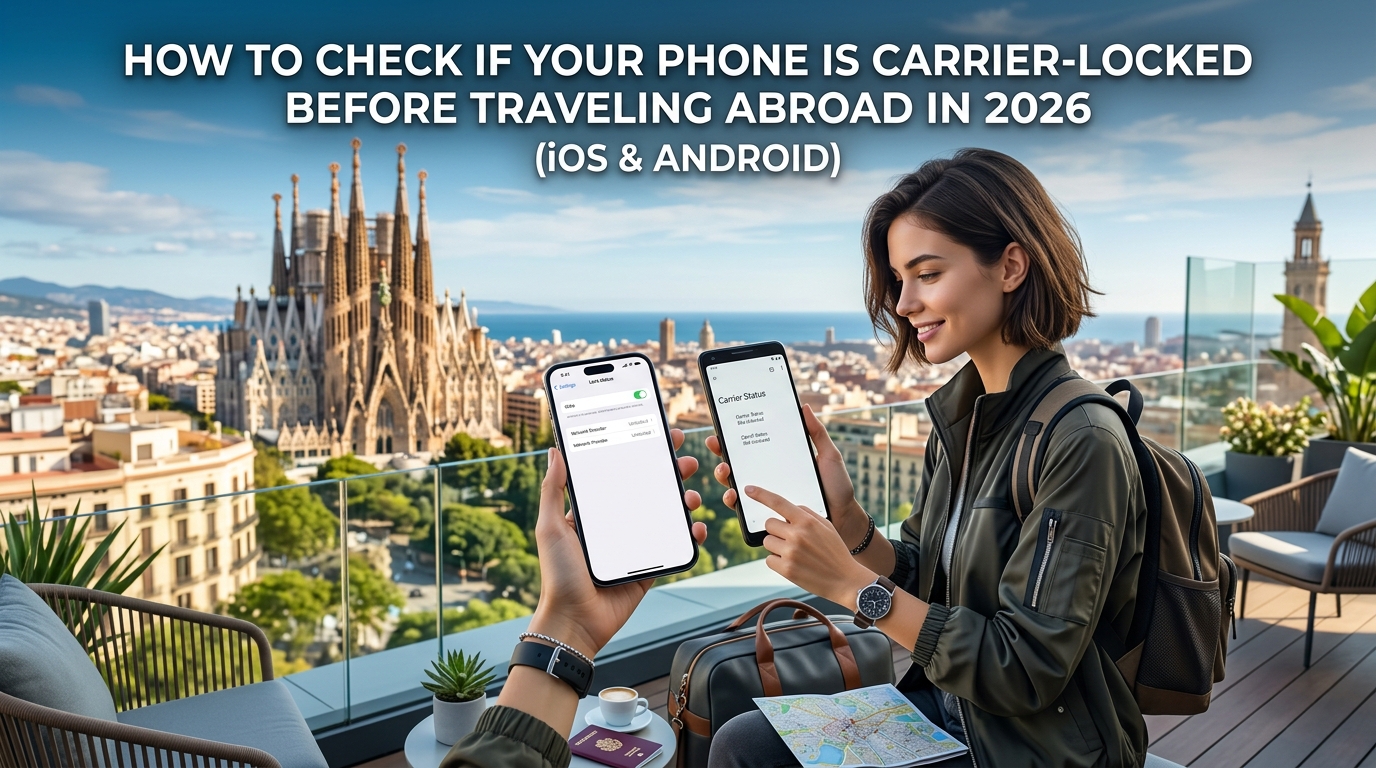
Блокировка оператора и совместимость с eSIM: почему ваши планы на поездки в 2026 году зависят от обоих факторов
Распространенная ловушка для путешественников — считать, что если смартфон поддерживает технологию eSIM, он автоматически готов принять любой цифровой профиль данных в любой точке мира. Это заблуждение нередко приводит к внезапной потере связи прямо у выхода на посадку или в терминале прилета. Чтобы не остаться без связи, важно понимать разницу между аппаратными возможностями устройства и политикой ограничений оператора.
Аппаратная возможность: чип eUICC
Поддержка eSIM — это постоянная аппаратная характеристика. Внутри современных смартфонов — таких как линейки iPhone XS и новее, Google Pixel от 3 до 9 серии и Samsung Galaxy от S20 до S26 — установлен микрочип eUICC (Embedded Universal Integrated Circuit Card), распаянный непосредственно на материнской плате.
Этот чип позволяет удаленно загружать, настраивать и хранить несколько профилей мобильных сетей без необходимости переставлять пластиковые карты. Если в вашем телефоне есть такой чип, ваше устройство совместимо с eSIM.
Блокировка оператора: программные ограничения провайдера
Блокировка оператором (Carrier Lock или Subsidy Lock) — это ограничение на уровне прошивки, устанавливаемое операторами связи, такими как AT&T, Verizon, T-Mobile, Vodafone и NTT Docomo. Операторы блокируют устройства, купленные в рассрочку, по субсидированным контрактам или по программам лизинга, чтобы телефон не мог подключаться к сетям конкурентов до полной выплаты стоимости устройства.
Даже если в телефоне физически установлен чип eUICC для работы с eSIM, операторская блокировка заставляет модем отклонять любые криптографические профили, выпущенные сторонними операторами мобильной связи (MNO) или виртуальными провайдерами (MVNO).
| Характеристика / Параметр | Аппаратная совместимость с eSIM | Статус разблокировки оператора |
|---|---|---|
| Кем контролируется | Производителем устройства (Apple, Samsung, Google) | Мобильным оператором (AT&T, Vodafone и др.) |
| Физический компонент | Распаянный микрочип eUICC на материнской плате | Прошивка модема / криптографическая авторизация |
| Постоянный статус? | Да, постоянная аппаратная спецификация | Нет, снимается после выполнения условий контракта |
| Влияние на поездки | Определяет, как загружаются профили сетей | Определяет, к каким сетям устройство может подключаться |
Что происходит при сканировании туристической eSIM на заблокированном телефоне?
Когда вы покупаете туристическую eSIM и пытаетесь установить ее на заблокированное устройство — сканируя QR-код активации SM-DP+ или загружая профиль через приложение — модем сверяет цифровую подпись оператора со своей внутренней политикой безопасности. Обнаружив неавторизованную подпись, система немедленно прерывает установку:
- Устройства iOS: выдают критическую ошибку: «SIM-карта не поддерживается: SIM-карта этого поставщика услуг не поддерживается в соответствии с политикой активации, назначенной сервером активации» либо «Не удается добавить сотовый тариф».
- Устройства Android: отображают системные сообщения: «Блокировка сети: невозможно использовать эту SIM-карту. Обратитесь к оператору связи для разблокировки телефона» или делают кнопку «Добавить мобильный тариф» неактивной (серой).
Почему предварительная проверка критически важна для поездок в 2026 году
Полагаться на общественный Wi-Fi в аэропорту прилета, чтобы разобраться с блокировкой оператора за границей — огромный риск. Современная инфраструктура путешествий требует моментального и стабильного доступа к сотовой связи сразу после посадки самолета:
- Биометрический и цифровой иммиграционный контроль: Миграционные службы многих стран требуют предъявления цифровых карт прибытия и QR-пропусков, генерируемых в приложениях перед прохождением таможни.
- Транспорт и безопасность: Приложения для заказа такси (Uber, Grab, Bolt) требуют мгновенной авторизации и получения защищенных SMS/push-кодов.
- Финансовые транзакции: Бесконтактные платежи (Apple Pay, Google Wallet) нередко требуют фонового обмена данными с серверами банка для проведения зарубежных операций.
Как только оператор снимет ограничения с вашего устройства, вы сможете воспользоваться выгодными тарифами международного интернета от MollySIM. На разблокированном телефоне цифровой профиль можно установить еще до вылета, гарантируя мгновенное подключение к сети сразу после приземления.
В отличие от базовых роуминг-сервисов, которые при исчерпании пакета урезают скорость до фактически нерабочих 128 кбит/с, MollySIM сохраняет скорость в рамках политики справедливого использования (FUP) на уровне 384 кбит/с — в 3 раза быстрее стандартных ограничений конкурентов. Этого запаса скорости достаточно, чтобы Google Карты, мессенджеры и генераторы одноразовых паролей работали стабильно даже при активном использовании.
Проверка статуса блокировки задолго до поездки убережет вас от ошибок модема и сохранит доступ ко всем цифровым инструментам в пути.
Как проверить статус блокировки оператора на iPhone (от iOS 14 до iOS 19+)
🌐 Global Travel High-Speed Travel eSIM & SIM Plans
Instant QR code activation, hotspot enabled, with guaranteed 384kbps fallback speed to keep Maps & Digital Wallets active.
Apple упростила процедуру проверки, добавив отображение аппаратного статуса напрямую в меню настроек iOS. Вместо тестирования методом перестановки физических SIM-карт вы можете узнать статус блокировки модема менее чем за десять секунд.
Пошаговая инструкция в настройках
- Разблокируйте iPhone и откройте приложение «Настройки».
- Перейдите в раздел «Основные», затем выберите «Об этом устройстве».
- Прокрутите вниз мимо пунктов «Название модели», «Номер модели» и «Серийный номер» до строки «Блокировка оператором» (в некоторых регионах может называться «Блокировка поставщиком сети»).
| Значение в строке | Техническое значение | Что делать перед поездкой |
|---|---|---|
| Без ограничений SIM | Устройство разблокировано на серверах активации Apple GSX. Принимает любые физические nano-SIM и профили eSIM. | Готово к установке международного тарифа от MollySIM. |
| SIM заблокирована | Модем устройства криптографически привязан к идентификатору сети вашего текущего оператора. | Необходимо запросить официальную разблокировку у оператора до вылета. |
Настройки ──► Основные ──► Об этом устройстве ──► Блокировка оператором
                                                     ├── «Без ограничений SIM» (Готов к поездке)
                                                     └── «SIM заблокирована» (Нужно связаться с оператором)
Важные нюансы и частные случаи для устройств Apple
Даже если кажется, что ваш iPhone готов к зарубежным поездкам, есть несколько аппаратных и программных нюансов:
1. Ограничения модема Dual-SIM (IMEI 1 и IMEI 2)
На iPhone с поддержкой двух SIM-карт (включая конфигурации «nano-SIM + eSIM» или две активные eSIM, как в моделях для рынка США линеек iPhone 14, 15 и 16) операторская блокировка распространяется на весь модем целиком. Обойти блокировку основного оператора на IMEI 1 путем установки travel eSIM на IMEI 2 невозможно. Если статус отображает «SIM заблокирована», оба слота (физический и цифровой) заблокированы для сторонних операторов.
2. Корпоративные профили MDM
Корпоративные iPhone могут отображать статус «Без ограничений SIM» на уровне "железа", но одновременно блокировать любые изменения сетевых настроек через систему управления мобильными устройствами (MDM).
- Перейдите в Настройки > Основные > VPN и управление устройством.
- Если установлен профиль MDM, администраторы компании могли ввести запрет на установку сторонних сотовых тарифов или ограничить передачу данных в международном роуминге.
3. Политика активации US Reseller Flex Policy
Если вы приобрели iPhone в розничной сети США (например, Best Buy или Target), а не напрямую в Apple Store, устройство могло поставляться с политикой US Reseller Flex. Такие смартфоны в коробке выглядят как разблокированные, но автоматически привязываются к оператору первой вставленной SIM-карты при первичной активации. Если устройство активировано на контракте или в сети MVNO, вам потребуется выполнить условия этого оператора для получения статуса «Без ограничений SIM».
Что произойдет при сканировании туристической eSIM на заблокированном iPhone?
Если iPhone заблокирован оператором, при попытке сканирования международного QR-кода eSIM служба Local Profile Assistant (LPA) в iOS сделает запрос к серверу политики активации и выдаст ошибку:
«Не удается завершить изменение сотового тарифа» Сотовые тарифы этого оператора не могут быть добавлены. На этом устройстве можно использовать только сотовые тарифы вашего текущего оператора.
Сканирование QR-кода eSIM ──► Запрос профиля через iOS LPA ──► Проверка GSX: «SIM заблокирована» ──► Ошибка: «Не удается завершить изменение сотового тарифа»Чтобы избежать неприятных сюрпризов перед вылетом, заранее убедитесь, что в статусе указано «Без ограничений SIM». После этого установка eSIM-профиля от MollySIM займет не более двух минут. Кроме того, гарантированная скорость 384 кбит/с (FUP) от MollySIM позволит вам оставаться на связи (Apple Pay, iMessage, пошаговая навигация в Apple Maps), даже если основной пакет высокоскоростного интернета закончится в разгар поездки.
Проверка блокировки сети на Android (Samsung Galaxy, Google Pixel и Motorola)
В отличие от единой системы iOS, в экосистеме Android настройки блокировки распределены по интерфейсам фирменных оболочек производителей (Samsung One UI, Google Pixel UI, Motorola My UX). В зависимости от бренда устройства, статус привязки к сети находится в различных разделах меню.
Используйте инструкции ниже для вашего бренда, чтобы убедиться, что телефон принимает зарубежные SIM-карты и travel eSIM.
1. Смартфоны Samsung Galaxy (One UI 5, 6 и 7)
В современных моделях серий Galaxy S, Z и A компания Samsung выделяет специальные пункты меню управления сетью:
- Откройте «Настройки» и перейдите в «Подключения».
- Прокрутите вниз и выберите «Другие настройки» (More connection settings).
- Нажмите «Разблокировка сети» (Network unlock; в операторских прошивках может называться Carrier unlock или Device unlock).
- Проверьте статус. На разблокированном устройстве отображается:
- Статус сети: Разблокировано (Unlocked) или Постоянная разблокировка (Permanent Unlock).
Настройки ──► Подключения ──► Другие настройки ──► Разблокировка сети ──► «Разблокировано»Примечание: Если пункт «Разблокировка сети» отсутствует, перейдите в Настройки > Сведения о телефоне > Состояние > Состояние SIM-карты. Если в этом поле указан ваш домашний оператор без возможности настройки дополнительных сетей, прошивка привязана к PLMN (идентификатору сети) этого оператора.
2. Смартфоны Google Pixel (от Pixel 6 до серии Pixel 9)
Смартфоны Pixel на чистом Android взаимодействуют с модулем Local Profile Assistant (LPA) напрямую через системный стек:
- Откройте «Настройки» и выберите «Сеть и интернет».
- Нажмите «SIM-карты» (или значок «+» рядом с ними).
- Найдите пункт «Скачать SIM-карту?» или «Подключиться к мобильной сети».
- Если при нажатии на значок «+» сразу открывается камера для сканирования QR-кода без предупреждений об ограничениях, чип eSIM не заблокирован.
- Также можно перейти в Настройки > О телефоне > Статус SIM-карты и проверить отсутствие ограничений на использование сторонних профилей.
3. Motorola и устройства на чистом Android (Sony, Nothing, Asus)
В устройствах Motorola и смартфонах со стандартной сборкой Android статус блокировки отображается в системных журналах:
- Откройте Настройки > О телефоне (или Система > О телефоне).
- Нажмите Состояние > Статус SIM-карты.
- Найдите строку «Состояние мобильной сети» или «Блокировка сети».
- На полностью разблокированном смартфоне в этом поле будет указано «Разблокировано» (Unlocked), либо система позволит свободно добавлять точки доступа (APN) без неактивных переключателей.
4. Расширенная проверка: диагностические USSD-коды
На устройствах с открытым инженерным меню (преимущественно не привязанные к операторам международные версии Samsung и ряд моделей Android) статус блокировок можно проверить через сервисный код:
- Откройте стандартное приложение «Телефон» (набор номера).
- Введите *
#7465625#* (мнемоника:#SIMBLOK#) или *#06#** (для проверки статуса multi-eSIM/IMEI). - Если откроется экран сервисной диагностики, убедитесь, что напротив всех типов блокировок стоит значение OFF:
| Параметр блокировки | Разблокированное состояние | Заблокированное состояние |
|---|---|---|
| Network Lock (Блокировка сети) | [OFF] | [ON] |
| Subset Lock (Блокировка подсети) | [OFF] | [ON] |
| SP Lock (Блокировка поставщика услуг) | [OFF] | [ON] |
| CP Lock (Корпоративная блокировка) | [OFF] | [ON] |
5. Физический тест с SIM-картой другого оператора
Если пункты меню вызывают сомнения, проведите классический тест с заменой карты:
- Выключите ваш Android-смартфон.
- Извлеките лоток SIM и вставьте активную SIM-карту другого, конкурирующего оператора (например, карту T-Mobile в телефон, купленный у Verizon или AT&T).
- Включите устройство.
Установка сторонней SIM ──► Включение телефона ──► Проверка: запрос «PIN-код разблокировки сети»- Если телефон заблокирован: Сразу при загрузке появится системный экран: «PIN-код разблокировки сети для SIM-карты», «Вставлена SIM-карта с блокировкой сети» или «Недействительная SIM-карта».
- Если телефон разблокирован: Смартфон сразу подключится к новой сети, покажет шкалу приема сигнала и название нового оператора в строке состояния.
Готовы к поездке за рубеж?
Убедившись, что ваш Android-смартфон не привязан к оператору, вы можете за пару минут установить международный профиль от MollySIM.
Тарифы MollySIM включают базовую скорость по политике справедливого использования (FUP) на уровне 384 кбит/с — это почти в три раза выше стандартных 128 кбит/с у большинства роуминг-провайдеров. Благодаря этому важнейшие сервисы Android — динамическая перестройка маршрутов в Google Maps, звонки в WhatsApp и бесконтактная оплата через Google Wallet — будут работать за границей без перебоев, даже если основной предоплаченный пакет скоростного интернета исчерпан.
Условия и правила разблокировки: сравнение AT&T, Verizon, T-Mobile и мировых операторов
Если диагностика показала наличие блокировки, вам потребуется выполнить юридические и контрактные условия вашего оператора, прежде чем биллинг или служба поддержки снимут ограничение с устройства.
Правила разблокировки существенно различаются в зависимости от провайдера. Некоторые операторы автоматически отправляют сигнал разблокировки "по воздуху" (OTA) по истечении обязательного срока, другие же требуют подачи заявки через личный кабинет и полного погашения стоимости устройства.
Сравнение правил разблокировки операторов (2026)
| Оператор / Провайдер связи | Минимальный срок использования | Условия по рассрочке/контракту | Время обработки | Метод разблокировки | Доступна ли временная travel-разблокировка? |
|---|---|---|---|---|---|
| Verizon Wireless (США) | 60 дней с момента активации | Телефон может оставаться на действующем плане оплаты | Мгновенно / Автоматически | Автоматическая OTA-разблокировка на 60-й день | Нет (Автоматическая постоянная разблокировка) |
| AT&T Mobility (США) | 60 дней (Postpaid) / 6 месяцев (Prepaid) | Полностью выплачен; отсутствие задолженностей | От 24 до 48 часов | Заявка на веб-портале (att.com/deviceunlock) | Нет (Только полная постоянная разблокировка) |
| T-Mobile US | 40 дней активности в сети | Программа рассрочки (EIP) полностью погашена | От 24 до 72 часов | Через приложение / Настройки устройства или портал | Только на Android (До 30 дней; 2 раза в год) |
| Vodafone (Великобритания / ЕС) | От 0 до 30 дней | Аккаунт без задолженностей; платежи по графику | От мгновенного до 72 часов | Автоматически при покупке или по онлайн-запросу | Не требуется (Постоянная разблокировка) |
| NTT Docomo / SoftBank (Япония) | 100 дней (при рассрочке) / Сразу (при оплате) | Полная оплата или контракт с привязкой кредитной карты | От мгновенного (онлайн) до 24 часов | Порталы My Docomo / My SoftBank | Нет (Только постоянная разблокировка) |
Детальный разбор правил ключевых операторов
1. Verizon Wireless
По условиям соглашения с FCC при покупке частотного спектра C-Block 700 МГц, Verizon автоматически снимает блокировку со смартфонов (как с постоплатным, так и с предоплатным тарифом) ровно через 60 дней после активации.
- Важная деталь: Устройство разблокируется автоматически, даже если вы продолжаете выплачивать за него ежемесячную рассрочку, при условии, что на аккаунте нет задолженностей и отметок о мошенничестве.
2. AT&T Mobility
У AT&T действуют одни из самых жестких требований среди операторов США:
- Устройство должно быть активно в сети AT&T не менее 60 дней подряд (для постоплатных тарифов) или 6 месяцев подряд (для AT&T Prepaid).
- Рассрочка, контракт Next Up или комиссии за досрочное расторжение должны быть полностью погашены до отправки запроса.
- Если вы только что выплатили остаток за телефон, подождите от 48 до 72 часов, чтобы биллинг синхронизировался с базой данных IMEI, и только потом подавайте заявку через портал.
3. T-Mobile US
- Для постоплатных устройств требуется не менее 40 дней активной работы на указанной линии.
- Планы рассрочки на оборудование (EIP) должны быть закрыты на 100%.
- Временная туристическая разблокировка (только Android): T-Mobile предоставляет опцию временной 30-дневной разблокировки прямо в меню
Настройки > Подключения > Другие настройки > Разблокировка сетина поддерживаемых устройствах Android — удобно, если контракт еще действует, а туристическая eSIM нужна прямо сейчас.
4. Международные операторы (Великобритания, ЕС, Япония)
- Великобритания / Европа: Согласно регуляторным нормам Ofcom и директивам ЕС, продажа заблокированных телефонов запрещена. Устройства продаются разблокированными из коробки. Ранее заблокированные аппараты можно бесплатно открыть через личный кабинет оператора.
- Япония (Docomo, au, SoftBank): Регулируется правилами Министерства внутренних дел и коммуникаций (MIC). Купленные за полную стоимость устройства разблокируются сразу; купленные в рассрочку требуют подтверждения личности либо 100 дней истории оплат перед генерацией кода разблокировки на сайте.
Пошаговое руководство: как отправить онлайн-запрос на разблокировку
Перед выездом за границу проверьте снятие блокировок в базах оператора, выполнив следующие шаги:
Узнать IMEI (*#06#) ──► Проверить баланс ──► Подать онлайн-заявку ──► Подтвердить email за 24 ч- Получите идентификаторы устройства: Откройте номеронабиратель, введите команду
*#06#и скопируйте 15-значный номер IMEI (а также IMEI2 при использовании Dual SIM). - Погасите задолженности: Закройте любые неоплаченные счета на аккаунте сотовой связи.
- Перейдите на официальный портал разблокировки:
- AT&T: Перейдите на
att.com/deviceunlock, выберите «Unlock your device», укажите IMEI и отправьте форму. Проверьте почту и перейдите по ссылке подтверждения в течение 24 часов. - T-Mobile: На iOS позвоните по номеру 611 или обратитесь в чат поддержки T-Life. На Android откройте
Настройки > Подключения > Разблокировка сетии нажмите «Permanent Unlock». - Verizon: Если прошло более 60 дней, а блокировка не снята, наберите
*611или свяжитесь с международной техподдержкой Tier-2 для повторной отправки OTA-пакета активации.
- Завершите синхронизацию: Получив подтверждение по email, подключите смартфон к сети Wi-Fi или перезагрузите его, чтобы устройство загрузило обновленные настройки оператора (Carrier Bundle).
Свобода подключения по всему миру
Когда оператор обработает заявку, а в статусе появится «Без ограничений SIM» (iOS) или «Разблокировано» (Android), ваш смартфон будет готов к работе с международными сетями.
Отказ от дорогостоящего операторского роуминга в пользу цифрового travel-профиля от MollySIM дает доступ к лучшим локальным сетям по всему миру. В то время как обычные туристические eSIM после исчерпания лимита замедляют интернет до нерабочих 128 кбит/с, MollySIM обеспечивает гарантированный порог скорости 384 кбит/с (FUP). Преимущество в скорости в 3 раза позволяет без проблем пользоваться картами Apple Maps, совершать бесконтактные платежи через Google Pay, вызывать Uber и отправлять сообщения в зашифрованных мессенджерах.
Что делать, если телефон оказался заблокирован прямо перед вылетом
Обнаружить блокировку смартфона за 24–48 часов до вылета — стрессовая ситуация. В условиях дефицита времени стандартные автоматические заявки могут не успеть пройти через очереди обработки в биллинге.
Чтобы не остаться без интернета по прибытии, воспользуйтесь проверенными экстренными методами ускорения разблокировки или альтернативными способами организации связи.
1. Ускоренная разблокировка через эскалацию в техподдержку 2-й линии (Tier-2)
Формы на сайтах операторов часто отправляют запросы в общую очередь со сроком обработки от 48 до 72 часов. Если время поджимает, обойдите стандартных чат-ботов и запросите прямое переключение на старших специалистов:
- Требуйте перевод на Tier-2 Tech Support: Позвоните в поддержку оператора (
611с мобильного в домашней сети) и сразу запросите техническую поддержку 2-й линии (Tier-2 Technical Support) или отдел международных эскалаций (International Roaming Escalations Desk). - Предоставьте подтверждение поездки: Сообщите, что ваш вылет запланирован менее чем через 24 часа. Руководители смен техподдержки имеют прямой доступ к утилитам ручного добавления IMEI в белый список и могут обойти
🌐 Global Travel High-Speed Travel eSIM & SIM Plans
Instant QR code activation, hotspot enabled, with guaranteed 384kbps fallback speed to keep Maps & Digital Wallets active.