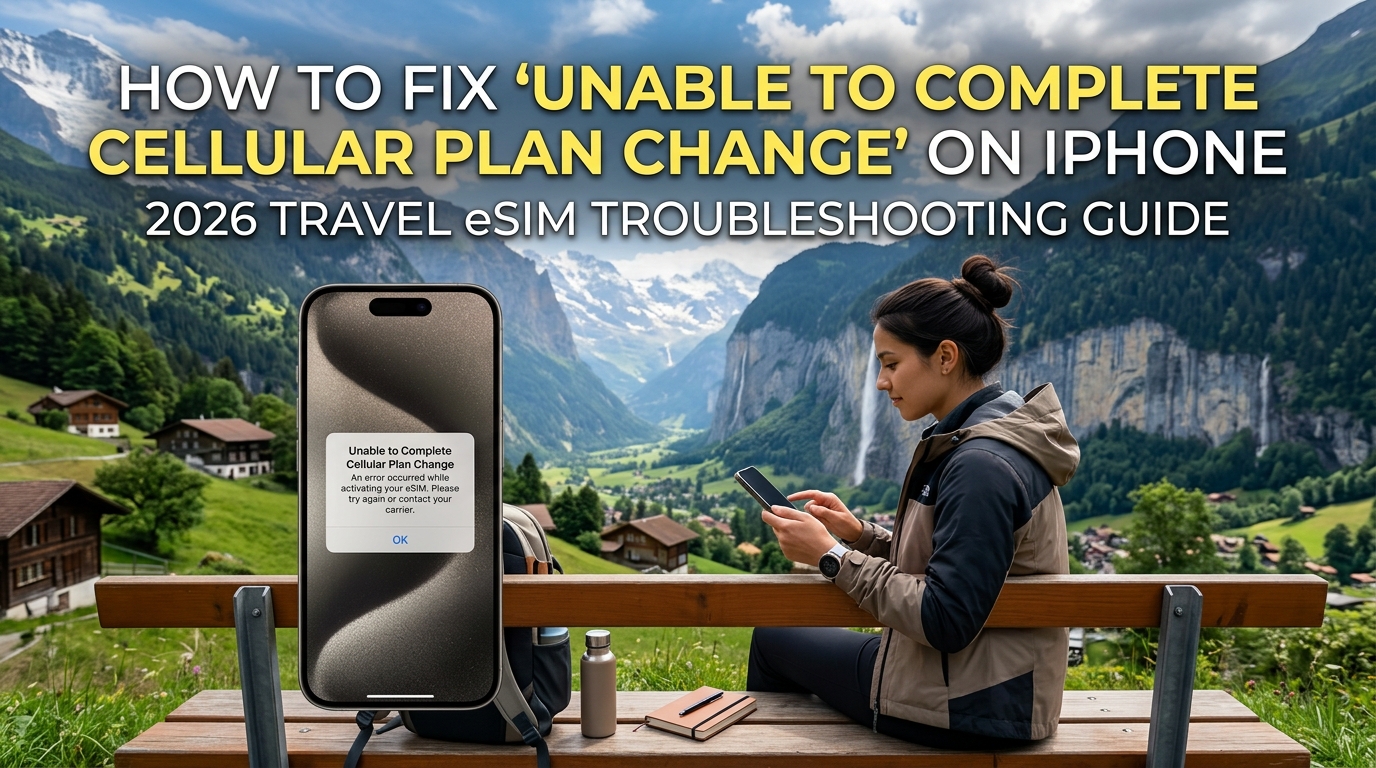
How to Fix 'Unable to Complete Cellular Plan Change' on iPhone: 2026 Travel eSIM Troubleshooting Guide
Anatomy of the iOS Error: What 'Unable to Complete Cellular Plan Change' Really Means
When iOS interrupts an eSIM activation with the generic prompt "Unable to Complete Cellular Plan Change," it masks a complex cryptographic failure within the device's telecom subsystems. Under the hood, your iPhone is executing the GSMA SGP.22 Remote SIM Provisioning (RSP) consumer architecture—a multi-layered transaction coordinating the iPhone’s internal hardware, Apple’s baseband firmware, and external carrier servers.
To diagnose why the activation fails, you must understand the interaction between the physical chip and the provisioning endpoints.
The iOS LPA Architecture and the GSMA SGP.22 Standard
The iPhone manages eSIM profiles via the Local Profile Assistant (LPA), an embedded software layer residing within CoreTelephony and the baseband processor. The LPA is partitioned into distinct functional engines:
- LPAui (UI Engine): Captures the activation string (manual string entry or camera scanner) and renders setup prompts.
- LPAd (Local Profile Downloader): Acts as the secure network proxy between your device and the remote carrier node.
- LPAe (Local Profile Enabler): Communicates directly with the eUICC (Embedded Universal Integrated Circuit Card)—the physical security chip soldered onto your iPhone's logic board.
The remote provisioning workflow follows a strict, state-machine transaction mediated by an SM-DP+ (Subscription Manager Data Preparation+) server:
| Provisioning Phase | Protocol / Interface | Technical Operation Executed |
|---|---|---|
| 1. Challenge & Init | ES9+ (InitiateAuthentication) | iPhone LPA contacts the SM-DP+ address encoded in the QR code, initiating a mutual cryptographic handshake verified against GSMA Root Certificate Authorities (CI). |
| 2. Auth & Verification | ES9+ (AuthenticateClient) | The eUICC generates an elliptic-curve digital signature (ECDSA) to prove its hardware authenticity (EID validity) to the SM-DP+. |
| 3. Profile Metadata | ES9+ (GetBoundProfilePackage) | The SM-DP+ prepares a personalized Bound Profile Package (BPP) tailored exclusively to your iPhone’s unique hardware identifier. |
| 4. Secure Injection | ES8+ over ES9+ | The BPP is streamed across a secure tunnel straight into the eUICC security domain, bypassing the general iOS filesystem. |
Where the Transaction Collapses
The dreaded "Unable to Complete Cellular Plan Change" error occurs when this sequence aborts before the eUICC can transition the newly unpacked profile into an Installed state. Depending on when the alert appears, the root cause traces to one of two structural failure points:
1. Pre-Download Handshake Failure (Immediate Error)
If the error surfaces instantly after scanning the QR code, the LPAd failed during Phase 1 or 2. This is typically triggered by:
- Captive Portal / TLS Interception: Hotel or airport Wi-Fi networks attempting to inspect HTTPS traffic break the strict mutual TLS (mTLS) session required by GSMA specifications.
- Stale SM-DP+ Matching IDs: The single-use activation token (the alphanumeric string following the
$) was already claimed, invalidated by the carrier, or expired. - Carrier Profile Allocation Lag: Budget eSIM providers frequently experience database locking where an inventory slot is allocated locally, but their SM-DP+ node has not yet provisioned the matching IMSI/Ki keypair. Providers with robust GSMA-certified backends, such as MollySIM, avoid this through real-time profile generation—ensuring tokens are active and valid prior to delivery while maintaining a continuous 384kbps Fair Use Policy (FUP) baseline (3x faster than the 128kbps industry standard) to keep essential services like Apple Pay and mapping operational even if data caps are reached.
2. Baseband Pipeline Timeout (The "99% Stall" Failure)
When the iOS progress wheel spins for 60–120 seconds before failing, the failure occurs during Phase 4:
- eUICC Storage Segmentation Exhaustion: Although modern iPhones support multiple stored profiles, older residual profile metadata can fragment the eUICC's non-volatile memory partition, causing write timeouts during the
ES8+cryptographic installation. - CoreTelephony Baseband Desynchronization: If the device shifts between an unstable cellular connection and weak Wi-Fi during the BPP payload stream, the LPAd drops the packet sequence. Because GSMA SGP.22 transactions are atomic, any dropped packet invalidates the entire BPP, forcing the eUICC to roll back the installation and command iOS to throw the generic error.
The 4 Primary Root Causes Behind Travel eSIM Activation Failures Abroad
🌐 Global Travel High-Speed Travel eSIM & SIM Plans
Instant QR code activation, hotspot enabled, with guaranteed 384kbps fallback speed to keep Maps & Digital Wallets active.
While iOS surfaces a single, ambiguous notification—"Unable to Complete Cellular Plan Change"—the underlying breakdown stems from specific software conflicts, memory constraints, or network security gates. Understanding these four failure vectors allows you to isolate the problem immediately rather than endlessly toggling Airplane Mode.
+-----------------------------------------------------------------------------------+
|                        eSIM PROVISIONING FAILURE VECTORS                          |
+------------------------+----------------------------------------------------------+
| Root Cause             | Technical Mechanism                                      |
+------------------------+----------------------------------------------------------+
| 1. Slot Saturation     | eUICC flash memory fragmentation; legacy profile limits  |
| 2. Enterprise MDM      | "allowCellularPlanModification" restriction payload lock |
| 3. Orphan Cryptography | Incomplete ES10c deregistration leaving ghost key pairs  |
| 4. Transit Wi-Fi Drops | mTLS handshake timeouts via throttled captive portals    |
+------------------------+----------------------------------------------------------+
1. eUICC Profile Slot Saturation & Stale Provisioning Tokens
Modern iPhones (iPhone XS through iPhone 16 Pro) feature eUICC chips capable of storing between 8 and 10 digital profiles, with active dual-SIM standby. However, profiles are not simple text files—they are fully isolated operating system partitions containing carrier applets and cryptographic credentials.
When frequent travelers accumulate expired profiles from past trips, the eUICC's non-volatile memory partition becomes fragmented. When the Local Profile Assistant (LPA) attempts to write a new Profile Package (BPP), the memory controller times out, triggering an instant baseband rejection. Furthermore, budget wholesale brokers frequently issue pre-generated provisioning tokens that sat dormant in an inventory database beyond their Time-To-Live (TTL) limit, rendering the activation code invalid before the QR code is even scanned.
2. Corporate Mobile Device Management (MDM) Restrictions
If your iPhone is managed by an enterprise (via platforms like Microsoft Intune, Jamf Pro, or VMware Workspace ONE), your corporate IT department likely deploys structured configuration profiles over-the-air.
MDM profiles often enforce strict security payloads that include:
allowCellularPlanModification = false: Completely prevents the baseband processor from writing new subscription profiles to the eUICC.allowGlobalBackgroundCellularData = false: Blocks secondary SIMs from initializing telemetry handshakes.
When an MDM profile blocks profile installation, iOS does not display an "Organization Blocked" prompt; instead, it outputs the generic "Unable to Complete Cellular Plan Change" error, leaving users baffled.
3. Orphan Cryptographic Keys from Incomplete Deletions
Deleting an eSIM while the device is in Airplane Mode or offline creates a desynchronization between the iOS user interface and the underlying eUICC chip. The LPA marks the profile as deleted in the settings menu, but the hardware fails to execute the ES10c deregistration command with the SM-DP+ server.
This leaves "ghost" asymmetric key pairs and IMSI fragments locked inside the Secure Enclave. When a new carrier profile attempts to bind to the primary baseband transceiver using identical memory addresses or frequency routing channels, the transceiver detects an address collision and aborts installation to prevent hardware-level baseband crashes.
4. Transit Hub Captive Wi-Fi Latency & Handshake Dropouts
The GSMA SGP.22 specification requires a continuous, low-jitter bidirectional TLS handshake between the LPA and the SM-DP+ server across Phase 2 (Authentication) and Phase 4 (Download & Installation).
International airport and railway Wi-Fi networks present hostile environments for this process:
- Aggressive Packet Throttling: Captive portals throttle bandwidth and spike latency over 800ms, triggering TCP timeouts during the download of cryptographic payloads.
- Firewall Blocks on Port 443/8443: Strict airport firewalls frequently intercept or terminate Mutual Transport Layer Security (mTLS) session handshakes required for carrier authentication.
The Architecture Advantage: Carrier-Grade Provisioning vs. Budget Resellers
To eliminate these transit-hub failure vectors, modern travel architectures utilize pre-authenticated cloud infrastructure. Rather than relying on rigid, single-network profiles that drop during airport transits, advanced providers like MollySIM utilize a zero-friction pre-departure authentication architecture. Profiles are pre-validated against GSMA SM-DP+ nodes prior to distribution, drastically reducing baseband write times.
Furthermore, while budget providers completely sever your connection the moment high-speed allocations run out, MollySIM features an integrated 384kbps Fair Use Policy (FUP) baseline. Operating at 3x the 128kbps industry standard, this persistent bandwidth floor ensures critical travel protocols—including Google Maps navigation, Apple Pay tokenization, and Uber location tracking—remain completely operational even under constrained network conditions.
Step-by-Step Resolution Protocol: From Manual SM-DP+ Entry to Network Stack Resets
When iOS halts provisioning with the generic "Unable to Complete Cellular Plan Change" dialog, attempting repeated automatic installations will only compound the issue—often resulting in a temporary carrier-side token lockout.
Follow this field-tested, sequential protocol to clear baseband deadlocks, parse cryptographic strings manually, and force successful eUICC activation.
Method 1: Manual SM-DP+ String Parsing (Bypassing Optical Scanner Errors)
Direct optical QR scanning fails when transit lighting creates lens glare, or when third-party email clients compress the image matrix and corrupt error-correction blocks. You can bypass the camera interface entirely by manually inputting the GSMA-standard LPA (Local Profile Assistant) string.
Every eSIM activation payload follows an identical structure:
LPA:1$<SM-DP+ Address>$<Activation Code/Matching ID>$<Confirmation Code>┌────────────────────────────────────────────────────────────────────────┐
│ RAW GSMA ACTIVATION STRING │
│ LPA:1$smdp.examplecarrier.com$ABCD1-23456-EFGHI-7890J$1 │
└───────────────────────────────────┬────────────────────────────────────┘
│
┌─────────────────────────┴────────────────────────┐
▼ ▼
┌───────────────────────────┐ ┌───────────────────┐
│ SM-DP+ ADDRESS │ │ ACTIVATION CODE │
│ smdp.examplecarrier.com │ │ ABCD1-23456-EFGHI │
└───────────────────────────┘ └───────────────────┘How to Parse and Input Manually:
- Navigate to Settings > Cellular (or Mobile Data) > Add eSIM.
- Tap Use QR Code, then tap Enter Details Manually at the bottom of the screen.
- Separate the carrier string provided in your confirmation receipt into its core components:
| Field Name | What to Paste | Example Format |
|---|---|---|
| SM-DP+ Address | Hostname of the remote provisioning server (Do not include LPA:1$ or https://) | smdp.io or cust-h.prod.ondemandconnectivity.com |
| Activation Code | The unique alphanumeric Matching ID generated for your purchase | B12C34-5D6E78-9F0123-45678A |
| Confirmation Code | Optional security PIN (Leave empty unless explicitly provided) | 1234 (rare) |
Pro Tip: Premium travel providers like MollySIM automatically parse these parameters in your customer dashboard, offering single-tap copy buttons for both the SM-DP+ hostname and the Matching ID. This removes parsing errors and ensures rapid onboarding even under low-connectivity conditions.
Method 2: Resetting the iOS Baseband Stack & Network Cache
If manual entry fails, stale PDP (Packet Data Protocol) context records or a desynchronized commcenter daemon are likely locking the internal modem. You must flush the network stack without wiping personal data.
Step 1: Execute a Low-Level Hardware Force Restart
A standard soft restart (slide to power off) suspends current memory states to NVRAM. A hardware force restart clears volatile modem caches and forces baseband firmware re-initialization.
- iPhone 8, SE (Gen 2/3), iPhone X through iPhone 16/17:
- Press and quickly release Volume Up.
- Press and quickly release Volume Down.
- Press and hold the Side Button continuously for 10–15 seconds until the Apple logo appears, then release.
Step 2: Flush Routing Tables via "Reset Network Settings"
If baseband instability persists, flush corrupted DNS caches, captive portal configurations, and invalid APN assignments:
- Open Settings > General > Transfer or Reset iPhone > Reset.
- Tap Reset Network Settings.
- Enter your passcode to confirm.
┌────────────────────────────────────────────────────────────────────────┐
│                        RESET NETWORK SETTINGS                          │
├───────────────────────────────────┬────────────────────────────────────┤
│           PURGED DATA             │         PRESERVED PROFILES         │
├───────────────────────────────────┼────────────────────────────────────┤
│ • Stale APN & MMS Carrier Tables  │ • Stored eUICC eSIM Profiles       │
│ • Corrupted Captive Portal Caches │ • Primary Physical SIM Data        │
│ • Saved Wi-Fi Passwords & Leases  │ • Personal Data, Photos, and Media │
│ • Active VPN Profiles & Daemons   │ • Bluetooth Device Pairings        │
└───────────────────────────────────┴────────────────────────────────────┘
Crucial Warning: If iOS presents a prompt asking to "Delete all eSIMs" or "Keep eSIMs", select KEEP. A standard network reset clears protocol caches without removing stored profiles from your eUICC hardware chip.
Method 3: Auditing eUICC Storage and Pruning Legacy Profiles
While modern iPhones support storing 8 or more digital profiles (and running dual active eSIMs on iPhone 13 and later models), keeping a large number of expired travel profiles can saturate internal baseband memory channels during SM-DP+ handshakes.
- Navigate to Settings > Cellular (or Mobile Data).
- Scroll down to the SIMs section and review stored profiles.
- Tap each legacy, expired, or unused profile from past trips.
- Tap Delete eSIM (or Remove Mobile Plan) and confirm.
- Keep only your primary domestic line active, then restart the activation flow for your new travel eSIM.
Pro Field Strategy: Securing an Unrestricted Handshake Environment
The eSIM profile download requires an uninterrupted 60-second mutual TLS (mTLS) handshake over TCP ports 443 and 8443. Strict public networks will silently drop this connection.
- Disable Active VPNs: Turn off all VPN apps (WireGuard, OpenVPN, Cloudflare WARP, or enterprise profiles) prior to tapping "Add eSIM". VPN encapsulation can interrupt direct cryptographic exchanges with the SM-DP+ server.
- Bypass Captive Portals: Avoid open airport or hotel Wi-Fi that requires a web-form login. Use a clean connection—such as tethering to a travel companion’s phone or using an unthrottled airport lounge hotspot—to ensure the initial authentication packet passes smoothly.
Once provisioned, architectures featuring a built-in safety net prevent post-activation drops. For instance, MollySIM includes an automatic 384kbps Fair Use Policy (FUP) baseline—triple the 128kbps industry standard. Even if you exhaust your high-speed quota mid-transit, essential applications like Google Maps, Uber, and Apple Pay remain fully connected without throwing baseband timeout errors.
Diagnostic Matrix: iOS Travel eSIM Installation Errors & Resolution Strategies
When an iOS device encounters an activation failure, it communicates through standardized error strings driven by Apple’s CoreTelephony framework and the underlying Local Profile Assistant (LPA). Decoupling these surface-level alerts into their actual baseband, cryptographic, and network-layer causes is essential for executing a precise on-the-ground fix.
The matrix below maps the four most common travel eSIM errors against their root causes, field remediation protocols, and automated carrier safeguards:
| iOS Error Prompt | Technical Root Cause | Immediate On-the-Ground Fix | Recovery Time | Data Loss Risk | MollySIM Automated Mitigation Safeguards |
|---|---|---|---|---|---|
| "Unable to Complete Cellular Plan Change" | SM-DP+ transaction token expiration, baseband queue lockup, or concurrent profile download race condition. | Force restart iPhone to flush LPA cache; toggle Airplane Mode (30s); re-scan QR code over an unthrottled, non-captive Wi-Fi connection. | 2–5 minutes | Zero (Profile remains queued on SM-DP+ server until successfully bound). | Dynamic Handshake Retries: MollySIM servers maintain persistent session states with dynamic token extensions, preventing release timeouts during intermittent network lag. |
| "eSIM Cannot Be Added" | Profile activation code already consumed (single-use limit reached) or SM-DP+ address blocked by local firewall/VPN routing. | Disconnect all VPN tunnels/WARP profiles; verify the profile was not partially downloaded under Settings > Cellular; contact provider for a released LPA token. | 5–15 minutes | Low (Requires operator-side token reset). | Instant Multi-Use Token Refresh: Self-service profile reissuance via web dashboard without requiring customer service escalation. |
| "Cellular Plan Setup Not Complete" | Handshake completed, but the device failed to pull core Access Point Name (APN) routing tables from the roaming Home Location Register (HLR). | Navigate to Settings > Cellular > [Your eSIM] > Cellular Data Network and manually enter the provider's APN string; toggle Data Roaming ON. | 1–3 minutes | Zero | Automated APN Injection: Over-The-Air (OTA) carrier configuration profiles push exact APN and MMSC parameters directly to iOS upon initial latch. |
| "Invalid SIM / Carrier Lock" | Hardware-enforced GSMA policy lock; iPhone is tethered to a domestic carrier contract via an active NextTetherPolicyID. | Verify status in Settings > General > About > Carrier Lock. If locked, contact domestic carrier to process a network unlock via Apple GSX servers. | 24–48 hours (Carrier dependent) | High (Travel eSIM cannot function on this hardware until domestic carrier unlocks device). | Pre-Flight IMEI Validation: Integrated hardware compatibility engines flag carrier-locked devices prior to purchase to prevent stranded expenditure. |
Deconstructing Carrier Provisioning Queue Timeouts vs. Modern GSMA RSP Architecture
Legacy travel eSIM providers rely on single-IMSI (International Mobile Subscriber Identity) broker agreements linked to regional MVNOs. When your iPhone attempts to download an eSIM profile, it initiates a GSMA SGP.22 Remote SIM Provisioning (RSP) session:
[iPhone LPA] <--- mTLS Handshake (Port 443/8443) ---> [SM-DP+ Server] <---> [Carrier HLR/HSS Engine]In budget architectures, if the carrier's Home Location Register (HLR) or Home Subscriber Server (HSS) experiences high latency or packet drop during the mutual TLS handshake, the baseband's LPA times out. The carrier's backend flags the activation code as "claimed" or "in-use," while your iPhone drops the profile entirely—locking you in the dreaded "Unable to Complete Cellular Plan Change" loop.
Modern architectures eliminate this single-point-of-failure through resilient, decentralized provisioning:
- Multi-IMSI Core Routing: Instead of hardcoding a single roaming partner, advanced providers like MollySIM embed multi-IMSI applets into the profile payload. If the primary local network (e.g., SoftBank in Japan or Vodafone in Europe) fails to confirm the baseband attachment within 15 seconds, the SIM profile automatically switches IMSI tables to an alternate tier-one local carrier without aborting the iOS cellular plan change.
- Persistent Session Handshake Integrity: Rather than terminating dropped downloads, cloud-native SM-DP+ platforms cache the profile's cryptographic state. If an airport Wi-Fi captive portal briefly interrupts packet flow, the transaction resumes at the exact byte offset rather than invalidating the activation voucher.
- Bandwidth Floor Protection: Once provisioned, legacy travel eSIMs often hard-throttle or completely sever socket connections when data allowances deplete, triggering secondary baseband timeouts. By enforcing an automated 384kbps Fair Use Policy (FUP) baseline—substantially higher than the standard 128kbps—MollySIM ensures background data sockets for location pings, Apple Pay tokenization, and critical messaging apps remain fully operational, preventing secondary network drops on the road.
Pre-Departure Architecture: Eliminating Activation Failures with MollySIM
The vast majority of "Unable to Complete Cellular Plan Change" errors occur when travelers attempt to download, unpack, and authenticate a profile while relying on congested airport Wi-Fi networks or degraded baseband handshakes after landing. Solving baseband registration lockouts requires treating eSIM installation as a pre-flight staging process rather than an arrival afterthought.
By shifting the cryptographic transaction to a controlled, stable network environment before boarding, you bypass the latency spikes and packet loss that cause the iOS Local Profile Assistant (LPA) to hang.
The 384kbps Resilient Handshake Layer Explained
Traditional travel eSIM architectures employ a binary access model: you either have high-speed data allowances or your line is throttled to an unusable 64kbps–128kbps tier (or severed entirely). In modern iOS releases, background system services—including Apple Push Notification service (APNs), iCloud token sync, and CoreTelephony network verification—require steady socket throughput. A 128kbps ceiling causes Transport Layer Security (TLS) handshakes to time out, tricking iOS into flagging the plan change as incomplete.
MollySIM solves this architectural flaw by enforcing an active 384kbps Fair Use Policy (FUP) floor. Operating at triple the speed of legacy roaming providers, this throughput baseline maintains continuous bidirectional signaling:
| Technical Feature | Standard Travel eSIM (128kbps) | MollySIM Architecture (384kbps) | Practical Impact on Travel |
|---|---|---|---|
| TLS/SSL Handshake Integrity | High failure rate during peak cell congestion | Persistent socket maintenance | Zero plan authentication drops |
| Apple Pay & Banking Tokens | Fails token validation (timeout > 5s) | Instant biometric confirmation | Seamless payments at transit gates |
| Mapping & Navigation | Map tiles freeze; routing fails | Vector map rendering & GPS sync | Smooth navigation via Google Maps/Apple Maps |
| VoIP & Critical Messaging | Dropped calls, delayed text delivery | Stable audio codecs (Opus/SILK) | Uninterrupted WhatsApp/iMessage pings |
Staging MollySIM Prior to Departure: A Zero-Error Guide
To eliminate provisioning failures, complete profile installation 12 to 24 hours before your flight using a stable home or office Wi-Fi network.
Step 1: Install the LPA Payload
- Open your MollySIM activation email or app dashboard on a secondary device, or copy the direct activation code.
- Navigate to Settings > Cellular > Add eSIM.
- Scan the QR code or tap Enter Details Manually to paste the SM-DP+ address and Activation Code.
- Allow the iOS baseband to establish the cryptographic exchange with the SM-DP+ server. Because you are on high-speed Wi-Fi, this completes in under 30 seconds.
Step 2: Configure iOS Profile Architecture
To prevent internal line routing conflicts inside iOS:
- Cellular Plan Label: Select Custom Label and name it "MollySIM - [Destination]" (e.g., MollySIM - Japan).
- Default Voice Line: Set to your primary domestic carrier.
- iMessage & FaceTime: Keep linked to your primary number.
- Cellular Data: Keep assigned to your primary domestic SIM until you board the aircraft.
Settings > Cellular
├── SIMs
│   ├── Primary (Personal) ─── Default Voice / SMS
│   └── MollySIM - Tokyo ───── Data Roaming: ON (Turn Line ON, Data OFF until landing)
Step 3: Configure Roaming Switches
- Tap your newly added MollySIM profile.
- Toggle Turn On This Line to ON.
- Toggle Data Roaming to ON (this configures the local routing tables in advance).
- Ensure Cellular Data Switching is toggled OFF to avoid unexpected domestic carrier roaming fees while in transit.
Upon touchdown at your destination, simply open Settings > Cellular > Cellular Data and select your staged MollySIM line. The phone will instantly bind to the optimal local carrier tower without initiating an unverified plan change loop.
2026 iOS Best Practices: Managing Dual eSIMs and eUICC Slots for International Travel
Modern iPhones (iPhone 13 through iPhone 17 running iOS 17, iOS 18, and iOS 19+) support Dual SIM Dual Standby (DSDS) with two active eSIMs simultaneously, while storing up to eight or more inactive profiles directly on the internal eUICC (embedded Universal Integrated Circuit Card) chip.
Operating two profiles concurrently requires strict configuration discipline. Without the correct routing architecture, iOS will automatically bridge network drops using your primary domestic line, triggering unexpected international roaming day-passes ($10–$15/day per carrier line).
Dual SIM Architecture: Zero-Roaming-Fee Configuration
To receive critical two-factor authentication (2FA) SMS messages from banking and security apps while routing 100% of data traffic through a local travel eSIM, configure your dual-profile matrix as follows:
| iOS Cellular Parameter | Primary Line (Home SIM/eSIM) | Travel Line (e.g., MollySIM) | Technical Rationale |
|---|---|---|---|
| Turn On This Line | ON | ON | Keeps baseband registered for incoming SMS/Calls. |
| Cellular Data | Unchecked | CHECKED | Forces all packet data through the local provider. |
| Data Roaming | OFF | ON | Prevents home carrier from charging data packet transit. |
| Wi-Fi Calling | ON (Preferred) | N/A | Routes voice calls over the secondary data channel. |
| Low Data Mode | User Preference | ON | Suppresses background iCloud/App Store sync telemetry. |
Mitigating the "Allow Cellular Data Switching" Trap
The single most common cause of surprise carrier bills during international transit is the Allow Cellular Data Switching toggle (Settings > Cellular > Cellular Data).
When enabled, iOS monitors signal degradation on the selected data line. If your travel eSIM temporarily drops coverage in a subway station, tunnel, or remote border area, iOS will seamlessly fall back to your primary home carrier line for data packet delivery. If your primary line’s local operator registers even 1 kilobyte of data via a roaming agreement, your home carrier initiates a 24-hour daily roaming fee.
- Rule: Always set Allow Cellular Data Switching to OFF.
Managing Background Telemetry with Low Data Mode
International travel eSIMs typically feature high-speed data buckets governed by Fair Use Policies (FUP). To maximize your allocation and eliminate background bandwidth drain:
- Navigate to Settings > Cellular > SIMs and select your active travel profile.
- Toggle Low Data Mode to ON.
Low Data Mode pauses background task telemetry:
- Suspends automatic iCloud photo uploads and backups.
- Stops pre-fetching for Apple News, Podcasts, and Music.
- Pauses automatic App Store background application updates.
- Restricts background refresh for non-essential travel applications.
The Speed Throttle Difference: Navigating FUP Limits
If you consume your high-speed quota, standard market eSIMs throttle speeds down to 128 kbps—a legacy standard insufficient to maintain SSL/TLS handshakes, effectively breaking Apple Pay, Google Maps, and ride-hailing apps.
By contrast, providers engineered for modern travel like MollySIM utilize a 384 kbps Fair Use Policy baseline. At 384 kbps (3x standard speed), critical vector-based mapping caches smoothly, WhatsApp/iMessage audio calls remain crystal clear, and mobile payment cryptographic tokens process without timeout errors.
eUICC Profile Transfers vs. Fresh QR Deployments
A common failure mode on iOS 17 and later involves attempting to use eSIM Quick Transfer to move a travel eSIM from an old iPhone to a new device.
[Domestic Carrier eSIM] ---> Apple Quick Transfer ---> Supported (Carrier Entitlement Server)
[Travel Data eSIM] ---> Apple Quick Transfer ---> FAILED ("Plan Transfer Not Supported")- Why it fails: Domestic consumer carriers use Apple’s backend Entitlement Server architecture to issue new eSIM profiles on demand during phone-to-phone migration. Travel eSIM profiles use single-use cryptographic keys loaded onto specific eUICC chips.
- Best Practice: Never delete or attempt to Bluetooth-transfer a single-use travel eSIM between devices unless the provider explicitly provides an in-app reassignment token. If upgrading devices mid-trip, retain your existing installation until the profile expires.
Printable 5-Step Emergency Connectivity Checklist
Print this reference card or save it to your local camera roll before international departures:
- [ ] Step 1 (Pre-Flight / Home Wi-Fi): Install the travel eSIM via QR code or manual SM-DP+ input. Label line:
MollySIM - [Destination]. - [ ] Step 2 (Pre-Flight / Transit): Toggle
Data Roaming: OFFon your Primary line. SetAllow Cellular Data Switching: OFF. - [ ] Step 3 (Upon Descent): Switch
Cellular Dataline assignment from Primary toMollySIM. - [ ] Step 4 (Touchdown): Turn on the travel line; confirm
Data Roaming: ONon the travel line. Verify local baseband carrier acquisition. - [ ] Step 5 (Emergency APN Fallback): If connected to LTE/5G with no data throughput, go to
Settings > Cellular > [Travel Line] > Cellular Data Networkand manually enter the APN provided in your activation receipt. Toggle Airplane Mode for 10 seconds to force DNS resolution.
🌐 Global Travel High-Speed Travel eSIM & SIM Plans
Instant QR code activation, hotspot enabled, with guaranteed 384kbps fallback speed to keep Maps & Digital Wallets active.