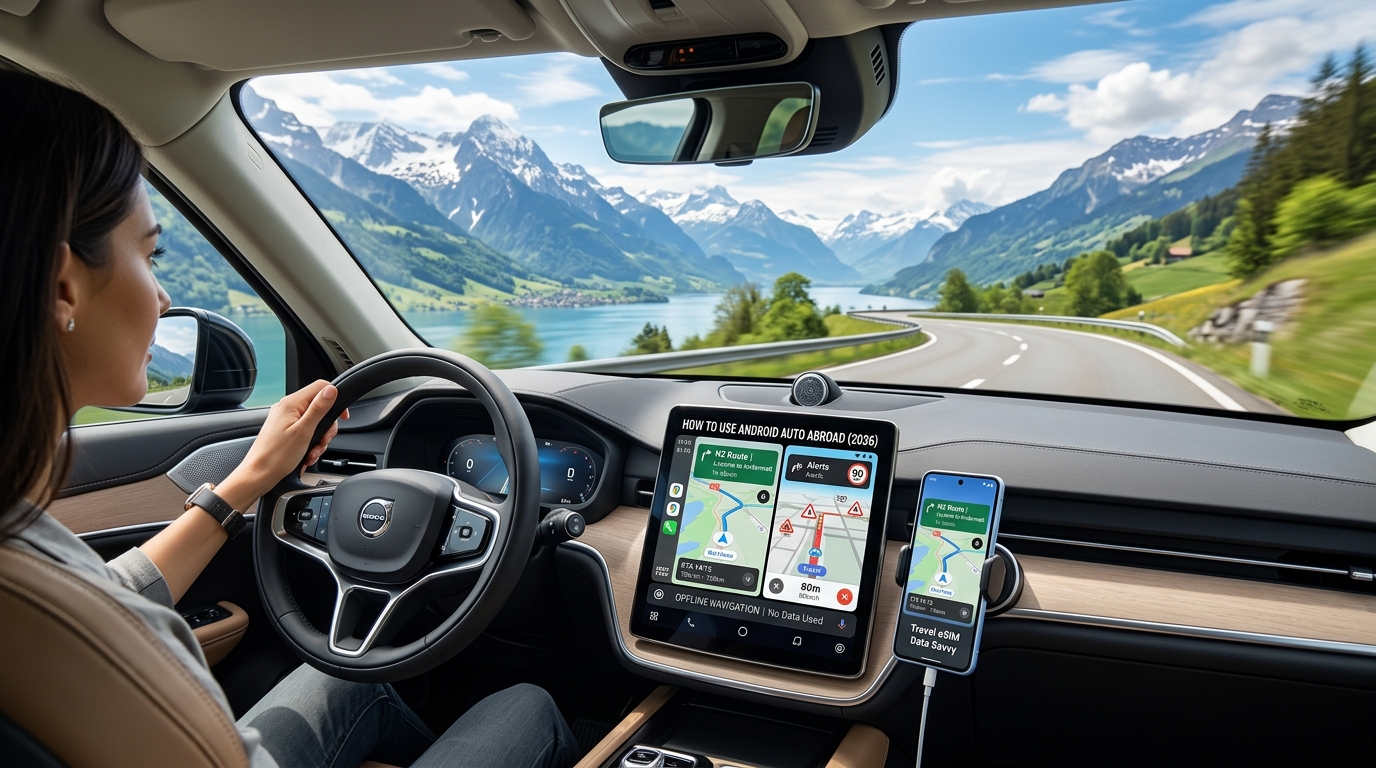
How to Use Android Auto Abroad Without Burning Your Travel eSIM Data: Google Maps & Waze Guide (2026)
The Hidden Data Drain: How Android Auto Interacts with Your Travel eSIM Abroad
When you plug your Android smartphone into a rental car’s dashboard in Frankfurt or pair it wirelessly in Melbourne, Android Auto transforms your head unit into a secondary projection display. However, the architectural reality under the hood is vastly different from native car infotainment: your phone remains the sole computing engine and cellular gateway. Every map tile, high-resolution satellite overlay, live traffic vector, voice assistant query, and background diagnostic packet is pulled directly through your travel eSIM.
Without deliberate optimization, a single 4-to-6-hour road trip across Europe’s Autobahns or North American interstates can easily vaporize 2GB to 5GB of cellular data. Understanding the technical mechanisms driving this consumption is the first step toward stopping it.
                    ┌────────────────────────────────────────────────────────┐
                    │                      SMARTPHONE                        │
                    │                                                        │
                    │   ┌───────────────────┐      ┌─────────────────────┐   │
                    │   │   Android Auto    │      │  Travel eSIM (4G/5G)│   │
                    │   │   Projection OS   │      └──────────┬──────────┘   │
                    │   └─────────┬─────────┘                 │              │
                    └─────────────┼───────────────────────────┼──────────────┘
                                  │ (Local Screen Cast)       │ (Cellular Pipeline)
                        Wi-Fi Direct / USB-C                  ▼
                                  │               ┌───────────────────────┐
                                  ▼               │ Silent Background     │
                    ┌─────────────────────────┐   │ Telemetry:            │
                    │    VEHICLE HEAD UNIT    │   │ • Sensor Fusion       │
                    │  (Display & Controls)   │   │ • A-GPS Polling       │
                    └─────────────────────────┘   │ • Audio/Map Streams   │
                                                  └───────────────────────┘
1. Wired vs. Wireless Android Auto: The Local Wi-Fi Trap
A common misconception among travelers is that Wireless Android Auto utilizes the car's internet connection. In reality, wireless projection establishes a high-bandwidth Wi-Fi Direct (5GHz) network coupled with a Bluetooth handshake between your handset and the head unit solely to stream video frames and return touch inputs.
Because the phone's Wi-Fi module is entirely dedicated to casting the interface to the car screen, the operating system routes 100% of all internet-bound network traffic through your travel eSIM. Furthermore, this high-throughput local Wi-Fi casting prevents your device from connecting to external public Wi-Fi hotspots (such as those at roadside service plazas or campervan parks) unless you disconnect Android Auto entirely.
2. Silent Background Telemetry and Sensor Fusion
Android Auto does not just pull navigation data; it continuously transmits diagnostic and environmental payloads back to Google servers via Google Play Services.
| Data Channel | Background Activity & Frequency | Impact on eSIM Roaming Data |
|---|---|---|
| A-GPS & Sensor Fusion | Blends car wheel-speed sensors, gyro, and phone GPS every 1–2 seconds. | Constant upstream polling of assisted GPS ephemeris data. |
| Crowdsourced Traffic Telemetry | Transmits real-time velocity, braking events, and road speed data back to Google/Waze servers. | 15–30 MB/hour of continuous upstream micro-packets. |
| App Asset Pre-fetching | Media apps (Spotify, YouTube Music, Pocket Casts) aggressively preload upcoming album art, audio chunks, and dynamic UI feeds. | 100–300 MB/hour if streaming quality is set to "Automatic" or "High". |
| RCS / Cloud Sync | Continuous polling for WhatsApp, Google Messages, and email previews for the dashboard display. | Constant keep-alive pings preventing low-power radio states. |
3. Cross-Border Handshakes and the "Retransmission Trap"
Long-distance driving exacerbates data burn due to cellular handovers. When traversing European borders—such as driving along the French Autoroutes into Switzerland or Italy—your phone frequently disconnects and reconnects across foreign partner networks.
During these cross-border handshakes and rural coverage dead-zones (e.g., the Australian Outback or mountainous Canadian corridors):
- TCP Packet Loss: Dynamic navigation data streams drop mid-transit.
- Buffer Invalidation: Navigation apps drop incomplete map cache chunks and re-request full raster or high-density vector tiles once signal restores.
- Burst Synchronization: Cloud services queue telemetry logs during dead zones and upload them in high-throughput bursts upon regaining LTE/5G access.
4. Preventing Roadside Blackouts: Why Bandwidth Buffers Matter
When high-resolution map assets, live road updates, and background music streams collide on an unconfigured connection, standard 1GB/day or 3GB fixed travel packages deplete rapidly. If your eSIM provider hard-cuts your connection or throttles your speed to a standard 128kbps, navigation halts entirely: Google Maps will fail to recalculate routes, search queries will time out, and satellite overlays will freeze.
Competitor Throttle (128kbps)   ██ (Route calculation fails / Timeouts)
MollySIM FUP Throttle (384kbps)  ██████ (Vector navigation + Live traffic remains functional)
This makes network throttling management critical for road trips. Premium providers like MollySIM implement a 384kbps Fair Use Policy (FUP) threshold once high-speed allocations are reached—3x faster than standard 128kbps limits. This dedicated 384kbps pipeline provides sufficient throughput to maintain vector turn-by-turn routing, live incident alerts, and emergency messaging without leaving you stranded on foreign highways.
Google Maps vs. Waze: Real-World MB/Hour Consumption & Bandwidth Benchmarks
🇺🇸 United States High-Speed Travel eSIM & SIM Plans
Instant QR code activation, hotspot enabled, with guaranteed 384kbps fallback speed to keep Maps & Digital Wallets active.
Navigating abroad via Android Auto creates a steady pipeline of client-to-server network requests. While both Google Maps and Waze are owned by Alphabet, their architectural backends handle map rendering, routing telemetry, and live updates entirely differently. Understanding these mechanics is essential for preventing unexpected data depletion on your travel eSIM.
Empirical Data Consumption Benchmarks
To quantify network consumption on a typical international road trip, we benchmarked real-time cellular data usage across standard navigation modes and background audio streams over Android Auto.
| App / Service | Visual Mode / Bitrate Setting | Caching Status | Est. MB / Hour | 8-Hour Drive Total |
|---|---|---|---|---|
| Google Maps | Vector View (2D/3D Standard) | Fully Pre-Downloaded | < 0.5 MB | < 4 MB |
| Google Maps | Vector View + Live Traffic | Uncached (Streaming) | 3 – 6 MB | 24 – 48 MB |
| Google Maps | 3D Satellite / Photorealistic Raster | Uncached (Streaming) | 45 – 65 MB | 360 – 520 MB |
| Waze | Standard Vector + Crowdsourcing | Active Connection Req. | 8 – 15 MB | 64 – 120 MB |
| Spotify / Apple Music | Low Quality (96 kbps HE-AAC) | Uncached | ~43 MB | 344 MB |
| Spotify / Apple Music | Normal / High (160 kbps AAC/Ogg) | Uncached | ~72 MB | 576 MB |
| Spotify / Apple Music | Very High / Lossless (320 kbps) | Uncached | ~144 MB | 1.15 GB |
| Pocket Casts / Podcasts | Standard Voice (64–96 kbps) | Uncached | ~30 – 45 MB | 240 – 360 MB |
Why Waze Cannot Run Fully Offline
Waze relies on a hyper-dynamic, server-side routing engine. Unlike Google Maps, which can store map geometries, road networks, and point-of-interest (POI) indexes locally on your device, Waze is built around a centralized live ledger of real-time road conditions.
- Constant Telemetry Ping Exchange: Waze transmits your granular GPS speed vectors back to its routing servers every few seconds to compute instantaneous traffic flow across its network.
- Ephemeral Hazard Architecture: Police presence, speed traps, road debris, and lane closures are dynamically updated and expire every few minutes. Caching these objects offline is architecturally impossible within Waze's crowdsourced framework.
- No Offline Routing Engine: If you lose mobile data or exhaust your travel allowance in the middle of a route, Waze cannot recalculate a detour if you miss an exit. The client app lacks a local routing graph and will display an indefinite "Searching for network" error.
The Satellite Imagery Trap: 10x Bandwidth Inflation
Switching Google Maps to Satellite Mode on Android Auto replaces lightweight vector map rendering with high-resolution, uncompressed raster tile downloads.
While vector mode downloads mathematical points, lines, and polygon coordinates (which your phone's GPU renders into roads and text locally), satellite view streams continuous photographic map tiles in WebP/JPEG formats. At highway speeds (100–130 km/h), Android Auto aggressively pre-fetches surrounding high-zoom satellite tiles to maintain rendering fidelity on your vehicle's dashboard screen. This single visual toggle can inflate your navigational data burn from 30 MB over a full driving day to over 500 MB, rapidly eating through standard fixed data bundles.
The Multi-Stream Compound Effect and Bandwidth Baselines
The real danger on long road trips is the compound effect of multi-app Android Auto setups. Running an uncached Waze session alongside a 160kbps Spotify playlist drains roughly 85 MB per hour. Over an 8-hour driving holiday across Europe or North America, this setup consumes nearly 700 MB of cellular data in a single day—excluding general smartphone usage.
When using standard travel eSIMs, hitting your daily or plan allocation triggers a hard disconnect or a punitive throttle down to 128kbps. At 128kbps, simultaneous audio streams and Waze packet queries collapse the connection, causing navigation apps to fail mid-transit.
By contrast, using a high-bandwidth provider like MollySIM provides a safety net: its 384kbps Fair Use Policy (FUP) speed limit—3x faster than the industry standard—ensures that even if you exhaust your high-speed quota mid-drive, your background vector turn-by-turn navigation, critical incident updates, and essential tools like Apple Pay and messaging apps continue running smoothly without leaving you stranded.
Bandwidth Optimization Protocols: Step-by-Step Settings Triage for Android Auto
Slashing Android Auto’s data consumption by over 80% does not require sacrificing turn-by-turn routing or live incident warnings. By systematically adjusting core application behaviors, caching map payloads over local Wi-Fi, and locking down OS-level background synchronization, you can run navigation smoothly across entire international road trips on a lean data budget.
1. Build High-Fidelity Offline Vector Caches in Google Maps
Google Maps allows you to download massive geographical sectors directly to local storage. When offline maps are active, the app strictly queries your local flash storage for base map geometry, street layouts, and points of interest—reserving cellular data exclusively for real-time traffic updates and incident telemetry.
Google Maps > Profile Icon > Offline maps > Select Your Own Map > Expand Bounding Box > Download- Expand Your Bounding Box: Connect to your accommodation’s Wi-Fi. Open Google Maps, tap your profile avatar in the upper-right corner, and select Offline maps.
- Download Custom Zones: Tap Select your own map. Pan and pinch to capture your entire driving corridor (including a 30–50 km buffer on either side of your planned route to account for detours). Download the zone (typically 500 MB to 1.5 GB per region).
- Configure Storage Settings: Within the Offline Maps settings gear icon, set Storage preferences to "Device" (or "SD card" if supported) and toggle Download preferences to Over Wi-Fi only to prevent accidental background downloads over cellular networks.
2. Force 2D Vector Rendering and Disable Satellite Imagery
Satellite overlays pull high-resolution photographic tiles for every frame rendered on your head unit. Forcing flat 2D vector maps reduces the graphical data payload to lightweight coordinate strings.
- Disable Satellite Layers: In the mobile Google Maps app, tap the Layers icon (top right) and switch from Satellite to Default.
- Toggle Off 3D Buildings: Go to Google Maps Settings > Navigation settings and scroll down to toggle off Show 3D buildings.
- Android Auto In-Car Display: In your vehicle’s Android Auto interface, tap the gear icon inside Google Maps and ensure the Satellite view toggle is permanently switched off.
3. Prime the Waze Routing Cache Before Disconnecting from Wi-Fi
Unlike Google Maps, Waze does not support explicit regional offline map downloads due to its live, crowd-sourced architecture. However, you can force Waze to cache routing tiles and road geometry along your path before you leave your hotel:
- Connect your smartphone to Wi-Fi.
- Open Waze, enter your destination, and hit Go.
- Allow Waze to calculate and initiate the route.
- Zoom out slightly and pan along the calculated route line to force local caching of the road corridor.
- Keep Waze active in the background; do not force-close the app before plugging your phone into your vehicle. Waze will use the cached route data and only consume tiny metadata packets (a few kilobytes per minute) for active crowd-sourced incident alerts.
4. Enforce OS-Level Background Data Restrictions
When Android Auto connects via wireless projection, the operating system treats the connection as active usage, prompting background apps to initiate sync cycles.
Settings > Network & internet > Data Saver > Set to ON- Engage Android Data Saver: Navigate to Settings > Network & internet > Data Saver and switch it ON. This blocks background data transmission across all non-whitelisted apps.
- Audit High-Usage Background Apps: Navigate to Settings > Apps > See all apps. Audit heavy-sync services like Google Photos, OneDrive, Instagram, and TikTok. Under each app's profile, select Mobile data & Wi-Fi and toggle off Background data.
5. Localize Audio Streams and Downgrade Streaming Bitrates
Streaming uncompressed media over an active Android Auto session is the fastest way to exhaust your travel eSIM.
| Platform | Recommended In-App Setting | Target Bitrate / Usage |
|---|---|---|
| Spotify | Settings > Audio Quality > Cellular: Low or Normal | 24–96 kbps (~10–40 MB/hr) |
| YouTube Music | Settings > Playback & restrictions > Audio quality on mobile: Low | 48 kbps (~20 MB/hr) |
| Pocket Casts | Profile > Settings > Auto-download on Wi-Fi only | 0 MB Cellular Usage |
To eliminate audio bandwidth consumption entirely, set your music provider to Offline Mode before driving, forcing playback exclusively from pre-downloaded local media.
6. Adjust Android Auto Developer Settings to Cap Video Resolution
Android Auto defaults to negotiating the highest possible video output resolution with your car's head unit (often 1080p at 60 FPS). While this visual rendering uses local phone-to-car bandwidth via Wi-Fi Direct or USB, running high-resolution projection increases device temperature, triggering aggressive thermal throttling that destabilizes concurrent cellular data transfers.
Android Auto App > Settings > Version (Tap 10x) > Top-Right Menu > Developer settings > Video resolution- Open your phone's Settings, search for Android Auto, and scroll to the bottom.
- Tap the Version field 10 consecutive times until a prompt appears asking to enable developer settings.
- Tap the three-dot menu in the upper-right corner and select Developer settings.
- Tap Video resolution and select Up to 720p (or Allow car and phone to negotiate capped at standard resolution).
Protocol Summary: The Connectivity Safety Net
Following these configuration protocols reduces Android Auto's cellular footprint to bare-minimum keep-alive telemetry.
Even with tight restrictions in place, unexpected detours or complex routing updates can still trigger sudden bursts of data. If your high-speed quota runs out mid-journey, standard travel eSIMs throttle speeds down to 128kbps—a baseline that causes live navigation queries and payment platforms to stall.
By contrast, using a high-bandwidth provider like MollySIM gives you an essential buffer: its 384kbps Fair Use Policy (FUP) speed limit—3x faster than the industry standard—ensures that even in a throttled state, your Google Maps vector routing, Waze incident updates, Apple Pay, and secure messaging apps continue to operate smoothly without stranding you on unfamiliar roads.
Cockpit Hardware & Thermal Management: Avoiding Throttling and Battery Burnout
Optimizing your software settings solves only half the battle. Long summer road trips across the high-heat corridors of the American Southwest, Southern Europe, or the Australian Outback introduce extreme physical stress to your smartphone. When driving internationally, running Android Auto turns your phone into a high-draw computational hub executing four heat-generating tasks simultaneously:
- Continuous 4G/5G Baseband Telemetry: Constant handshakes with foreign cell towers while roaming across changing carrier bands.
- Multi-Constellation GNSS Polling: Concurrent tracking of GPS, GLONASS, and Galileo satellites at full power.
- Hardware Video Encoding: Real-time H.264/H.265 video feed generation transmitted to the vehicle’s head unit.
- Active Battery Replenishment: Drawing current from the vehicle's electrical system under direct cabin sunlight.
When your device's internal temperature exceeds 43°C (109°F), the operating system triggers aggressive thermal throttling. This does not just dim your screen—it throttles the CPU/GPU clock speeds and cuts power to the internal modem and GPS antenna. The result is catastrophic for navigation: severe GPS drift (placing your vehicle hundreds of meters off-route), dropped cellular packets, and sudden system restarts.
Mounting Strategies: Shielding Against Solar Radiation
Placing your smartphone in a windshield suction cradle turns the device into a greenhouse heat sink. Direct solar radiation through automotive glass can heat a phone chassis past 50°C in under 20 minutes, regardless of your car’s air conditioning.
| Mount Type | Thermal Impact | Risk Level | Optimal Use Case |
|---|---|---|---|
| Windshield Suction Mount | Traps direct solar radiation; zero active cooling | Critical (Guaranteed thermal throttling) | Short winter commutes only |
| Dashboard Adhesive / Friction Pad | Absorbs radiant heat from dark dash plastics | High (Heat build-up over 1+ hours) | Mild climates with tinted windshields |
| Active AC Vent Magnetic Mount | Direct convective cooling via vehicle climate control | Lowest (Maintains sub-30°C core temps) | All-day summer & desert driving |
| Low-Console Slot Mount | Out of direct sunlight; limited air circulation | Moderate (Safe, but prone to passive heat retention) | Wired connections with display off |
The Golden Rule: Always secure your phone via an active AC vent clip with the vent set to cool airflow. Keeping the aluminum or glass backplate chilled ensures the internal modem can sustain peak throughput without dropping high-priority navigation packets.
Wired USB vs. Wireless Dongles: Power & Heat Distribution
While wireless Android Auto adapters remove cable clutter, they force your phone’s dual-band Wi-Fi chip to transmit uncompressed video data continuously. Pairing wireless projection with a Qi wireless charging pad is the worst possible hardware configuration: induction charging loses up to 30% of its energy as pure heat, accelerating thermal shutdown.
- For All-Day Touring (4+ hours): Use a direct, shielded USB-C to USB-C (USB-PD) cable connected directly to the vehicle’s primary data port.
- Thermal Mitigation Tip: Enable your phone's battery protection profile (e.g., "Protect Battery" on Samsung capped at 80% or "Battery Protection" on Pixel). Keeping the lithium-ion cell from reaching 100% capacity significantly reduces internal impedance and chemical heat generation while driving.
Network Reliability Under Hardware Stress
When your phone faces extreme cabin temperatures, the cellular modem automatically downshifts to lower-power radio states to protect hardware integrity. This drops theoretical transmission speeds and can cause basic eSIM connections to stall out entirely.
Using a resilient travel eSIM provider like MollySIM mitigates these environmental stresses. Even if thermal throttling or rural dead zones reduce your connection to the carrier baseline, MollySIM’s 384kbps Fair Use Policy (FUP)—delivering 3x the speed of standard 128kbps limits—provides the necessary bandwidth overhead to ensure navigation telemetry, lane-guidance coordinates, and payment authentication transit without timing out.
Never Miss an Interchange: The MollySIM 384kbps Unthrottled Baseline Advantage
Missing a multi-lane highway interchange or an obscure Alpine fork at 120 km/h is more than an inconvenience—it can add 45 minutes of detour time, toll expenses, and intense driver stress. In foreign territory, navigation software cannot afford latency. Yet, this is precisely when standard travel eSIMs fail.
When you exhaust your high-speed daily or total plan allowance, conventional eSIM providers throttle your connection down to 64kbps or 128kbps under aggressive Fair Use Policies (FUP). At these legacy speeds, modern navigation architectures break down completely.
Standard 128kbps FUP:  [ 128 kbps ] -> High packet loss, 20-30s recalculation delay (Reroute failure)
MollySIM 384kbps FUP:  [ ======= 384 kbps (3x Speed) ======= ] -> Instant Protobuf sync (<3s Recalculation)
The Anatomy of a Rerouting Blackout
Modern navigation apps do not stream flat image tiles anymore; they stream compressed vector data, elevation meshes, and real-time incident reports structured in lightweight Protocol Buffers (Protobuf). While bandwidth-efficient under normal conditions, dynamic route recalculation triggers a rapid burst of simultaneous network requests:
- DNS Resolution & TLS Handshake: Establishing a secure cryptographic tunnel to navigation servers.
- Telemetry Uplink: Transmitting your current GPS coordinates, bearing, and speed vector.
- Route Engine Compute: Pulling the top three alternative routes alongside incident data.
- Vector Tile Retrieval: Downloading new map layers for the newly calculated path.
On a 64kbps or 128kbps throttled connection, the network queue clogs instantly. The TLS handshake alone can consume several seconds over congested roaming networks. By the time the navigation engine parses the new route payload (typically 40KB to 120KB of uncompressed vector and metadata), your vehicle has already traveled past the intended turnoff, throwing the system into an endless, spinning recalculation loop.
Why 384kbps is the Telematics "Sweet Spot"
To prevent navigation lockups without burning through premium mobile quotas, MollySIM engineers its travel data plans with an industry-leading 384kbps baseline FUP speed—delivering 3x the throughput of standard 128kbps limits.
+------------------------------------+---------------+----------------+-----------------------+
| Navigation / Telematics Metric     | 64kbps FUP    | 128kbps FUP    | MollySIM (384kbps FUP)|
+------------------------------------+---------------+----------------+-----------------------+
| Dynamic Reroute Latency            | 25–45 seconds | 12–20 seconds  | 1.5–3.0 seconds       |
| Live Traffic Layer Refresh         | Fails/Timeouts| Intermittent   | Seamless (Real-Time)  |
| Vector Tile Rendering (50km Zoom)  | Gray Grid     | Noticeable Lag | Instantaneous         |
| Google / Apple Pay Auth at Tolls   | Fails         | Unreliable     | 100% Reliable         |
+------------------------------------+---------------+----------------+-----------------------+
A baseline bandwidth of 384kbps translates to an effective throughput of roughly 48 Kilobytes per second (KB/s). Because Google Maps and Waze require continuous throughput of only 3KB/s to 8KB/s for real-time telemetry and roughly 35KB for an emergency route delta, 384kbps provides the vital headroom needed to absorb roaming packet jitter and retransmissions.
Even if you run out of high-speed data while navigating through complex highway interchanges like the Périphérique in Paris or the intricate Autobahn junctions around Frankfurt, MollySIM's continuous 384kbps stream prevents gray-grid map rendering, keeps lane-guidance telemetry fluid, and ensures your route updates the moment your indicator turns on.
The Ultimate Android Auto International Road Trip Checklist & Contingency Plan
Before you plug your Android device into a rental car’s console and set off across international borders, take five minutes in your hotel or airport parking bay to complete this pre-ignition checklist. Setting your baseline configurations upfront prevents catastrophic data leakage, preserves your primary line for critical two-factor authentication (2FA) codes, and ensures seamless navigation even through remote mountain passes.
Phase 1: Dual-SIM & Network Routing Verification
Running dual SIMs abroad requires a strict separation of duties between your domestic carrier and your travel eSIM to eliminate accidental roaming charges while keeping essential SMS active.
- Lock Down the Primary Line:
- Navigate to Settings > Network & internet (or Connections) > SIMs / SIM Manager.
- Tap your Primary/Home SIM. Ensure Mobile data and Data roaming are toggled OFF. Set Calls and SMS preferences to this line so you can still receive incoming bank authentication texts and emergency carrier notifications without triggering daily $10–$15 roaming passes.
- Engage the MollySIM Travel Data Line:
- Select your MollySIM profile.
- Toggle Mobile data to ON.
- Toggle Data roaming to ON (this is mandatory for travel eSIM routing across partner carrier towers).
- Verify the Access Point Name (APN): Go to SIMs > MollySIM > Access Point Names. Confirm the APN matches the direct setup string provided in your MollySIM installation guide (typically automatically populated, but worth verifying before hitting the highway).
Phase 2: Offline Redundancy & POI Caching
Never rely on live vector rendering inside national parks, coastal corridors, or deep Alpine valleys where cell towers are sparse.
- Validate Google Maps Offline Zones: Open Google Maps, tap your profile avatar > Offline maps, and confirm that all regions along your entire route (plus a 50 km safety buffer on all sides) display as Downloaded with at least 15 days remaining before expiration.
- Secondary Offline Engine: Install Organic Maps or Maps.me as a non-Google backup. Download the complete state/country packages to local storage. If Google Play Services experiences an unexpected crash on Android Auto, a secondary standalone vector map ensures you are never navigating blind.
- Pre-load Emergency POIs: Save the coordinates of your rental return depot, your embassies/consulates, highway breakdown services (e.g., ADAC in Germany, AAA partners), and major hospital facilities directly to your Google Maps Starred list so they resolve offline instantly.
Phase 3: Android Auto & Cache Stabilization
Head unit glitches and background OS tasks can spike data usage or cause display disconnects mid-junction.
- Enforce Metered Connection Mode: Go to Settings > Network & internet > Internet > MollySIM > Network usage and switch the setting from Detect automatically to Treat as metered. This forces Android Auto and background Google Play services to suspend automatic app updates, high-resolution media downloads, and cloud backups while driving.
- Prioritize Wired USB Over Wireless AA: Wireless Android Auto relies on a simultaneous 5GHz Wi-Fi direct handshake and Bluetooth link, which causes aggressive device heating on multi-hour road trips. Thermal throttling degrades GPS polling frequency from 1Hz down to 0.2Hz, resulting in delayed turn instructions. Use a high-spec USB-C 3.2 Gen 2 cable rated for at least 15W Power Delivery.
Field Contingency: Instant Recovery Protocols
When driving through border crossings (such as moving from France into Switzerland or Germany into Austria) or traversing remote dead zones, use this quick-reference recovery table if your navigation stalls:
| Roadside Failure State | Root Cause | Immediate 30-Second Recovery Protocol |
|---|---|---|
| Android Auto Screen Freezes / Black Screen | Head unit projection buffer crash or USB packet drop | Unplug the USB cable. Force-stop Android Auto (Settings > Apps > Android Auto > Force Stop), then reconnect. Do not restart the car engine. |
| Route Stalls at International Border Crossing | Cellular modem locked onto previous country's legacy cell tower | Toggle Airplane Mode ON for 5 seconds, then OFF. This forces the modem to clear its baseband cache and latch onto the new country's preferred roaming partner. |
| Live Traffic Disappears / "Searching for GPS" | High-speed data cap exhausted on conventional travel SIMs | If using standard travel SIMs, standard 64kbps/128kbps throttling kills live telemetry. With MollySIM's 384kbps baseline Fair Use Policy, your device retains adequate bandwidth—simply pinch-zoom out once on Google Maps to force an instant vector tile and traffic delta re-fetch. |
| Head Unit Rejects Wireless Projection | 5GHz Wi-Fi channel conflict with local radar/infrastructure | Disable phone Wi-Fi, plug directly into the designated head unit data port with a physical cable, and select "USB Only" inside the Android Auto developer settings. |
🇺🇸 United States High-Speed Travel eSIM & SIM Plans
Instant QR code activation, hotspot enabled, with guaranteed 384kbps fallback speed to keep Maps & Digital Wallets active.