The Ultimate 2026 Masterclass: Setting Up Your eSIM on Any Device
Welcome to the era of instant digital connectivity. You have successfully bypassed the line at the airport SIM kiosk and secured your MollySIM plan. Now comes the final, crucial step: Activation. In this 1,600-word masterclass, we will guide you through the precise technical steps to ensure your device handshakes perfectly with global networks. We will cover hidden settings, expert data-saving tips, and use only data verified as of February 2026.
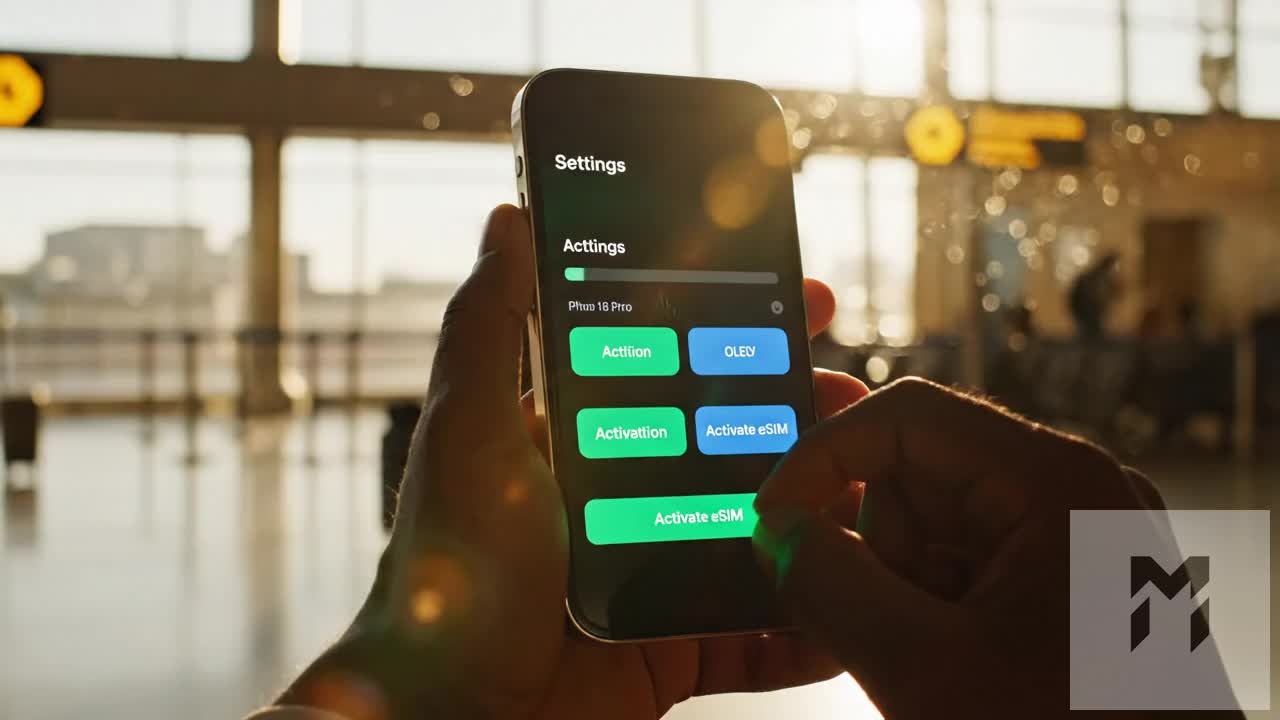
Section 1: The Golden Rule - Install Before You Fly
The #1 mistake travelers make is waiting until they land to install their eSIM. While MollySIM is robust, the initial installation requires a stable internet connection to register your device with the GSMA global database. Our recommendation: Install your MollySIM while you are still at home or in your hotel. Your data plan validity will not typically start until you actually connect to a roaming partner tower in your destination country.
Section 2: iPhone & iPad (2026 Ecosystem) Step-by-Step
As of early 2026, Apple has streamlined the eSIM experience across its entire lineup, including the iPhone 17 Pro, iPhone Air, and the iPhone 16 series. If you are using a device from the iPhone 11 onwards, follow these precise steps:
- Access Settings: Navigate to Settings > Cellular (or Mobile Service).
- Initiate Setup: Tap Add eSIM. Ignore the "Transfer from nearby" prompt and select Use QR Code at the bottom.
- The Scan: Position the QR code from your MollySIM "My Orders" screen in the camera frame.
- Activation: Your iPhone will display "Activating..." This can take up to 2 minutes as it contacts the eUICC chip.
- Labeling: Label the new line as "MollySIM" or "Travel." This prevents you from accidentally using your home carrier’s expensive roaming data.
- Default Line Logic: Set your home SIM as the "Default Voice Line" and set MollySIM as the "Cellular Data" line.
Section 3: Android (Samsung, Pixel, Motorola) Precise Steps
Android devices offer deeper control, and the 2026 models like the Galaxy S25 Ultra and Pixel 10 Pro have made this even faster.
- Samsung Galaxy: Go to Settings > Connections > SIM Manager > Add eSIM. Scan the QR code and ensure "Mobile Data" is switched to the new eSIM.
- Google Pixel: Navigate to Settings > Network & Internet > SIMs > Add SIM (+). Select "Download a SIM instead?" and scan.
- Motorola Razr & Edge: In Settings, look for "SIM Cards & Mobile Networks" to find the eSIM installation portal.
Section 4: The Critical "Data Roaming" Paradox
To use international data, you MUST enable "Data Roaming" for the MollySIM line. This is the most misunderstood setting in travel tech. Because you have set MollySIM as your data source, enabling roaming simply allows our chip to communicate with local partners (like Orange, SoftBank, or Vodafone). Without this toggle, your phone will show signal bars but have zero internet speed.
Section 5: Advanced Expert Tips for Data Longevity
In 2026, apps are more data-hungry than ever. To make your plan last:
- Disable Wi-Fi Assist (iOS): This prevents your phone from using MollySIM data when hotel Wi-Fi is spotty.
- Standard Definition Video: Set YouTube and Netflix to 480p. On a small screen, the quality difference is negligible, but it saves 70% of your data.
- Cloud Backups: Ensure "Cellular Data" is turned OFF for iCloud or Google Photos backups.
Conclusion: Connected from Minute One
By following this guide, you are no longer a passive traveler; you are a digitally empowered explorer. If you hit a wall, our 24/7 support team is available via the MollySIM Contact Portal. Welcome to the future of travel.